

Communication
SMS
Last updated:
SMS in Leepr lets you text students and families who do not use WhatsApp, from a phone number in your own Twilio account; this article covers setting it up, writing an SMS, replies, automation, STOP and what SMS costs.
How SMS works in Leepr
SMS goes through the same Twilio account you connect for WhatsApp, on the same page: Integrations → WhatsApp & SMS. You choose one of that account’s phone numbers to send from, Twilio carries the messages and bills you for them, and the number stays yours.
SMS carries text only. Files cannot be sent by SMS, and files people send you by SMS (MMS) are not received. There is no 24-hour window and nothing to approve: you can write at any time.
Each branch and sub-agent sets up its own SMS, on its own Twilio account. Setting the number and removing it need the same permission as connecting WhatsApp (Manage API keys and webhooks: owners and admins); sending an SMS needs Send messages, like email and WhatsApp.
What you need
- Your Twilio account connected on Integrations → WhatsApp & SMS (Connect your Twilio account). Connecting asks for a WhatsApp sender too. The SMS card appears below the WhatsApp card once the account is connected.
- A phone number in that Twilio account that can send SMS. Twilio’s console lists your numbers under Phone Numbers → Manage → Active numbers, with what each can do. Or, if your Twilio account has a Messaging Service whose numbers can send SMS, you can send through the service and let Twilio pick the number.
- For recipients in the United States: a number registered for A2P 10DLC (Twilio’s registration of your brand and campaign for ordinary US numbers), or a verified toll-free number. US carriers block unregistered traffic. For other countries, follow Twilio’s guidelines for that country, such as its rules on sender IDs and registration.
- Twilio’s own STOP filtering left as it is. It is on unless you asked Twilio Support to turn it off (When a person replies STOP).
Set your SMS number
- Open Integrations → WhatsApp & SMS and find SMS through Twilio. While it says “SMS is off”, click Set SMS number.
- Type the Phone number with its country code, as Twilio’s console shows it, for example +15017122661. If your account has a Messaging Service, Send from also offers the service (“Twilio picks the number”).
- Click Save.
Leepr asks Twilio whether the number belongs to your account and can send SMS, and saves nothing until it does. When it cannot, it says why: the number “is not a phone number of this Twilio account”, or it “cannot send SMS. Choose a number with SMS in Twilio’s console.” The card then shows On and your SMS number. Change, beside the number, sets another one the same way.
Paste the inbound URL into Twilio
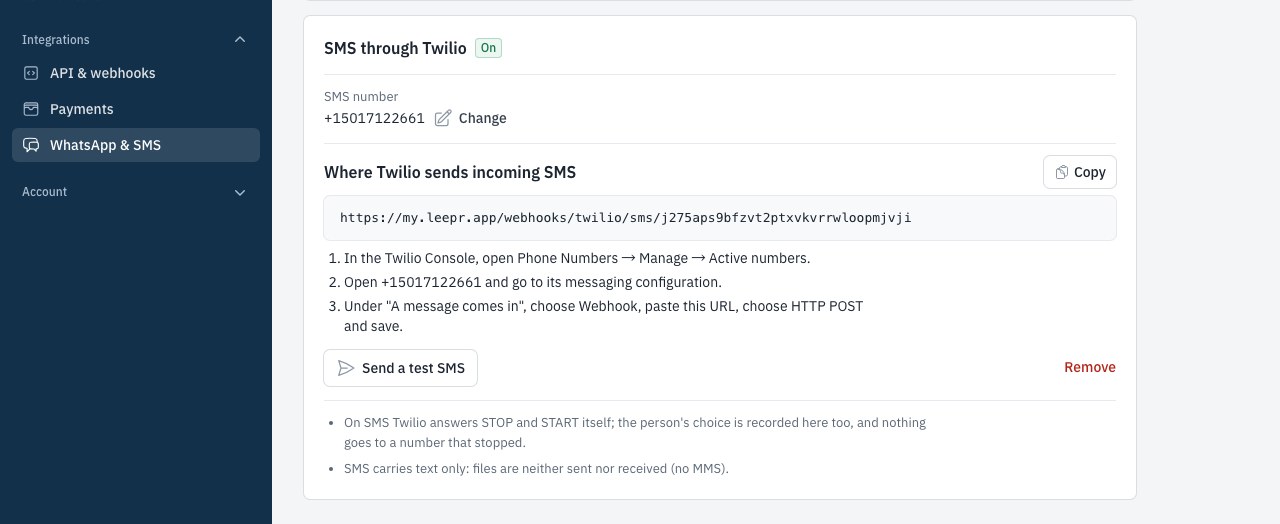
So that replies reach Leepr, Twilio needs to know where to send them. Under Where Twilio sends incoming SMS, click Copy, then:
- In the Twilio Console, open Phone Numbers → Manage → Active numbers.
- Open your SMS number and go to its messaging configuration.
- Under “A message comes in”, choose Webhook, paste the URL, choose HTTP POST and save.
Sending through a Messaging Service? The URL still goes on each SMS number in the service, as above. In the service’s own settings (Messaging → Services → your service → Integration), keep Defer to sender’s webhook. Do not set an incoming webhook on the service itself: it would receive the messages of every sender in the service, your WhatsApp sender’s too. Leepr would still file each message on the right channel, but keep the console set per number.
Delivery updates need nothing more: Leepr asks Twilio for them with every SMS.
Send a test SMS
Click Send a test SMS, type your own mobile number with its country code and click Send test. Leepr sends a short SMS from your SMS number through Twilio; nothing is stored. If it does not arrive, look the message up in Twilio’s console (Monitor → Messaging). If Twilio refuses it, you see Twilio’s reason, and the WhatsApp card keeps it as “Twilio last said: …”. You can send three test SMS an hour.
Send an SMS
- Open the lead and click Send SMS in its timeline, or open the Messages tab of a lead or a contact and click Send SMS.
- In To, choose one person. People without a mobile number with its country code are listed as “no mobile number” and cannot be chosen.
- Write your Message and click Send.
Send SMS sits beside Send email and Send WhatsApp once your SMS number is set and someone on the lead or contact has a phone number with its country code. When the person prefers SMS, it comes first.
An SMS is plain text of up to 1,600 characters, merge fields filled in; the counter shows how many are left. Twilio splits a long SMS into parts and bills each part. Two ways to fill it:
- Insert template puts any of your templates from Communication → Templates in, as plain text in the person’s language, ready to change. Nothing needs approving.
- Merge fields adds a person’s details, such as
{{student.first_name}}, as in emails.
An SMS has no subject, no Cc and no file, and goes to one person. It appears on the lead’s timeline as “SMS sent” and counts as a contact attempt, like an email or a WhatsApp message.
Send later, at the end of the composer, holds an SMS until a time you choose, up to 30 days ahead (Send later). With no 24-hour window, an SMS can be scheduled for any time. It is not sent if the number replies STOP before then.
Replies and the Inbox
SMS conversations are separate from WhatsApp ones, even with the same person and number. Workspace → Inbox lists them beside email and WhatsApp with their own icon, and the Channel filter shows SMS alone. A conversation is titled “SMS with” the person’s name, such as “SMS with Maria Pereira”, and shows their number. Replies go in the box at the bottom, with Insert template and merge fields; there is no file and no Send a template.
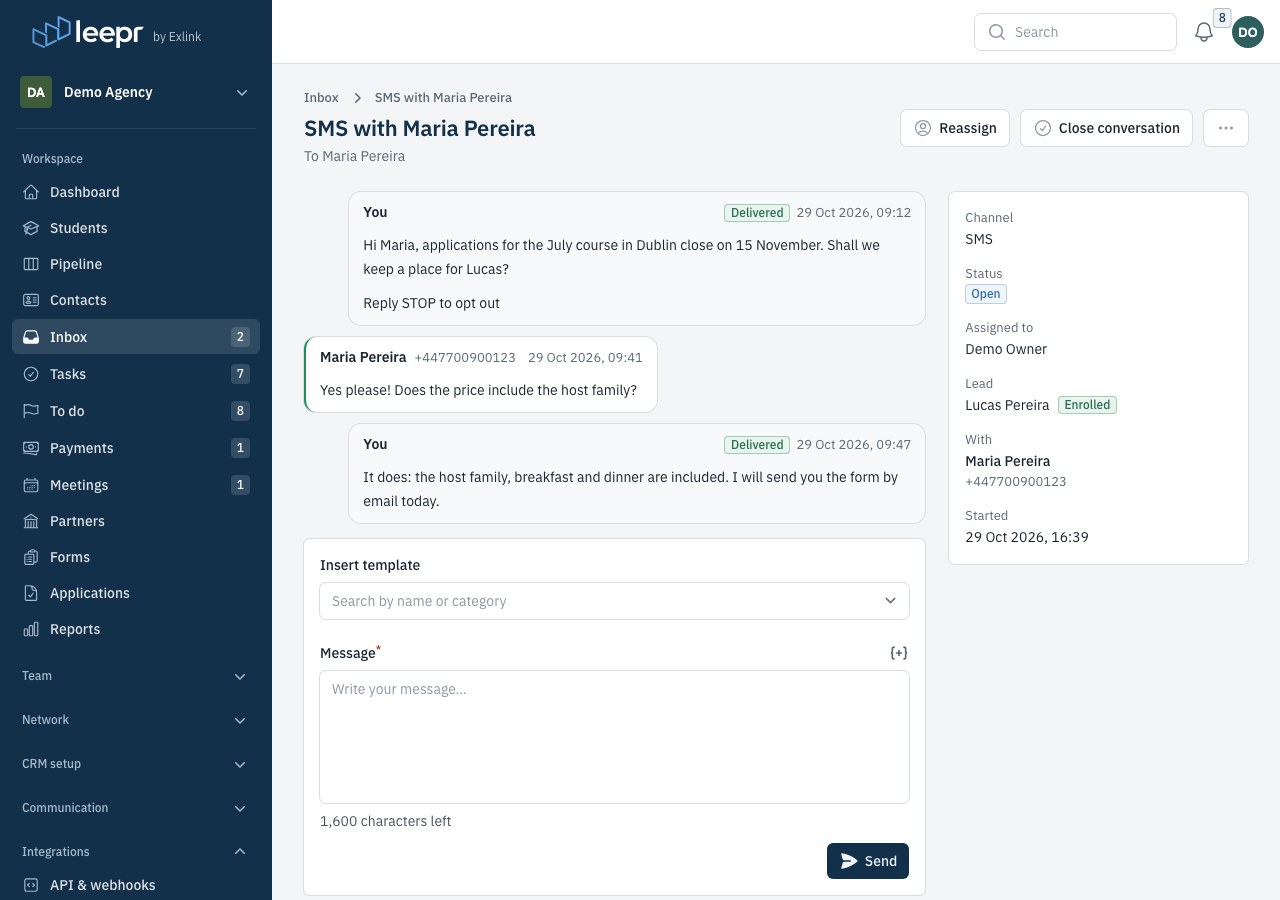
When a reply arrives, it works as on WhatsApp: it appears in the conversation and on the lead’s timeline as “SMS received”, the member it is assigned to is told (“Maria Pereira sent an SMS”), the lead becomes Engaged, its sequences stop, and workflows that start with A reply arrives on a lead run.
An SMS from a number none of your contacts has becomes a new contact, named after the number and on no lead: add them to one yourself. Each message you send shows its status: Sending, Sent, Delivered or Not sent with Twilio’s reason.
SMS in sequences, workflows and campaigns
While your SMS number is set:
- a sequence can have an SMS step: a template and who it goes to, sent as the member who enrolled the lead;
- a workflow can use the action Send SMS: a template, to the primary contact or the student;
- a campaign can choose the channel SMS: any shared template, sent as plain text.
Each sends the template’s text in the person’s language, merge fields filled in, and ends it with “Reply STOP to opt out” in the person’s language (once, and not when the text already mentions STOP). An SMS you write yourself from a lead or the Inbox does not get that line.
Consent works as for email and WhatsApp: when your agency sends only with marketing consent, sequence and workflow SMS go only to people with marketing consent recorded, unless the lead asked to be contacted through a form or the API; campaigns always need it. A step or an action is skipped, and the sequence or workflow goes on, when SMS is not set up or the person has no number with its country code; the timeline or the run’s log says why (“Not sent: SMS is not set up.”). A number that replied STOP on SMS gets nothing: its sequences stop and workflows skip it.
SMS campaigns leave out people without a number with its country code (No address), people who replied STOP (Replied STOP to stop these messages), people who unsubscribed, have no marketing consent or were reached by a campaign lately, as email campaigns do. They have no daily limit, unlike WhatsApp; they go at the same pace per minute as every campaign. Their results are Sent, Delivered, Replied and Failed, beside Recipients: no Read, Opened, Clicked or Unsubscribed figures. Send a test SMS to your phone sends the text, filled in for the first person of the audience and with the opt-out line, to the number you type; nothing is stored.
When a person replies STOP
A person who replies STOP to your SMS stops SMS from your agency to that number: nothing more goes to it, from sequences, workflows, campaigns or your own composer, until they reply START. A STOP on SMS does not stop WhatsApp, and a STOP on WhatsApp does not stop SMS. The keywords and where Leepr shows a stop are in When a person replies STOP.
On SMS, Twilio’s STOP filtering answers STOP and START itself, and Leepr records the person’s choice either way. Leepr answers HELP and INFO with your agency’s name, its contact email when it has one, and “Reply STOP to stop receiving SMS.” If Twilio Support turned off Twilio’s STOP filtering on your account, nobody sends the person a confirmation, but Leepr still records and respects their STOP.
When Twilio refuses an SMS because the number opted out at Twilio (error 21610), Leepr records it as a STOP too.
What SMS costs
Twilio bills your agency directly for SMS, at Twilio’s prices for each country, per part of a message: a long SMS is several parts. Numbers and US registration (10DLC or toll-free verification) are Twilio’s charges too. Leepr charges nothing for SMS: messages sent and received count toward nothing on your Leepr invoice (see Billing and credits).
Turn SMS off
Click Remove on the SMS card and confirm “Turn SMS off?”. SMS can no longer be sent from Leepr, incoming SMS are no longer filed, and SMS conversations stay readable. A campaign that is sending SMS pauses itself. Set a number again to turn SMS back on.
Disconnect, on the WhatsApp card, removes the whole Twilio account: WhatsApp and SMS both stop.
Troubleshooting
- “SMS is not set up”: an owner or admin sets the SMS number in Integrations → WhatsApp & SMS.
- Send SMS is missing: no SMS number is set, or nobody on the lead has a phone number with its country code. Correct the number on the contact.
- Send SMS is off, “Everyone here with a mobile number asked to stop SMS”: everyone with a number replied STOP. Only they can start SMS again, by replying START.
- Not sent with 21610: the person opted out at Twilio, usually by replying STOP. Leepr records it as a STOP; only their START reopens SMS.
- Not sent with 21211: the number is not valid. Correct it on the contact page, with its country code.
- Not sent with 30034: a US message from a number not registered for A2P 10DLC. Finish the registration in Twilio and add the number to the campaign’s Messaging Service.
- Not sent with 30032: a US or Canadian message from a toll-free number that is not verified yet. Wait for Twilio’s toll-free verification.
- Not sent with 30007: Twilio or the carrier filtered the message as spam or against its rules. Check Twilio’s messaging policy; if your messages comply, Twilio Support can review them.
- Replies never arrive: the inbound URL is not pasted under “A message comes in” on the SMS number, or, with a Messaging Service, the service has its own incoming webhook instead of Defer to sender’s webhook.
- “An SMS carries text only”: remove the file and send the text; share the file by email or WhatsApp.