

Communication
Scheduling and booking
Last updated:
A student or parent can book a call with you through a personal link, at a time when your calendar shows you are free; this article covers setting that up, sending the link and handling the meetings.
My calendar
Your own scheduling lives in the user menu (your avatar at the top right) → My calendar, with three tabs: Calendars, Availability and Event types. Each member sets up their own.
You need the permission Use scheduling: own calendars, hours and event types. Owners, admins, managers and agents have it unless your agency changed their roles.
Connect your calendar
On Calendars, under Connect a calendar, choose Connect Google (Google Calendar, Gmail or Google Workspace) or Connect Microsoft (Outlook, Microsoft 365 or Outlook.com), sign in and accept the permissions. Leepr reads when you are busy and adds booked meetings to your calendar; it never changes anything else. If Google shows a warning screen first, the note on the page tells you how to continue.
Your calendar then appears as a card:
- Busy times from: the calendars whose busy times hide your free slots.
- Bookings added to: the calendar that receives new meetings.
At first both use your main calendar. Click Choose calendars to add others, such as a shared team calendar, to the busy times.
If a card shows Needs reconnecting, click Reconnect: until you do, your busy times there are not checked and no meetings are added. Disconnect stops both; meetings already in your calendar stay there.
Weekly hours and date overrides
On Availability, choose your Time zone and switch on the days you take calls. Each day has one or more from–to rows; Add hours splits a day, for example around lunch. Under Date overrides, Add a date for a day off (Unavailable all day) or different hours on one day. Click Save availability.
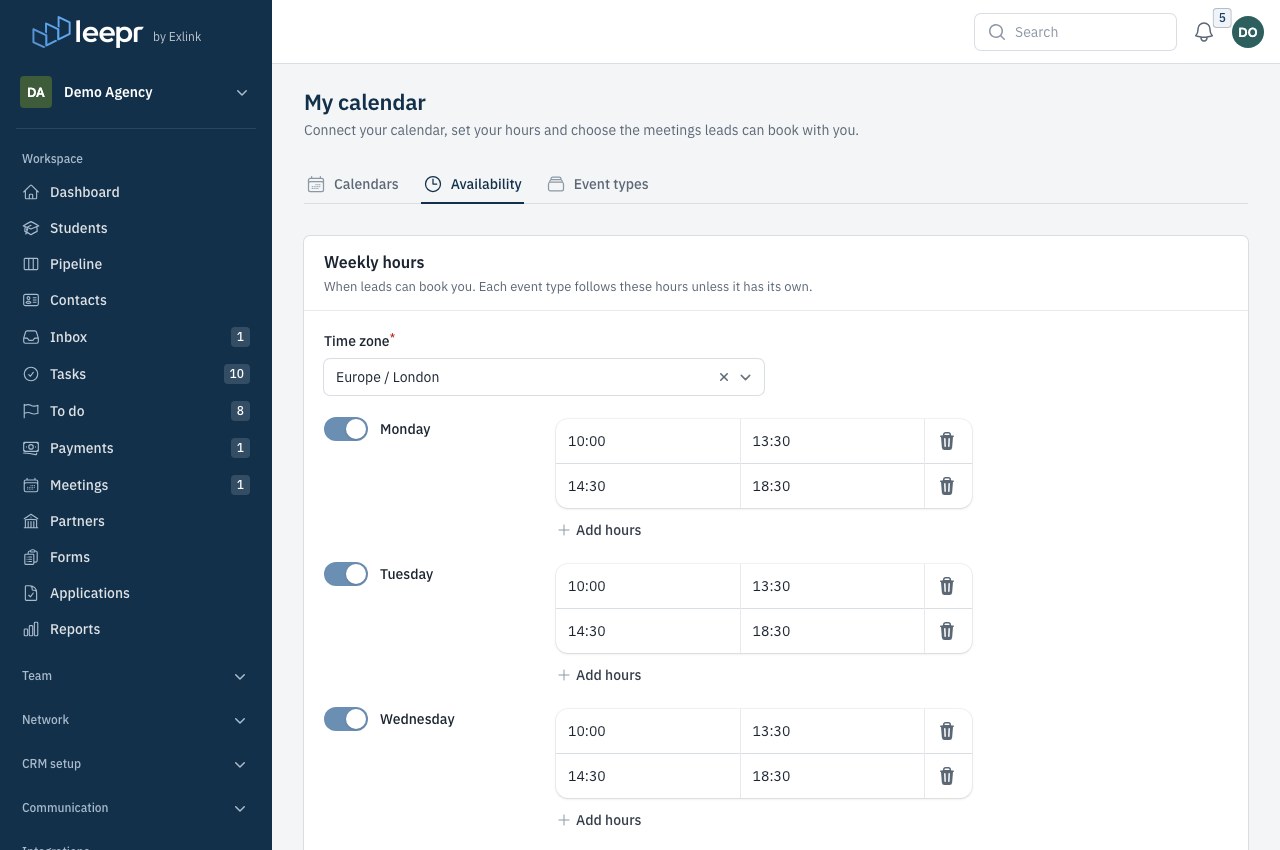
Until you save your own hours, Leepr offers Monday to Friday, 9:00 to 17:00. Families only see times inside your hours that your busy calendars leave free.
Event types
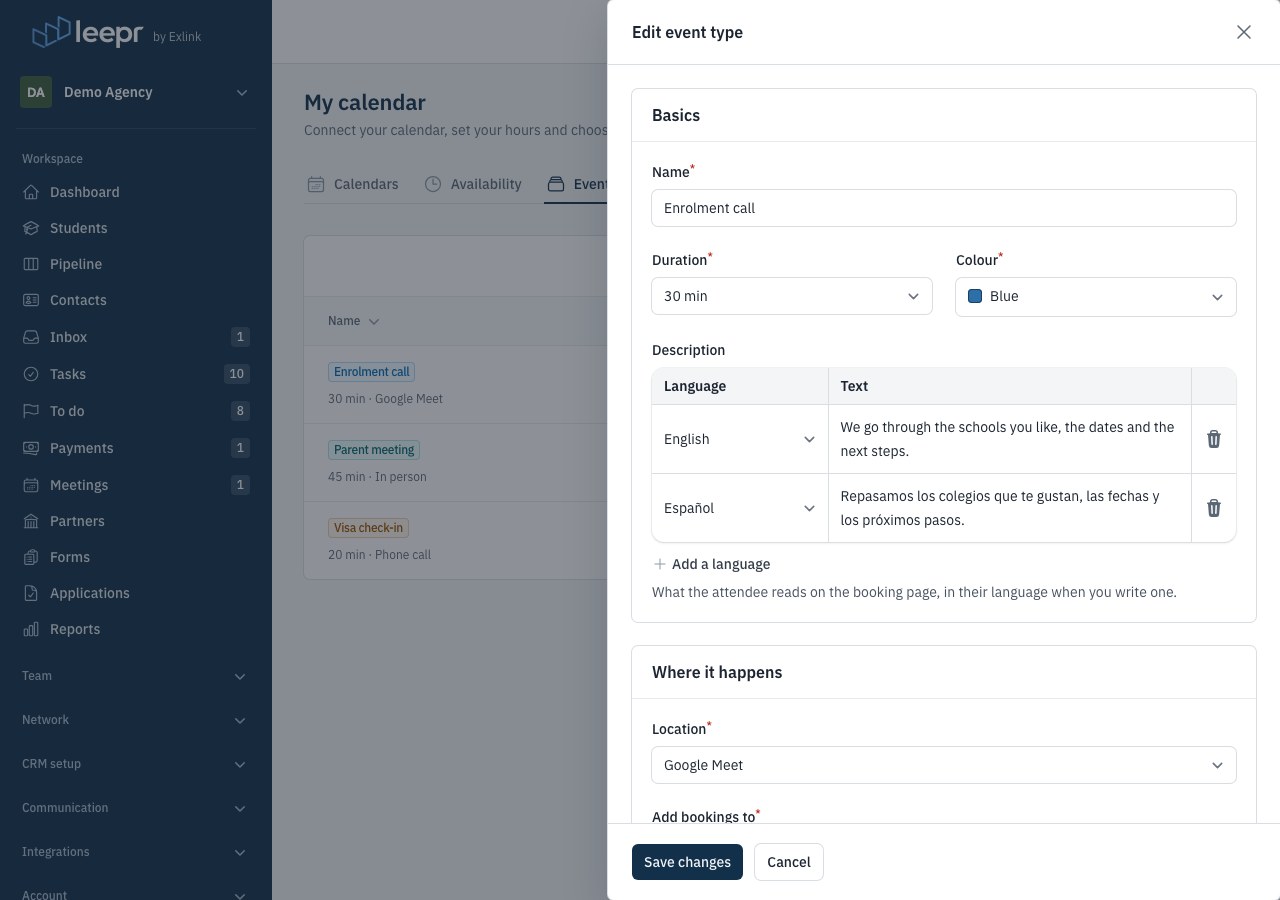
An event type is a meeting you offer, such as a 30-minute “Enrolment call” on Google Meet. On Event types, click New event type, or ⋯ → Edit on an existing one. It opens in a panel on the right:
- Basics: name, duration, colour and a description in each language you write.
- Where it happens: Google Meet, Microsoft Teams, Phone call, In person or Other, and Add bookings to, the calendar that gets the meeting. Google Meet needs a connected Google calendar and Teams a Microsoft one; the meeting link is made when someone books.
- Booking rules: Minimum notice, how many days ahead people can book, Start times every, and Free time before and after a meeting.
- What the attendee can do: I approve each booking, Attendee can reschedule, Attendee can cancel, and until how many hours before the meeting they can change it.
- Hours for this event type only, and extra Questions the attendee answers.
- Bookable: turned off, nobody can book it.
⋯ → Preview booking page shows the page as a family sees it; nothing can be booked there.
What the organisation sets
Owners and admins set the defaults in Communication → Scheduling:
- Booking page: whether times are first shown in the attendee’s own time zone or your organisation’s, whether the page shows your organisation’s name, and a Welcome message above the times.
- Reminders: when attendees get a reminder email, from 1 week to 15 minutes before; 1 day and 1 hour are on at the start. You get the same reminders in the notification bell.
Below them, a read-only list shows every member’s event types.
Send a booking link
A booking link is personal: it is for one person on one lead, and whatever they book lands on that lead.
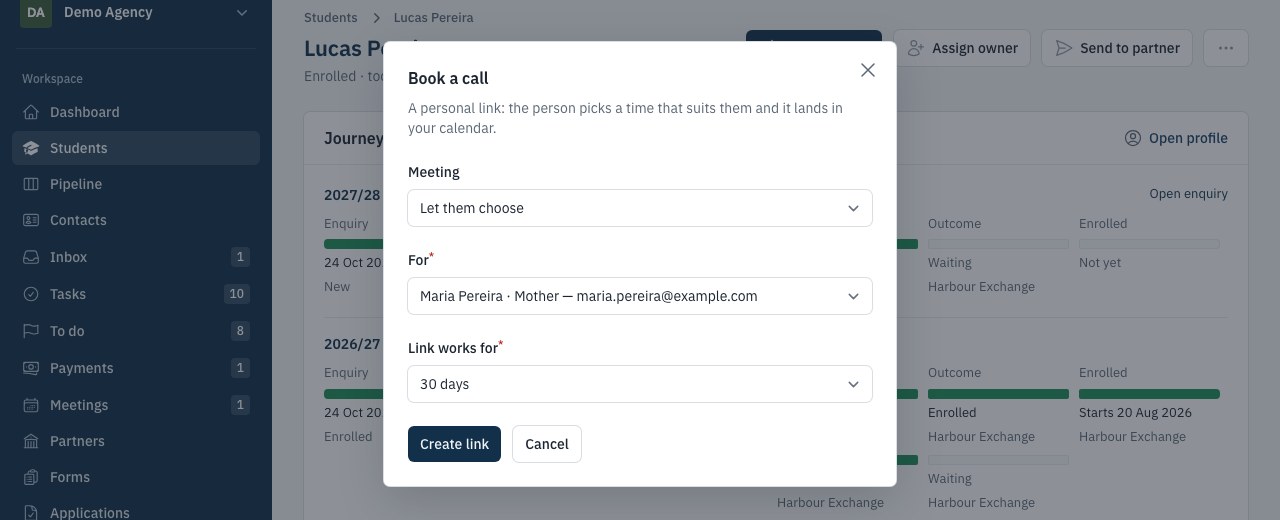
- On the lead, click Book a call in the timeline.
- In Meeting, pick an event type, or Let them choose.
- In For, pick the person. The primary contact comes first.
- In Link works for, choose 7 days, 30 days or Until revoked.
- Click Create link, then copy the link from Booking link ready into your message.
Anyone with the link can book with you as that person, so send it only to them.
In an email, use Merge tags → Booking · Personal booking link. Each email gets the recipient’s own link when it is sent; the preview shows “(personal booking link)”. The link is for the first person in To, so write one email per person when two people should each book. The field also works in templates and sequences, as long as you have a bookable event type.
To stop links, open the lead’s ⋯ menu → Revoke booking links, tick them and click Revoke. The page then says the link is no longer active. Meetings already booked stay.
What the family sees
The booking page greets the person by name (“Hello Maria”), says what they are booking and with whom, and shows your description and welcome message. They pick a day, then a time, shown in their own time zone, which they can change. They answer your questions and click Confirm booking, or Send request when you approve each booking.
The confirmation comes from you, in the lead’s conversation, so it is in your Inbox too. It says when, with whom and where (with the Join link for Google Meet or Teams), has a Reschedule or cancel link and carries a calendar invitation (an .ics file). Every later change and reminder is a reply in that same conversation.
Reschedule or cancel opens the family’s own page for the meeting. While your event type allows it, they can Reschedule to another free time or Cancel with an optional reason. Closer to the meeting than your limit, the page asks them to contact you.
Your calendar and the lead
When someone books, the meeting goes into your calendar (with the Meet or Teams link), the lead’s timeline shows “Enrolment call booked for …”, and your notification bell tells you. The family gets one invitation, Leepr’s, not a second one from your calendar.
If you delete the meeting in your own calendar, Leepr cancels the booking and tells the family. If you move it there, Leepr moves the booking and sends the new time.
Meetings
Workspace → Meetings lists your upcoming meetings: when, with whom and for which lead, where, and the status. Filter by When, Status or Meeting; owners and admins can also show everyone’s. A number beside Meetings counts requests waiting for you.
Each row’s ⋯ menu has View, Open lead, Approve and Decline for requests, Ask for a new time (cancels and sends the person a new link), Cancel meeting (your reason goes to the person), Mark completed or Mark as no-show once it has started, and a Note only your team sees.
On the Dashboard, Next meetings shows your next ones, with All meetings.