

Work
Tasks and workflows
Last updated:
Tasks are the things your team has to do about the people you work with, and workflows are rules that act on their own when something happens to a lead, a task or a student; this article covers both.
Your tasks
Workspace → Tasks opens on Mine, your open tasks. Due today, Overdue and Upcoming (the next 7 days) show the whole team’s open tasks, Completed the finished ones and All everything. Use the Assigned to filter to narrow any tab to one member, and the other filters for type, priority, queue, what a task is about and due dates.
The number next to Tasks in the sidebar counts your open tasks due today or overdue. The dashboard’s My open tasks lists them, overdue first.
Click the circle in the Done column to complete a task, or its title to open it.
Create a task
Click New task.
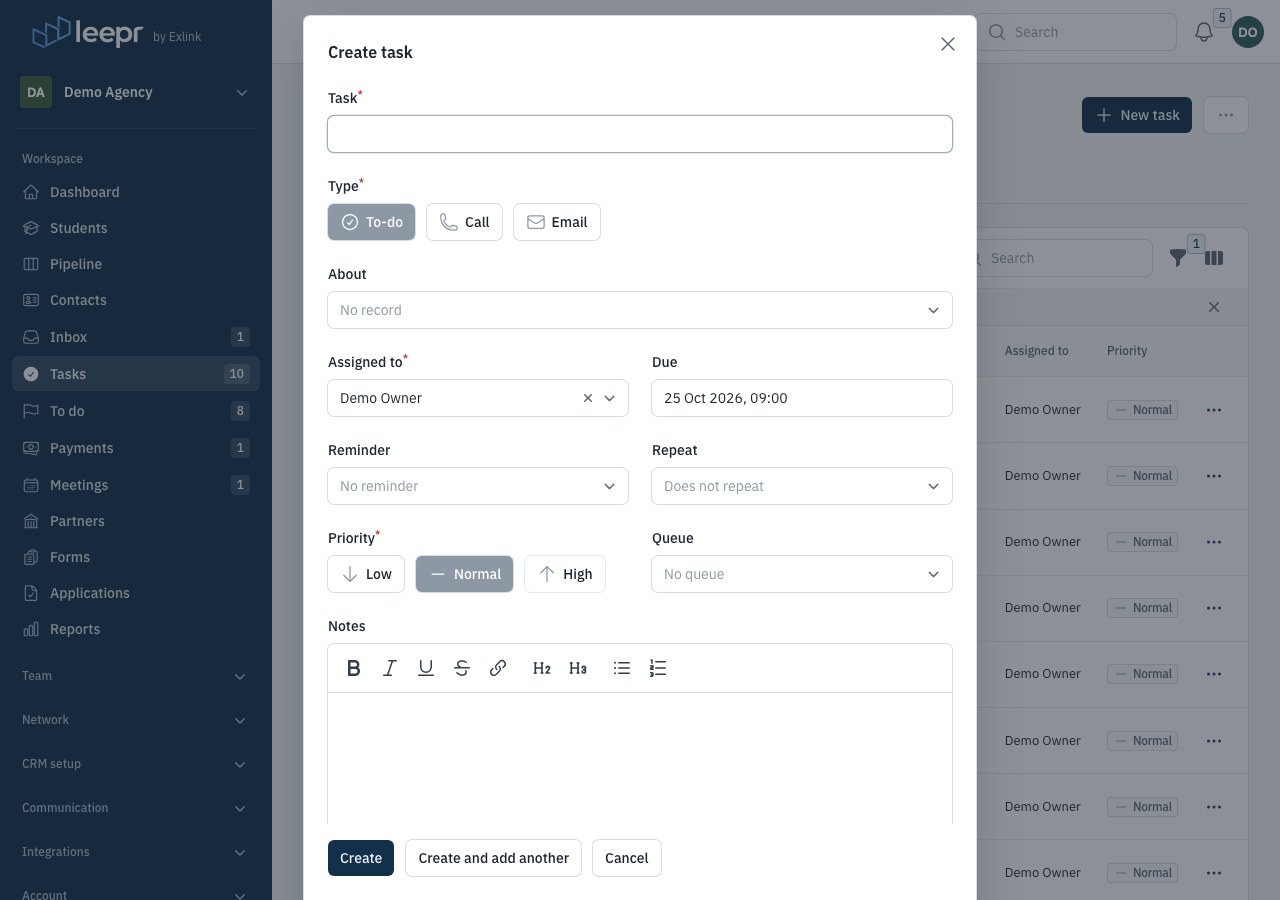
- Task: what to do.
- Type: To-do, Call or Email.
- About: search for a lead, a person or a student at a partner, or keep No record for a task of your own. The task then also shows on that record’s page.
- Assigned to: you, or a colleague, who is told in the bell and by email.
- Due: tomorrow at 09:00 unless you change it.
- Reminder: At the due time, 30 minutes before, 1 hour before or 1 day before.
- Repeat: every day, week, month or year. It needs a due date; completing the task creates the next one, one period later.
- Priority, Queue and Notes.
The task panel
A task opens in a panel beside the list. Edit any field and click Save changes. Complete (or Reopen) is at the top; Delete is under ⋯, and it deletes the task’s subtasks too.
Under Subtasks, Add subtask splits the work into steps, each with its own due date and assignee. Tick a subtask and save to complete it. Subtasks go one level deep.
When you complete a call or email task about a lead, Leepr asks Log this call on the timeline? Add a note if you like and click Log and complete, or Skip. An open email task also offers Send email.
Queues, under ⋯ at the top of the Tasks page, group tasks to work through together, such as calls. A queue is shared with the team, or Private to you.
Tasks on leads, people and students
Records have their own task lists, each with a New task button for that record:
- the lead page’s Tasks tab;
- a person’s profile, Tasks tab: tasks about the person and their enquiries;
- the student page’s Tasks card, under To do.
In Workspace → To do, a row’s ⋯ → Create task fills in a task from what the partner is asking for.
The lead’s follow-up
A task about a lead with a due date becomes the lead’s Follow-up when the lead has none, or its follow-up is overdue. A sooner follow-up stays, and a follow-up you set by hand is never changed. When you complete or delete the task, the follow-up moves to the lead’s next open task, or is cleared; a nurturing lead always keeps one. Won and lost leads are left alone.
Reminders and the morning digest
You get a bell notification and an email:
- when someone else assigns you a task (“Leo assigned you a task: Call the Tanakas”);
- when a task’s reminder time comes (“Reminder: Call the Tanakas”);
- at 07:00 in your time zone, when you have tasks due that day or overdue (“Your tasks today”, with Open Tasks).
To change this, open your avatar at the top right → Profile, section Tasks. Remind me before a task is due sets the reminder new tasks start with. Email me my tasks every morning turns the digest on or off; it starts on. Click Save changes.
Creating, completing and changing tasks needs Create, edit and complete tasks (Owners, Admins, Managers and Agents have it by default). Viewers can read tasks but not change them.
Workflows
Communication → Workflows lists your workflows with their trigger, On or Off, Runs (7 days) and Last run. Building them needs Build, turn on and off and delete workflows (Owners, Admins and Managers by default).
Every organisation starts with five starter workflows: Welcome new website leads, Share new leads around the team, Chase stale leads and Student placed are turned off until you want them; Chase overdue payments is on from the start (it emails the payer a reminder and gives the lead’s owner a call). Open one, adjust it, and click Turn on or Turn off. Whoever turns a starter on becomes its creator, who sends its emails and gets its tasks when a lead has no active owner.
Build a workflow
Click New workflow, name it, and work through the sections from top to bottom:
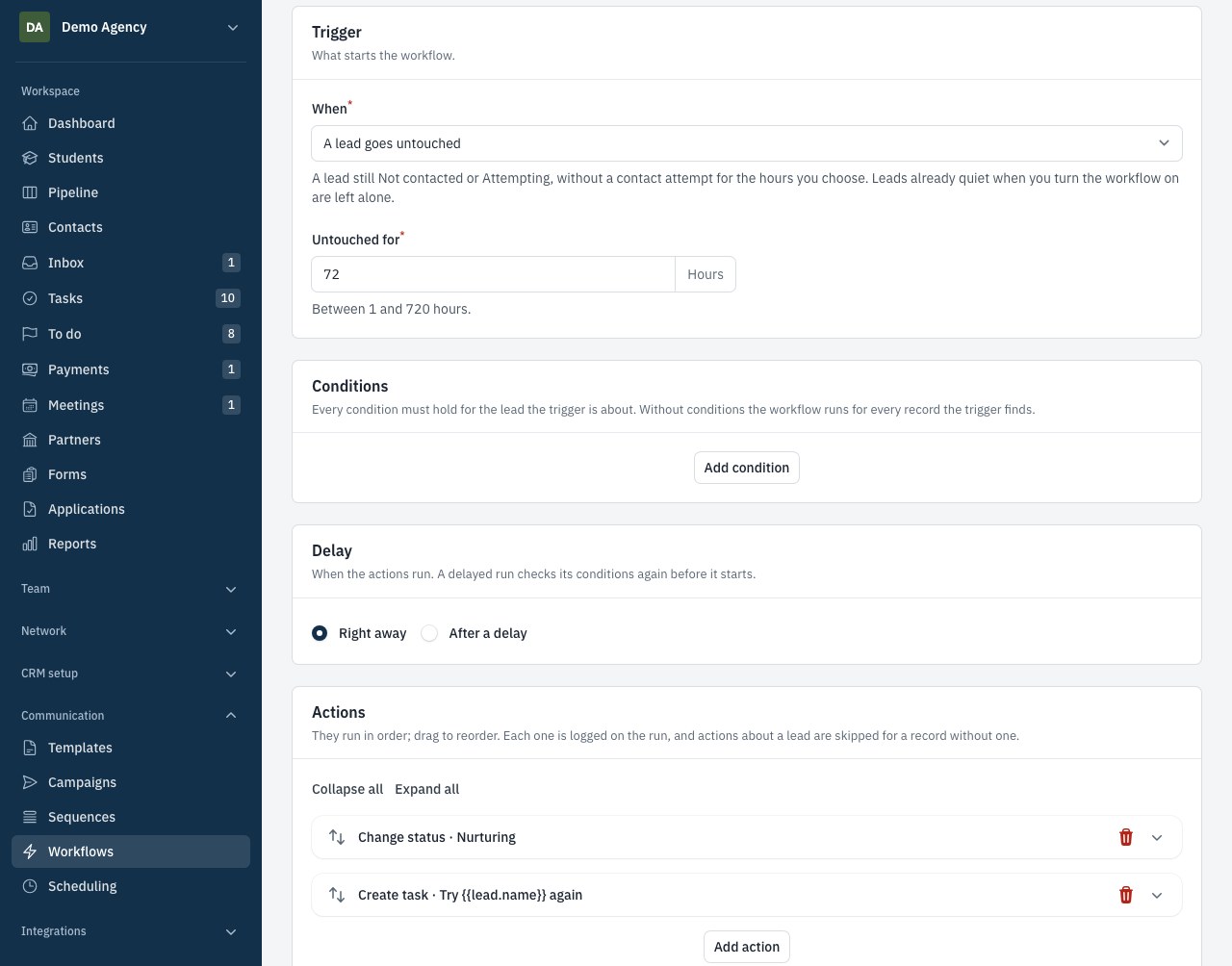
- Trigger: choose When, such as a lead is created, moves stage or goes untouched, a task is completed, a form is submitted, a reply arrives, a meeting is booked, or a partner waits for the agency. Narrow it if you like; an empty field means all.
- Conditions: Add condition for each thing the lead must match, such as stage, source, tags, owner, status or a lead field. Every condition must hold.
- Delay: Right away, or After a delay of minutes, hours or days (Business days only if you want). A delayed run checks its conditions again before it starts.
- Actions: Add action for each step: assign the owner, tag, move stage, change status, set a follow-up, create a task, send an email template, send a WhatsApp template (WhatsApp, while it is connected), send an SMS (SMS, while your SMS number is set), enrol in or stop sequences, notify members, call a webhook or add a note. They run in order; drag to reorder. Texts take merge fields such as
{{lead.name}}. - Options: Run once per record (on by default) runs the workflow only the first time a record matches. Send emails as chooses the sender.
Click Create (Save changes when editing), then Turn on. A workflow needs at least one action before it can be turned on.
Emails from a workflow follow the rules of sequences: people without an address, with stopped email or without the consent you require are left out. WhatsApp and SMS actions also skip a person who replied STOP on that channel (“Not sent: … replied STOP to stop these messages.”).
Runs and the log
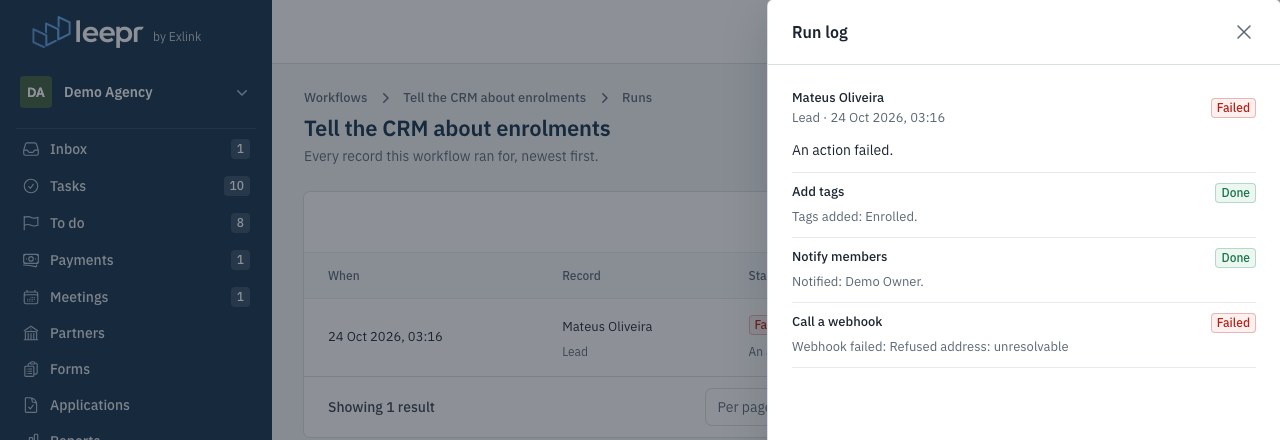
Each time a workflow starts for a record is a run. The workflow’s ⋯ → Runs lists them, newest first, with the record and the status (Done, Skipped, Failed and others) and the reason beneath. A row’s ⋯ → View log shows what each action did.
The lead’s timeline gets one line per run, such as “Qualified follow-up: task created, members notified, note added”.
When something goes wrong
Each action runs on its own. If one fails, the log says why, the others still run, and the run ends Failed. Fix the cause and choose ⋯ → Retry on the run: only what failed or never ran runs again. Nothing is retried by itself.
A delayed run whose conditions no longer hold is Skipped. Turning a workflow off or deleting it cancels its queued runs; the runs that already happened stay on the leads’ timelines and in Reports.
Workflows can set each other off, but a workflow never starts itself, and a chain is stopped with “Stopped: workflows set each other off more than three times in a row.”