

Communication
Inbox and email
Last updated:
Leepr sends your emails to students and their families and files every reply on the right lead; this article covers writing, templates, the Inbox, sending a message later and what to do when an address stops working.
How Leepr sends your email
There is nothing to set up: no mailbox to connect and no domain to verify. Leepr sends each email from its own address with your name in front, so the family sees it as from “Demo Owner via Demo Agency”. The email ends with one line: “Demo Agency is using Leepr to stay in touch with you.”
Each conversation has its own reply address. When the family answers in their usual mail app, the reply comes back to that conversation in Leepr, on the right lead, without anyone forwarding it.
Emails you send from your own Gmail or Outlook do not reach Leepr. To keep a record of one, click Email in the lead’s timeline: it logs an email sent elsewhere, while Send email sends one from Leepr.
Send an email from a lead
- Open the lead and click Send email in its timeline (or open its Messages tab and click Send email).
- In To, choose who gets it. The lead’s people with an address are listed, and the primary contact is already chosen.
- In Cc, add other people on the lead, a colleague or any address.
- Write the Subject and Message, or choose a template in Insert template.
- Add Attachments if you need them: PDF, images, Office documents or ZIP files, 10 MB in total.
- Check the Preview and click Send, or turn on Send later to choose when it goes (below).
The email appears on the lead’s timeline as “Email sent” and counts as a contact attempt. A person’s contact page has the same Send email on its Messages tab, where About picks which of their leads the conversation belongs to.
Templates and merge fields
Communication → Templates holds the messages you write again and again. Every agency starts with seven shared starters: First contact, Follow-up after no reply, Request documents, Finish your application, Your application, Payment request and Payment reminder.
Click New template and give it a Name and a Category. Shared with the team makes it available to everyone; turned off, only you see and use it. Owners, admins and managers can share templates (Manage shared templates in Team → Roles); other members who send messages write private ones.
Content has one tab per language, with a check on each language you have written. A recipient gets their own language, else your agency’s, else English. Each language needs both a subject and a message.
To add a person’s details, click Merge tags (the {+} button) in the message toolbar and pick a field:
- Recipient: first name, last name, role on the lead
- Student: first name, last name and the student’s details
- Lead: program interest, intended intake, the application links and your lead fields
- Agency: your agency’s name
- Sender: your first name, name and email
- Booking: a personal booking link (see Scheduling and booking)
In the subject, type the field in double braces, as the starters do: {{student.first_name}}. The fields are filled for the first person in To. A field without a value stays empty; a misspelt one shows a warning under the editor and stays empty too.
The Preview section of a template shows it as a lead’s primary contact would read it; pick another Lead or Language to check. In the composer, Insert template fills the subject and message in the recipient’s language, replacing what you had typed.
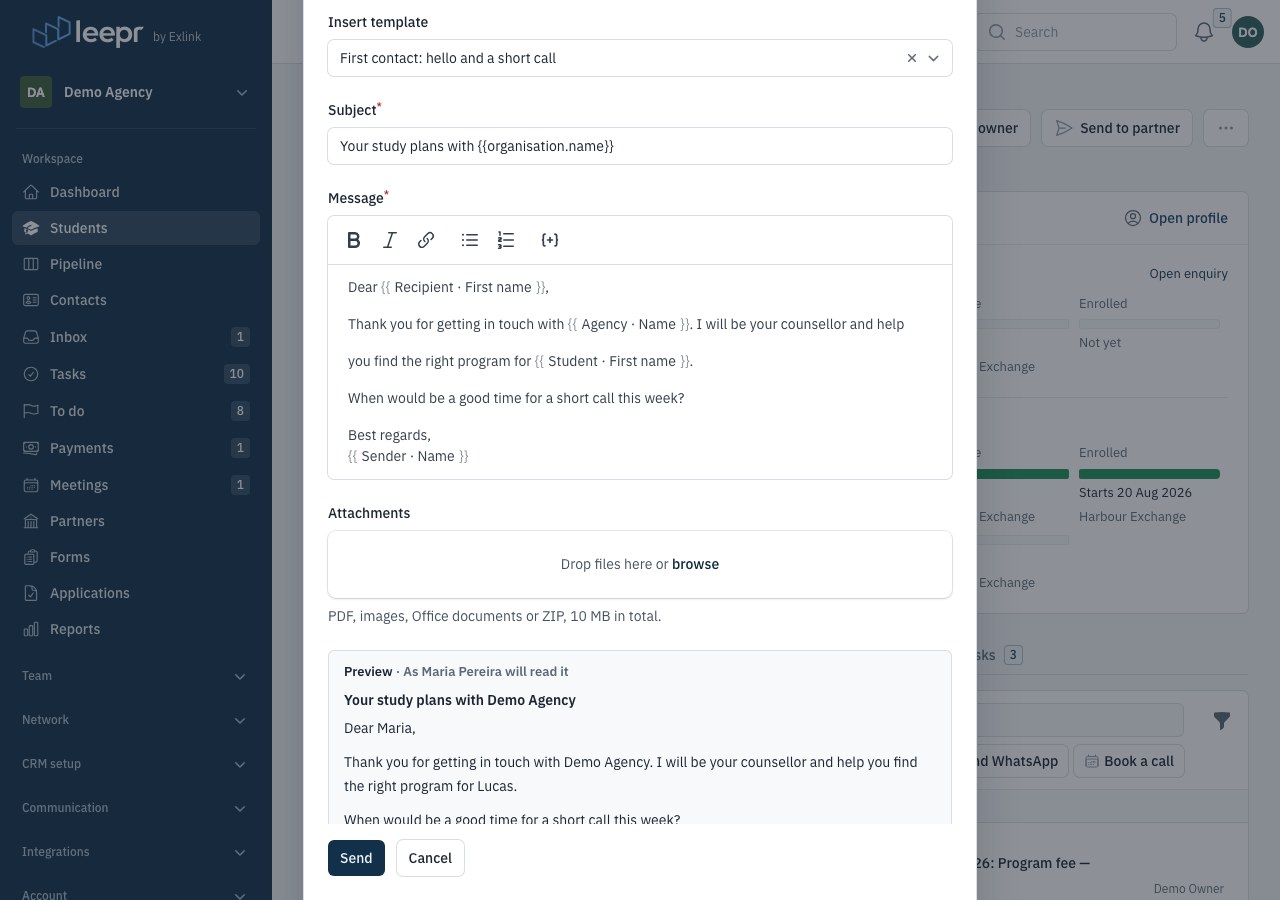
Templates are never deleted. Archive takes one out of the template picker, Restore brings it back, and Duplicate makes a copy to change.
The Inbox
Workspace → Inbox lists your email, WhatsApp and SMS conversations; Channel filters them by kind. Each row shows the subject, the first words of the latest message (“You: …” when it is yours), the people, the lead and its stage, the time and who the conversation is assigned to. A green dot marks a conversation with something unread, and the number beside Inbox counts yours.
Filter by Unread, Assigned to me, Status or Lead stage, or search by subject, name or email address.
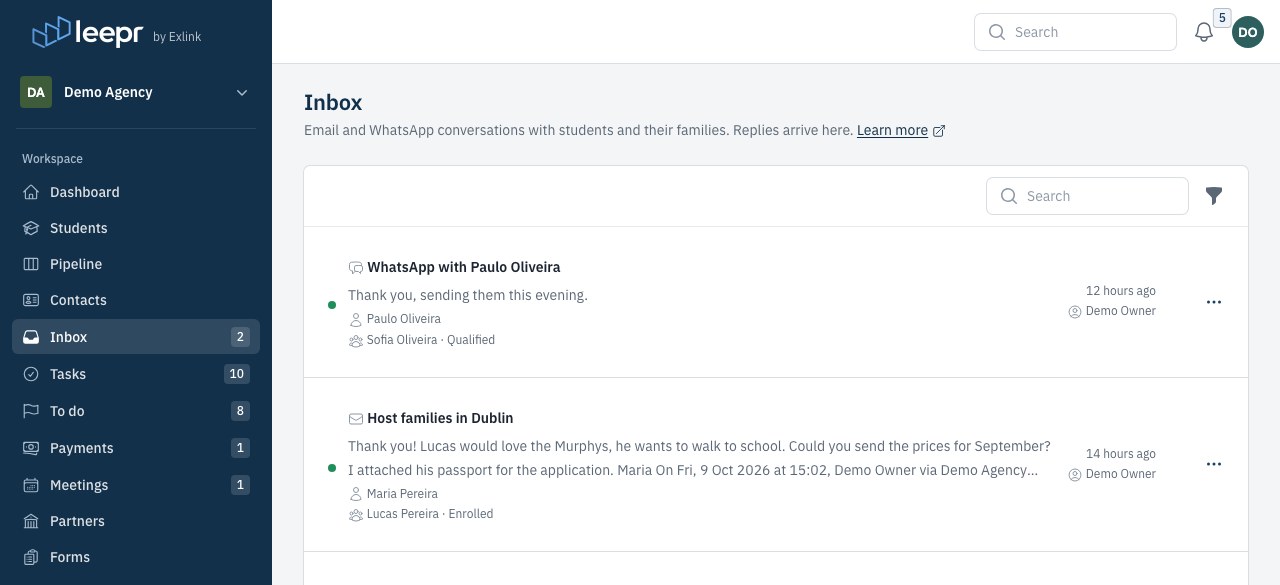
Owners, admins and managers see every conversation in the agency. Other members see their own: conversations assigned to them, ones they wrote in, and ones on leads they own.
A conversation
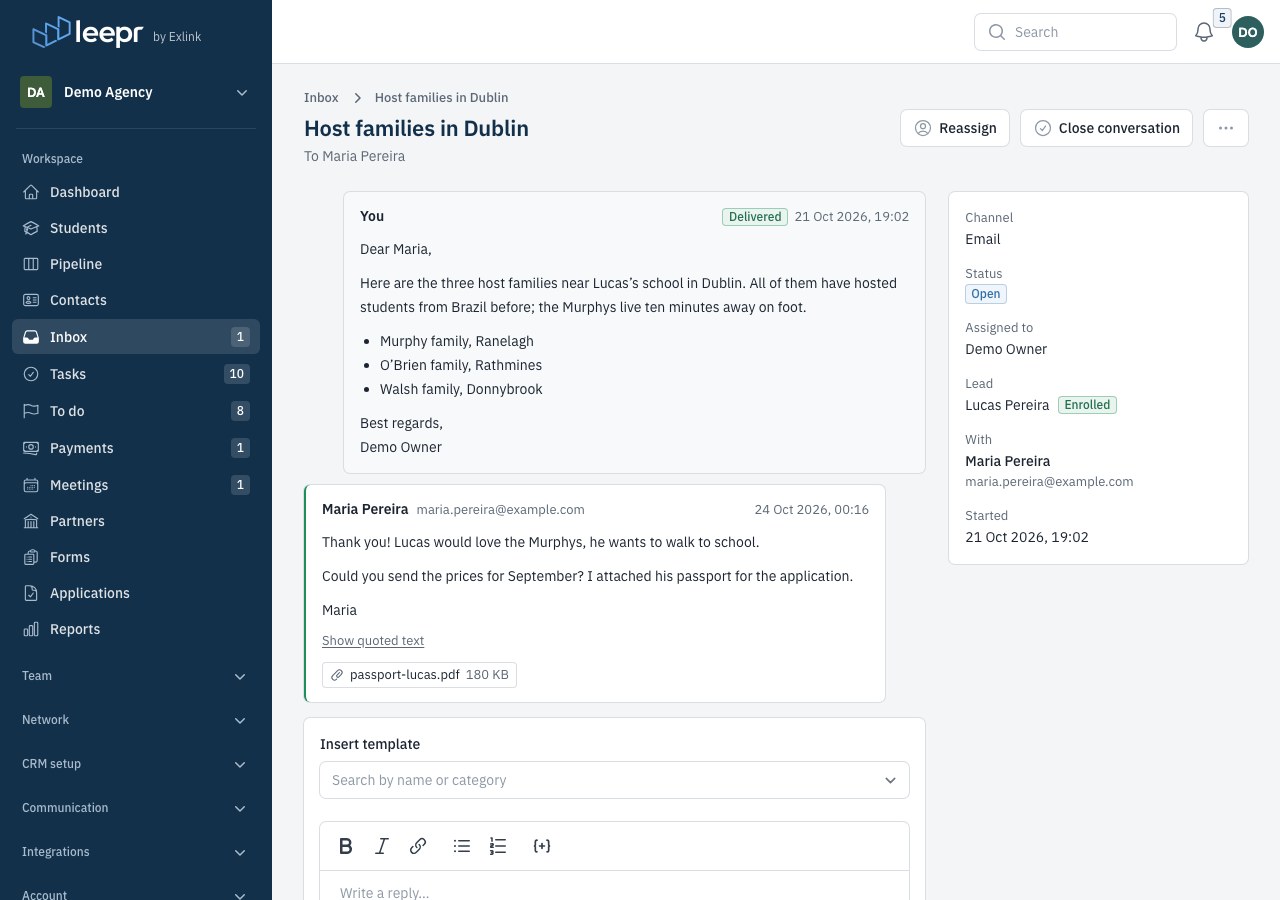
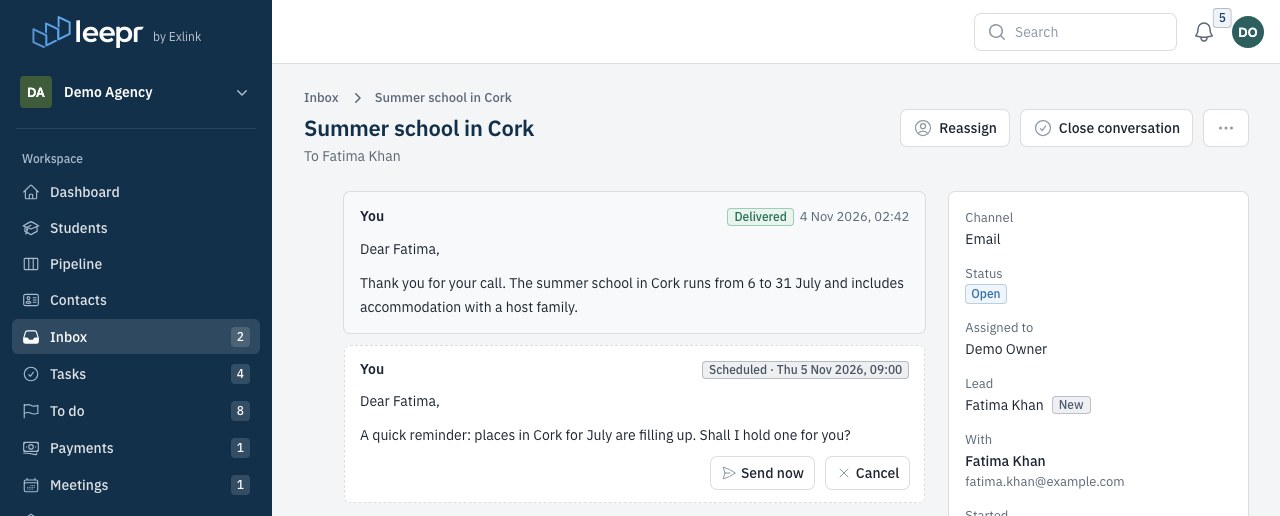
Opening a conversation marks it read. Messages run oldest first: received ones on the left, yours on the right with their status. Show quoted text opens the earlier messages a reply quoted, and attachments are listed as files to download. The card on the right shows the status, who it is assigned to, the lead, the people and when it started.
Reply at the bottom: Insert template works here too, then Send. The reply goes to everyone in the conversation. Replying to a closed conversation opens it again.
At the top, Reassign gives the conversation to another member (owners, admins and managers), Close conversation files it away, and the ⋯ menu has Open lead and Create task.
Send later
Any message you write can wait for a time you choose: Send email, Send WhatsApp and Send SMS on a lead or a contact, a task’s Send email, the reply box of a conversation and Send a template in a WhatsApp conversation all end with a Send later switch. Scheduling a message needs the same permission as sending it (Send messages).
- Write the message as usual.
- Turn on Send later.
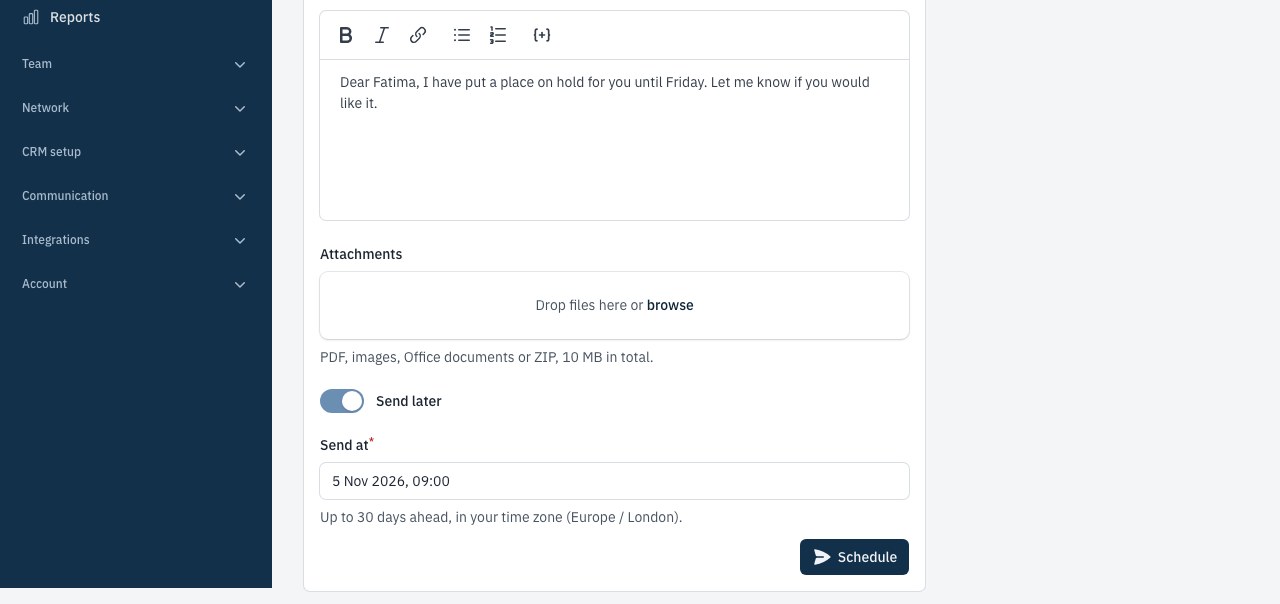
- In Send at, choose the day and time, in your own time zone. It starts at tomorrow 09:00, goes in steps of five minutes, and can be from 2 minutes from now to 30 days ahead.
- Click Schedule, which replaces Send while the switch is on.
Leepr confirms “Scheduled for Thu 5 Nov 2026, 09:00” and sends the message at that time.
While it waits, the message is the last one in its conversation, in a dashed card with a gray “Scheduled · Thu 5 Nov 2026, 09:00” chip in place of its status, and its own Send now and Cancel. In the Inbox and on the Messages tabs, the conversation shows a gray “Scheduled” before its latest words and keeps its place: it moves up only once the message goes. A conversation started by a scheduled message has no time yet and is listed last.
It is not a contact attempt until it goes. Nothing appears on the lead’s timeline while it waits. When it goes, the timeline shows it (“Email sent”, “WhatsApp sent” or “SMS sent”) at that time, in the name of the member who wrote it, and a template used in it is counted then.
Send now and Cancel each ask you to confirm, and anyone who can reply in the conversation has them. Send now sends the message straight away; it stays its author’s message, even when a colleague presses it. Cancel deletes the message and its files. If the conversation was started for it and has no other message, the conversation is deleted too and you go back to the Inbox.
To change a scheduled message, cancel it and write it again. Its text is fixed when you schedule it: the subject, the people, the files, and the merge fields, filled in at that moment.
Email and SMS can be scheduled for any time. WhatsApp has the 24-hour window: a message you write yourself can be scheduled only inside the person’s window, and the latest time in Send at is the window’s end (“Until Thu 5 Nov 2026, 16:31 (the 24-hour window).”); when the window ends before tomorrow 09:00, the picker starts at its end. An approved template can be scheduled at any time. If the window has closed by the time a message is due, it is not sent and the conversation says why; if the person writes to you before then, the window opens again and the message goes (WhatsApp).
When a scheduled message is not sent. Leepr checks again just before it goes. The message is not sent, and the conversation says why, when the person’s address shows Email stopped, they replied STOP on WhatsApp or SMS, or WhatsApp or SMS was disconnected in Integrations → WhatsApp & SMS. If the person is deleted before the time, it is not sent either. A message whose author has left the agency still goes, in their name, and a scheduled reply to a conversation closed in the meantime goes and opens it again.
Send later is for one message to the people in one conversation. To write to a list of leads at a set time, use a campaign; to chase a lead with several messages over days, a sequence.
When a reply arrives
- It appears in the conversation and on the lead’s timeline as “Email received”, and the conversation becomes unread. A closed conversation opens again.
- The member it is assigned to gets a notification such as “Maria Pereira replied: Host families in Dublin”, with Open conversation.
- The lead’s status becomes Engaged, and the lead’s sequences stop.
- An automatic reply, such as an out-of-office message, is kept and marked Automatic reply but changes nothing else.
- PDF, images, Office documents and ZIP files up to 10 MB in total are kept. Leepr lists any attachment it did not keep, and does not load images from the internet inside a reply.
Bounces, spam reports and “Email stopped”
Each email you send shows its status: Sending, Sent, Delivered, Bounced, Marked as spam or Not sent. When the mail service gives a reason, it appears under the message after “Mail service:”.
Leepr stops email to an address when a message to it bounces for good (the address does not exist or refuses mail) or when the person reports a message as spam. A temporary problem, such as a full mailbox, shows the reason but does not stop the address.
A stopped address shows Email stopped:
- beside the person on the lead’s Student card and in Family & contacts (point at it to see since when and why),
- in a red box at the top of their contact page,
- in the composer, where the person is listed “(email stopped)” and cannot be chosen,
- above the reply box of their conversations.
Sequences leave the person out too. To write to them again:
- Reach them another way, such as a phone call, and check the address.
- If it was wrong, correct it on their contact page.
- Click Allow email again at the top of their contact page, then Allow email.
If the address bounces or is reported as spam again, email stops again. You need the permission to edit contacts (Edit contacts).