

Communication
Last updated:
WhatsApp in Leepr lets you write to students and families on WhatsApp and follow their replies beside your emails; this article covers connecting your Twilio account, the 24-hour window, approved templates, files, automation, what happens when a person replies STOP and what WhatsApp costs.
How WhatsApp works in Leepr
Leepr sends and receives WhatsApp messages through your own Twilio account. Twilio runs WhatsApp’s business verification for you and bills you for the messages. Leepr owns no numbers: the WhatsApp number is yours and stays yours.
Each branch and sub-agent connects its own Twilio account: a parent’s account is never used for the organisations below it. The same account can also send and receive SMS, set up on the same page.
| Permission | What it allows | Roles that have it |
|---|---|---|
| Manage API keys and webhooks | Integrations → WhatsApp & SMS: connect, replace the token, the Messaging Service, send a test, disconnect | Owner, Admin |
| Send messages | Send WhatsApp, replies and Send a template | Owner, Admin, Manager, Agent |
| Manage shared templates | Submit to WhatsApp for shared templates (a private template’s author submits their own) | Owner, Admin, Manager |
Reading WhatsApp conversations follows the same rules as email in the Inbox: owners, admins and managers see every conversation; other members see the ones assigned to them, the ones they wrote in and the ones on leads they own.
What WhatsApp costs
Twilio bills your agency directly for WhatsApp, at Twilio’s prices, and Meta’s charges for WhatsApp messages are your agency’s too. Leepr charges nothing for WhatsApp: messages sent and received count toward nothing on your Leepr invoice (see Billing and credits).
What you need from Twilio
- A Twilio account.
- A WhatsApp sender approved for your business in the Twilio Console. To try it first, use Twilio’s WhatsApp sandbox sender, +1 415 523 8886, and join it from your phone with the code Twilio gives you.
- Your Account SID and Auth token. Both are in the Twilio Console, under Account info on your account’s dashboard; the token is next to the SID.
- Only if your sender belongs to a Twilio Messaging Service: its Messaging Service SID (MG followed by 32 letters and digits).
New to Twilio and Meta? Set up WhatsApp with Twilio and Meta explains what you need on their side and the steps to get your own WhatsApp number.
Connect your Twilio account
- Open Integrations → WhatsApp & SMS.
- Paste your Account SID and Auth token.
- In WhatsApp sender, type your sender’s number with its country code, for example +14155238886.
- Fill in Messaging Service SID (optional) only if your sender belongs to a Messaging Service; leave it empty to send from the sender alone.
- Click Verify and connect.
Leepr asks Twilio whether the SID and token are right and the account is active, and saves nothing until Twilio says yes. The page then shows “Sending from” your sender, your Twilio account’s name, the SID and Auth token •••• set. The check covers your account, not the sender: send a test message (below) to make sure the sender works.
To add, change or remove the Messaging Service later, click Change next to Messaging Service. With one set, every message names it as well as your sender.
Paste the inbound URL into Twilio
So that replies reach Leepr, Twilio needs to know where to send them. Under Inbound URL, click Copy, then:
- In the Twilio Console, open Messaging → Senders → WhatsApp senders.
- Open your sender.
- Paste this URL under “When a message comes in” (HTTP POST) and save.
With Twilio’s sandbox the URL goes somewhere else. In the Twilio Console open Messaging → Try it out → Send a WhatsApp message, then the Sandbox settings tab. The field “When a message comes in” comes filled with Twilio’s own demo address: replace it with Leepr’s URL, keep the method POST and click Save. Until you do, every message you send to the sandbox gets Twilio’s reply “You said: … Configure your WhatsApp Sandbox’s Inbound URL to change this message”, and nothing reaches Leepr.
That is all. Leepr asks Twilio for delivery updates with every message: there is nothing else to paste.
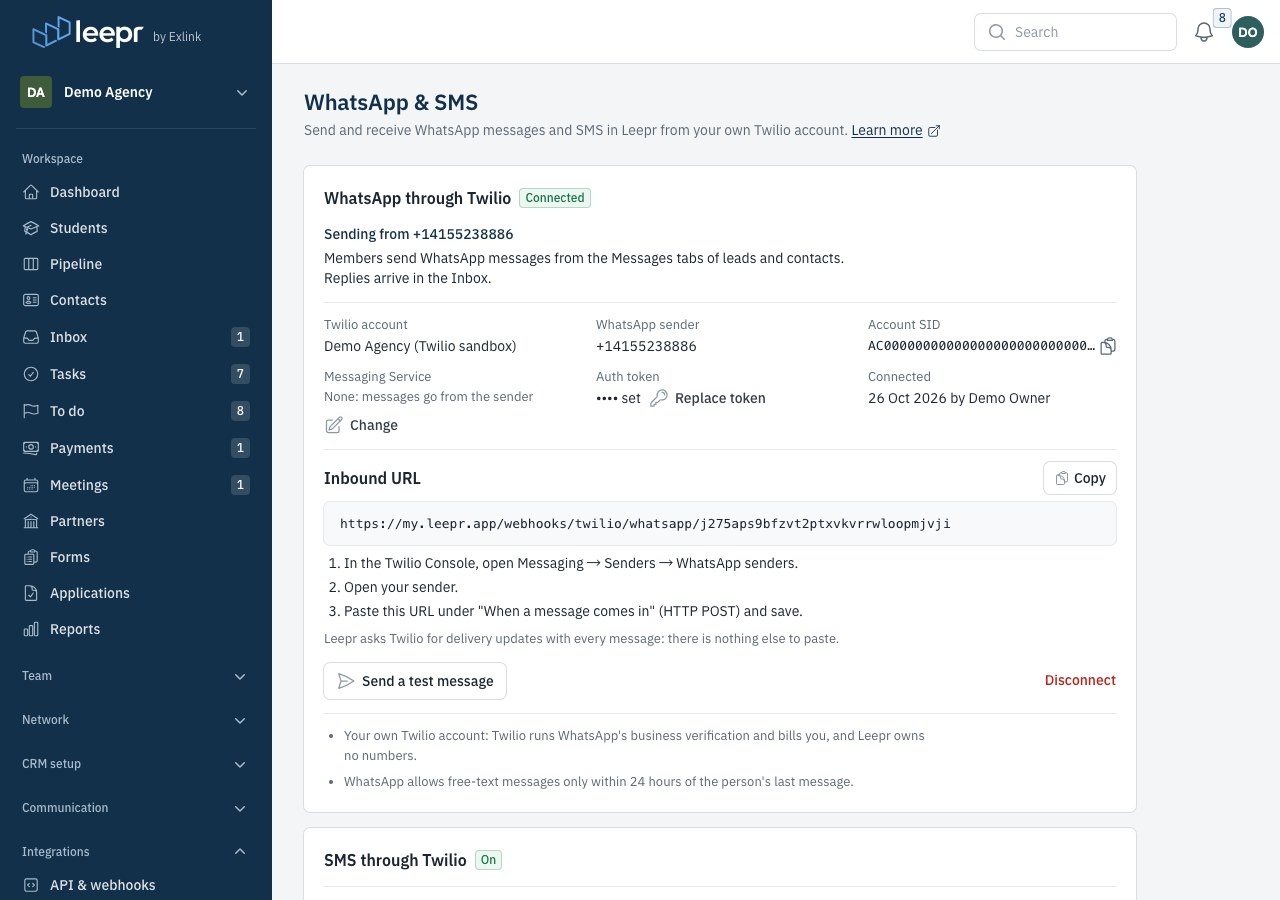
Send a test message
- From your phone, write any message to your WhatsApp sender first. WhatsApp’s 24-hour rule applies to the test too: if you have not written to the sender in the last 24 hours, Twilio refuses it.
- Click Send a test message, type Your WhatsApp number with its country code and click Send.
When Twilio accepts it, Leepr says “Test message sent” and it should reach your phone within a minute. When Twilio refuses it, you see Twilio’s reason, and the page keeps it as “Twilio last said: …”. You can send three test messages an hour.
The 24-hour window
WhatsApp lets a business write freely only within 24 hours of the person’s last message to it. Inside that window you can send any text and files; outside it, WhatsApp delivers only templates that Meta has approved (Approved templates, below).
Each WhatsApp conversation starts with where the window stands:
- “Reply window open until …”: you can write freely until then.
- “Reply window closed since …”: until the person writes again, send an approved template.
- “No reply window yet”: the person has not written to you on WhatsApp, so the first message must be an approved template.
The window belongs to the person and their number, not to the conversation: closing a conversation in Leepr does not close it, and a new number has a window of its own. Outside the window, Leepr refuses free text before sending it and says why (“WhatsApp allows a free-text message only within 24 hours of …‘s last message. Until then, send an approved template.”).
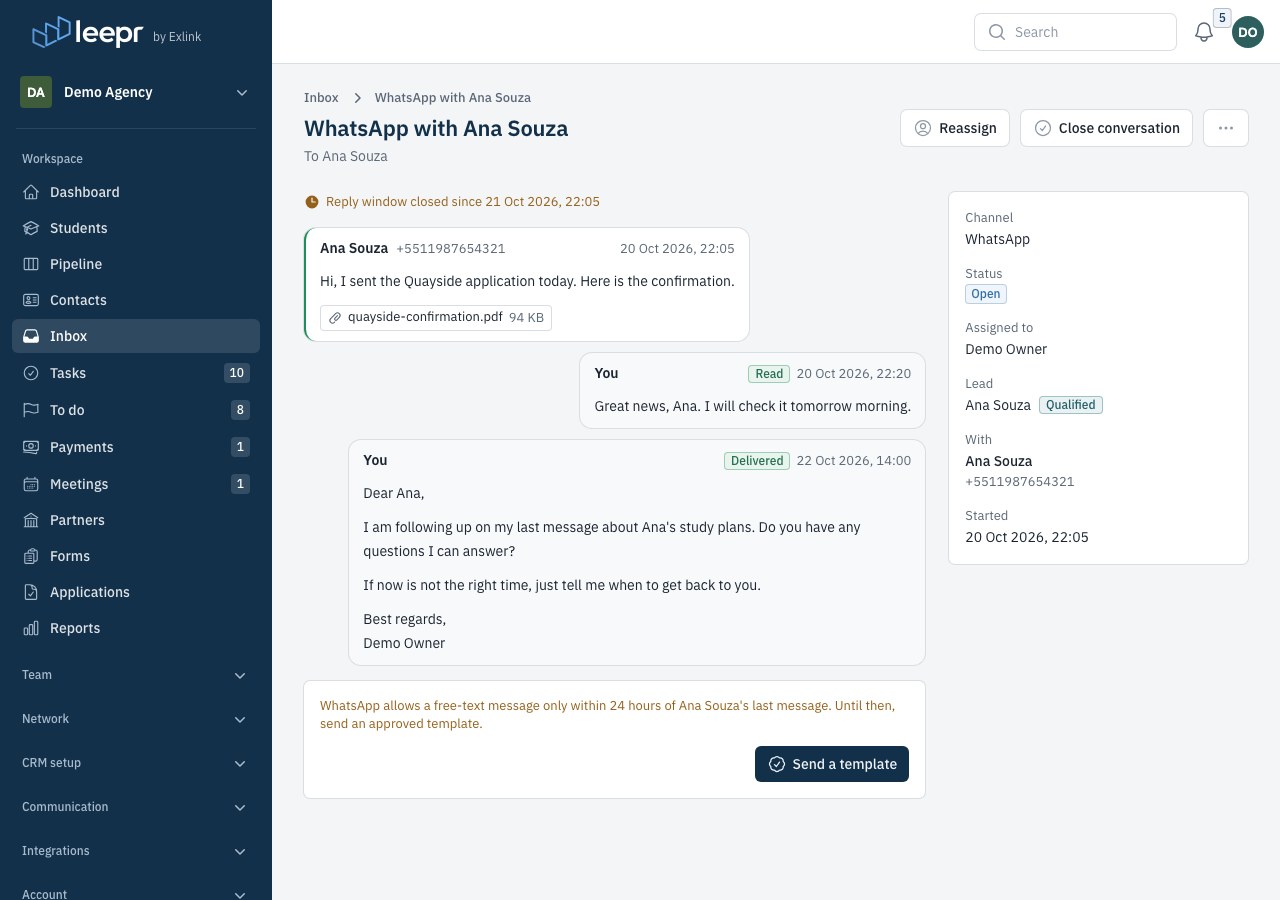
Send a WhatsApp message
- Open the lead and click Send WhatsApp in its timeline, or open the Messages tab of a lead or a contact and click Send WhatsApp.
- In To, choose one person. The primary contact is chosen first; people without a number are listed as “no WhatsApp number” and cannot be chosen. From a contact, About picks which of their leads the conversation belongs to.
- Under Send, choose Message to write it yourself, or Approved template to send one Meta has approved. When the person’s window is closed, it starts on Approved template.
- Write your Message (or choose the template and check the preview) and click Send.
Send WhatsApp appears once WhatsApp is connected and someone on the lead or contact has a phone number with its country code. Leepr never guesses a country code, so a number typed without one needs correcting on the contact first. When the person prefers WhatsApp, Send WhatsApp comes before Send email.
A message is plain text of up to 1,600 characters; the counter shows how many are left. Two ways to fill it:
- Insert template puts any of your templates from Communication → Templates in, as plain text in the person’s language, ready to change. It needs no approval, because you are inside the window.
- Merge fields (“Insert a merge field”) adds a person’s details, such as
{{student.first_name}}: the same fields as in emails, filled in as text and counted in the 1,600.
WhatsApp messages have no subject and no Cc, and go to one person. The message appears on the lead’s timeline as “WhatsApp sent” and counts as a contact attempt, like an email.
Send later, at the end of the composer and of Send a template, holds a message until a time you choose (Send later). A message you write yourself can be scheduled only inside the person’s 24-hour window, no later than its end, which the line under Send at gives; an approved template can be scheduled at any time. If the window has closed by the time a message is due, it is not sent and the conversation says why (“Not sent: WhatsApp’s 24-hour window closed before the scheduled time. Send an approved template instead.”). A reply from the person in the meantime opens the window again, and the message goes.
Approved templates
Outside the 24-hour window, WhatsApp delivers only templates that Meta, which runs WhatsApp, has reviewed and approved. In Leepr you do not write them anywhere new: any template in Communication → Templates becomes one, language by language, once you submit it through your Twilio account and Meta approves it. You keep one library of messages for email and WhatsApp.
Submit a template to WhatsApp
- Open the template in Communication → Templates. The WhatsApp section below it lists each language the template is written in.
- Click Submit to WhatsApp on a language.
- Choose the Category: Utility (about something the person asked for or is doing: an application, documents, a meeting), chosen at the start, or Marketing (offers, news and invitations).
- Read What Meta reviews, the template’s text as WhatsApp will send it, and submit.
Leepr sends Meta the template’s text without the subject. Merge fields become numbered variables, with their names as examples, so Meta approves the wording and each person still gets their own details. A template can be at most 1,024 characters once its merge fields are numbered, and your agency can submit ten templates an hour. Leepr submits the saved template, never changes you have not saved.
You need WhatsApp connected and the right to edit the template: Manage shared templates for a shared one, or being its author for a private one. Members who use a shared template but cannot change it see its statuses only.
How long it takes and the statuses
Meta usually decides within a day. Leepr checks with Twilio every hour, Check now in the section asks straight away, and whoever submitted the template gets a notification when Meta decides, such as “WhatsApp approved Course reminder (English)”.
Each language shows its status, its category and when it was submitted and by whom:
- Waiting for Meta: under review.
- Approved: it can start conversations outside the 24-hour window.
- Rejected: with Meta’s reason as “Meta said: …”. Change the text, save and Resubmit.
- Paused by Meta or Disabled by Meta: Meta has stopped the template, and Leepr does not send it.
- Edited since approval: see below.
Meta may move a template to another category; Leepr shows the category Meta decided.
After you edit a template
Saving a change to the words of an approved language marks it Edited since approval — resubmit: WhatsApp approved the old text, so Leepr stops sending that language until you Resubmit it and Meta approves the new one. A change of formatting only, such as bold to italic, changes nothing, because WhatsApp sends the plain text. Resubmit is not offered while Meta is reviewing a language or once it is approved and unchanged.
Send an approved template
Choose Approved template in Send WhatsApp, or click Send a template beside Send in a WhatsApp conversation, then pick the template and check the preview, which shows it as the person will read it. Each template is offered in the person’s language when that language is approved, else in your agency’s language, else in English.
You can send an approved template at any time, inside the window too. It carries no file: send the file in a message once the person has answered. If a merge field the template uses is empty for the person, Leepr does not send it and names the field (”… is empty for …, and WhatsApp needs a value”): fill it in or choose another template.
Files
Inside the window, a message can carry one file:
- pictures, JPG or PNG, up to 5 MB;
- PDF, Word (DOC, DOCX), Excel (XLSX) and PowerPoint (PPTX) documents, MP3 audio and MP4 video, up to 10 MB.
WhatsApp shows text only under a picture. So a picture goes with your message as its caption, while a document, audio or video with text goes as two messages: your text first, then the file. To send several files, send them one by one.
Files people send you are kept like email attachments, along with voice notes, audio (MP3) and video (MP4): up to 10 MB in all per message. Leepr lists any file it did not keep, with the reason.
Replies and the Inbox
Workspace → Inbox lists WhatsApp conversations beside email ones, each with its channel’s icon. Filter by Channel to see one kind, and search by phone number as well as by name. A WhatsApp conversation is titled “WhatsApp with” the person’s name and shows their number where an email shows the address. Replies go in the box at the bottom, with Insert template, Merge fields, a File, and Send a template beside Send.
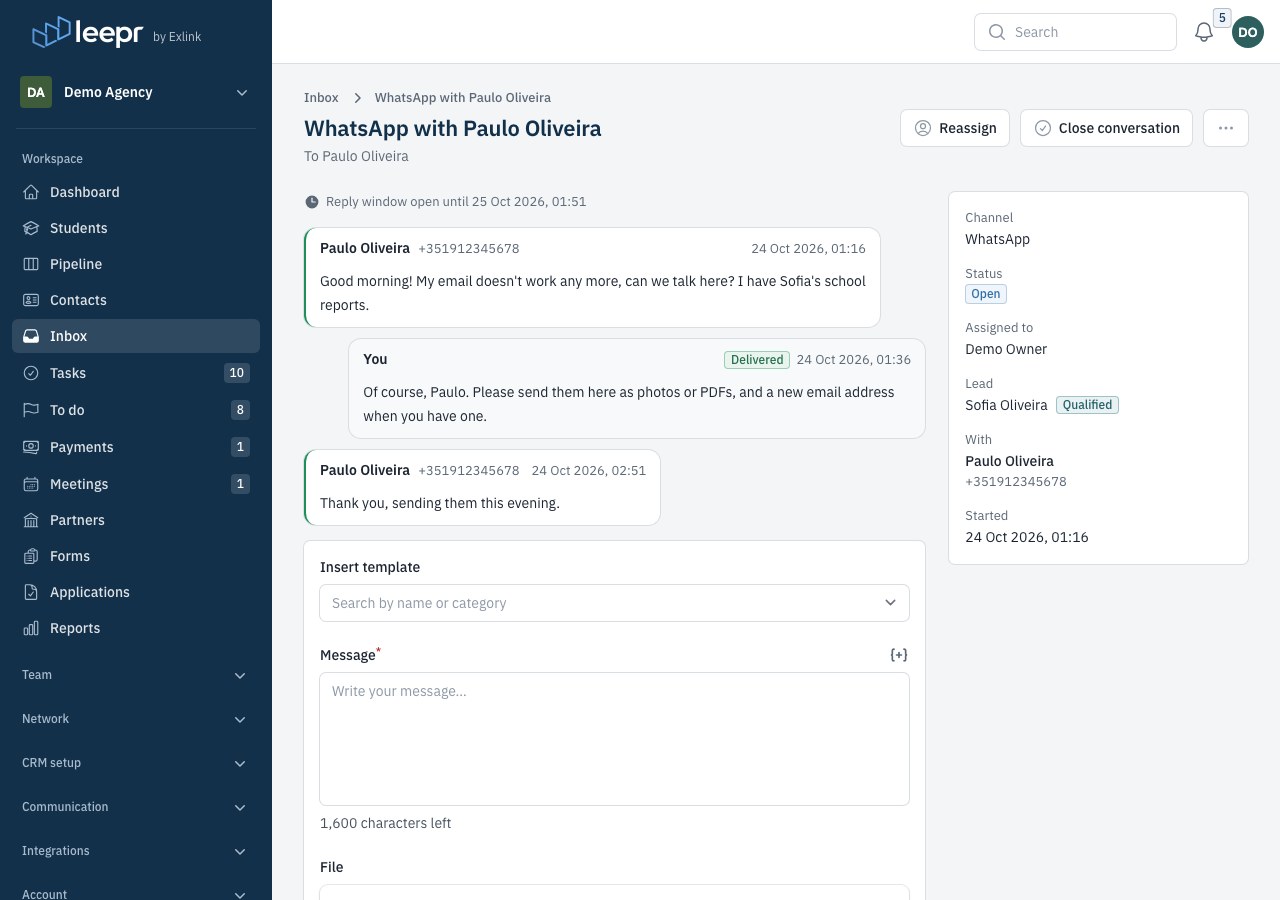
When a reply arrives:
- It appears in the conversation and on the lead’s timeline as “WhatsApp received”, the conversation becomes unread, a closed one opens again, and the person’s 24-hour window opens.
- The member it is assigned to gets a notification such as “Paulo Oliveira sent a WhatsApp message”.
- The lead’s status becomes Engaged, and the lead’s sequences stop.
- On a lead, any workflow that starts with A reply arrives on a lead runs.
Delivery status
Each message you send shows its status: Sending, Sent, Delivered, Read or Not sent. When a message is not sent, Twilio’s reason appears under it (see Troubleshooting).
A message waiting to go out is sent only from the account it was written for. If WhatsApp is disconnected, or another account or sender is connected before it leaves, it is not sent (“Not sent: the WhatsApp account was replaced before this message was sent.”).
WhatsApp in sequences and workflows
While WhatsApp is connected, sequences and workflows can send WhatsApp too:
- In a sequence, choose WhatsApp as a step and pick a Template and who it goes to: the primary contact or the student. It is sent as the member who enrolled the lead, or the lead’s owner.
- In a workflow, add the action Send WhatsApp with a template and the primary contact or the student.
Either way, inside the person’s 24-hour window the template’s text goes as a message in their language; outside it, the template’s approved language for that person (theirs, else your agency’s, else English).
Consent works as for email: when your agency sends only with marketing consent (Send sequence emails only with marketing consent, in Communication → Sequences), WhatsApp goes only to people with marketing consent recorded, unless the lead asked to be contacted through a form or the API. Without it, a sequence stops and a workflow skips the action (“Not sent: no consent to marketing messages.”).
A step or an action is skipped, and the sequence or workflow goes on, when WhatsApp is not connected, the person has no number with its country code, nothing is approved for them outside the window, or the message cannot be sent. The lead’s timeline (for a sequence) or the run’s log (for a workflow) says why, for example “no approved WhatsApp template for Português (Brasil)”. A WhatsApp reply stops a sequence just as an email reply does.
Messages from numbers Leepr does not know
A message from a number that none of your contacts has becomes a new contact, named from their WhatsApp profile (or after the number when the profile has no name). The new contact is on no lead: add them to one yourself. A new conversation with a contact you already have is filed on their lead when they have exactly one open lead.
Leepr keeps one conversation per person and number. When a person’s number changes, the new number starts a new conversation; the old one stays as history, and a reply there still goes to the old number.
When a person replies STOP
A person who replies STOP stops WhatsApp messages from your agency to their number. Leepr recognises Twilio’s opt-out words: STOP, STOPALL, UNSUBSCRIBE, CANCEL, END, QUIT, REVOKE and OPTOUT. The word must be the whole message, in any case, with or without a full stop or an exclamation mark (“Stop.”, “STOP!”). A sentence such as “please stop sending me offers”, two words such as “opt out”, or an emoji is an ordinary reply that you read and answer.
After a STOP:
- Nothing more goes to that number on WhatsApp: no sequence step, workflow action or campaign message, and no message from you or your team either. The person’s sequences stop. A message already waiting to go out is not sent (“Not sent: the recipient replied STOP to stop these messages before it went out.”).
- Leepr answers once, in the person’s language: “You won’t receive more WhatsApp messages from” your agency, “Reply START to receive them again.” If your Messaging Service uses Twilio’s Advanced Opt-Out, Twilio answers instead and Leepr only records the choice.
- The member the conversation is assigned to is told, such as “Paulo Oliveira asked to stop WhatsApp messages”, and the lead’s timeline says the same. A STOP is not a reply: the lead does not become Engaged and reply workflows do not run.
Starting again. Only the person can: replying START or UNSTOP (or YES, from a number that stopped) reopens WhatsApp, and Leepr answers “You’ll receive WhatsApp messages from” your agency “again. Reply STOP to stop them.” Sequences do not restart by themselves. There is no button for your team to allow messages again.
HELP and INFO get a short answer: your agency’s name on WhatsApp and “Reply STOP to stop receiving messages”, with your agency’s contact email when it has one. They do not count as replies either.
Where you see it:
- the contact page shows a gray Stopped WhatsApp messages callout: the person “asked to stop on” the date “by replying STOP. Only they can start them again (reply START).”;
- the lead’s Student card and its Family & contacts rows show a WhatsApp stopped chip, with the date in its tooltip;
- the conversation shows the same words above a Send that is off, without Send a template;
- in Send WhatsApp, the person is listed as “asked to stop WhatsApp” and cannot be chosen; when everyone on the lead or contact with a number has stopped, Send WhatsApp is off, with the tooltip “Everyone here with a WhatsApp number asked to stop WhatsApp messages.”;
- campaigns leave the person out with Replied STOP to stop these messages.
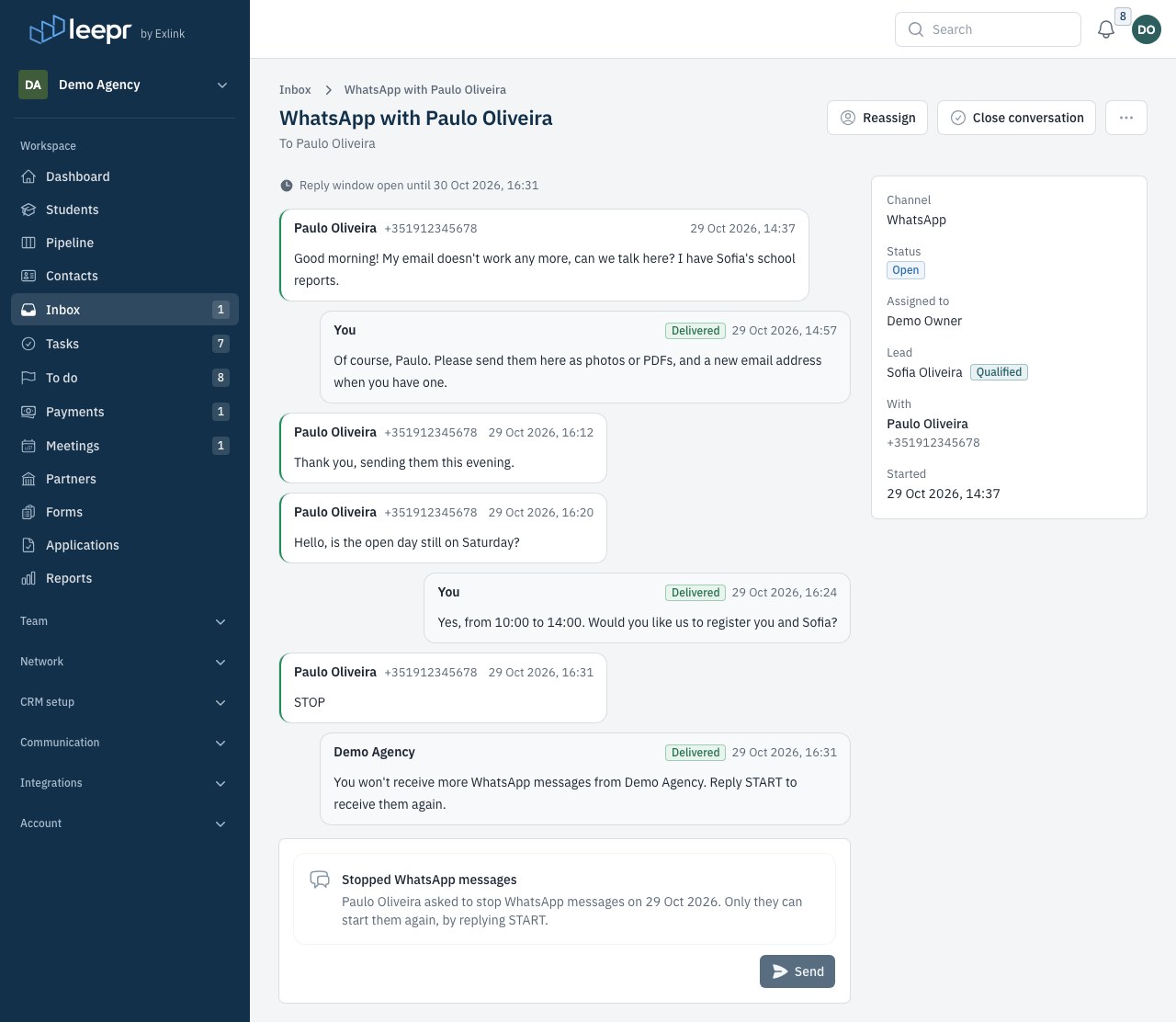
Per channel and per number. A STOP on WhatsApp does not stop SMS or email, and a STOP on SMS does not stop WhatsApp. The stop belongs to the number: another contact with the same number is stopped too, and a person who changes number starts fresh. When Twilio refuses a message because the number opted out at Twilio (error 21610), Leepr records a STOP as well.
Replace the token or disconnect
If you change your auth token in Twilio, click Replace token, paste the new one and click Check and replace. Twilio checks it before it replaces the old one.
Disconnect makes Leepr forget your Twilio account, and turns SMS off with it. WhatsApp conversations stay readable, but nobody can send WhatsApp messages and replies stop arriving until you connect again. A new connection has a new inbound URL: paste it into Twilio again.
Approvals belong to the Twilio account they were submitted through. Reconnecting the same account keeps them; with a different account, submit your templates to WhatsApp again.
How your account is kept safe
Leepr keeps your auth token encrypted and never shows it again, to anyone: the page only says it is set. Every message and status Twilio sends to Leepr is checked against Twilio’s signature, made with your auth token, and anything without a valid one is refused. The files you send are fetched by Twilio through a private, signed link that expires. Connecting, replacing the token, changing the Messaging Service and disconnecting are recorded in your audit log.
Troubleshooting
- “Twilio refused these credentials”: check the Account SID (AC followed by 32 letters and digits) and the auth token in the Twilio Console.
- “This Twilio account is suspended”: connect an active Twilio account.
- A message shows Not sent with 63016: it was outside the 24-hour window. Send an approved template.
- Not sent with 63007: Twilio does not know the WhatsApp sender. Check the number under WhatsApp sender, then disconnect and connect again with the right one.
- Not sent with 21211: the person’s number is not valid. Correct it on their contact page.
- Not sent with 21610: the number opted out at Twilio. Leepr records it as a STOP (When a person replies STOP).
- Send WhatsApp is off: everyone on the lead with a number replied STOP. Only they can start WhatsApp again, by replying START.
- No template to choose: none is approved for the person’s language yet. Submit one from Communication → Templates.
- Nothing arrives in the Inbox: the inbound URL is not pasted under “When a message comes in” on the right sender (with the sandbox: on the Sandbox settings tab), or Twilio’s signature fails because the auth token changed in Twilio and was not replaced in Leepr.
- Your phone gets “You said: … Configure your WhatsApp Sandbox’s Inbound URL to change this message”: the sandbox still has Twilio’s demo address under “When a message comes in”. Replace it with Leepr’s inbound URL on the Sandbox settings tab (Paste the inbound URL into Twilio).