

Communication
Sequences
Last updated:
A sequence is a cadence of emails and tasks that chases one lead until the person replies, the lead is won or lost, or someone stops it; this article covers building one and enrolling leads.
To send a single message at a set time, you need no sequence: turn on Send later in its composer (Send later).
The starter: No reply follow-up
Every agency has No reply follow-up in Communication → Sequences, turned off. It sends the First contact email right away, creates a Call task after 2 days, sends the Follow-up after no reply email 3 days later and creates a Last attempt call task 4 days after that: two emails and two calls over nine days. Turn it on as it is, or change it first.
Build a sequence
In Communication → Sequences, click New sequence. You need the permission Build, turn on and off and delete sequences, which owners, admins and managers have.
Give it a Name, then click Add step for each step:
- Wait and Unit (days or hours): how long after the previous step it runs; the first step counts from enrolment, and 0 runs it right away. Business days only skips weekends.
- Step: Email, Task or, while WhatsApp is connected, WhatsApp, and SMS while your SMS number is set.
- For an email, a Template (any shared template from Communication → Templates) and Send to: the primary contact, the student, or both. Each person gets the template in their language when it is written.
- For a WhatsApp step, a Template and Send to: the primary contact or the student. Outside the person’s 24-hour window it needs a language Meta has approved; without one the step is skipped and the sequence goes on (WhatsApp).
- For an SMS step, a Template and Send to: the template goes as plain text in the person’s language, ending with “Reply STOP to opt out”; without SMS or a number with its country code the step is skipped (SMS).
- For a task, its title in Task, a Task type (to-do, call or email) and Due after a number of hours.
- Only while the lead status is (optional): the step is skipped for leads in other statuses.
Drag steps to reorder them.
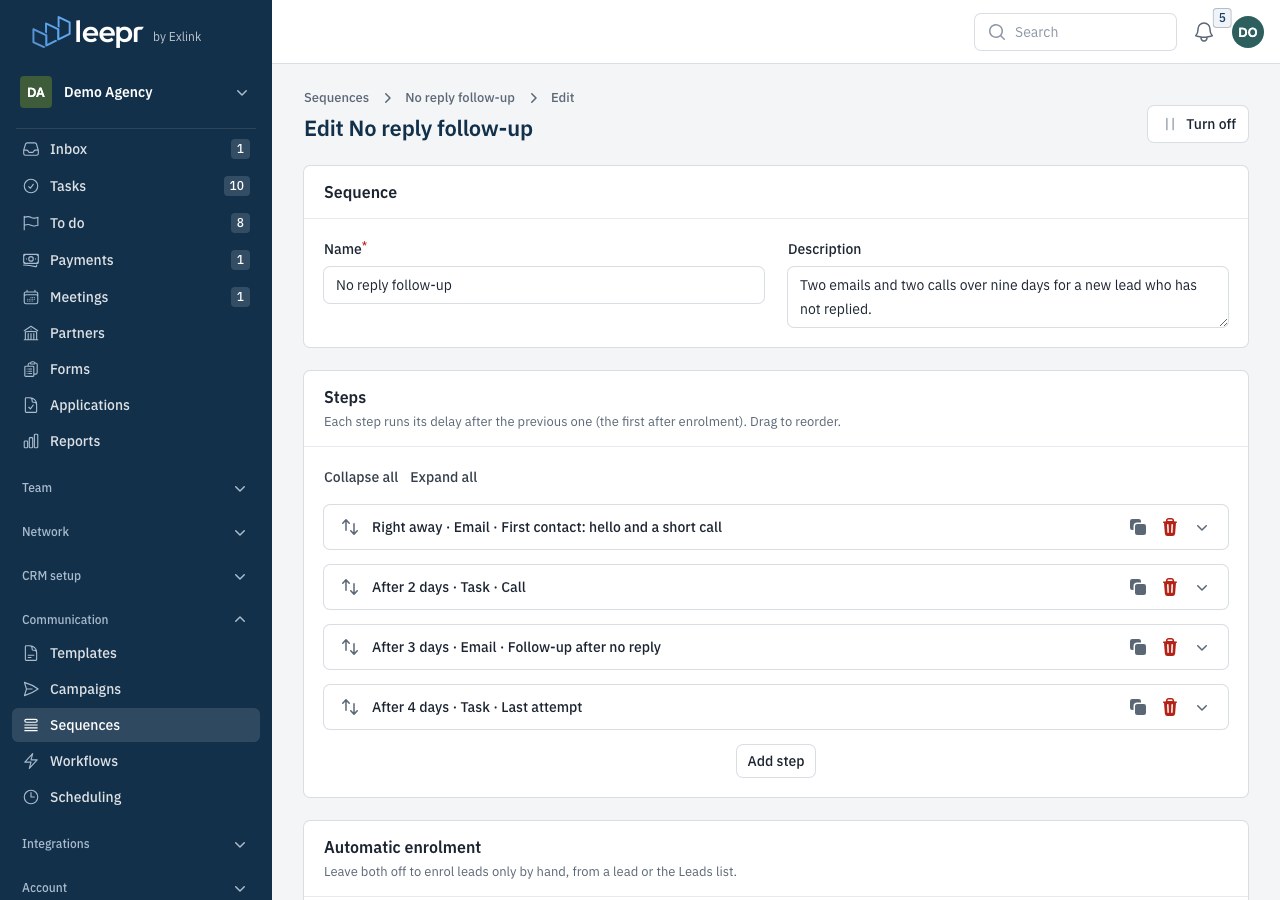
Under Automatic enrolment, leave both off to enrol leads only by hand, or:
- Enrol new leads from forms and the API: new leads from your hosted forms or the API, not re-enquiries. You can limit it to some channels, sources or forms; none chosen means all.
- Enrol leads still new after a number of hours: new leads nobody has tried to reach for that long.
Under Stops, Stop when they reply and Stop when the lead is won or lost are on at the start.
Click Save changes, then Turn on; a sequence needs at least one step. Turn off stops every lead in it where they are, and turning it on again does not bring them back.
Enrol leads by hand
On a lead’s Status card, click Enrol in sequence, choose the Sequence and who the emails go to (the primary contact by default), and click Enrol. Only sequences that are on are offered.
For several leads, select them in Workspace → Students and choose Bulk actions → Enrol in sequence. Leads that are won or lost, already in the sequence or without a contact are skipped and counted.
Enrolling or stopping needs the permission Edit leads.
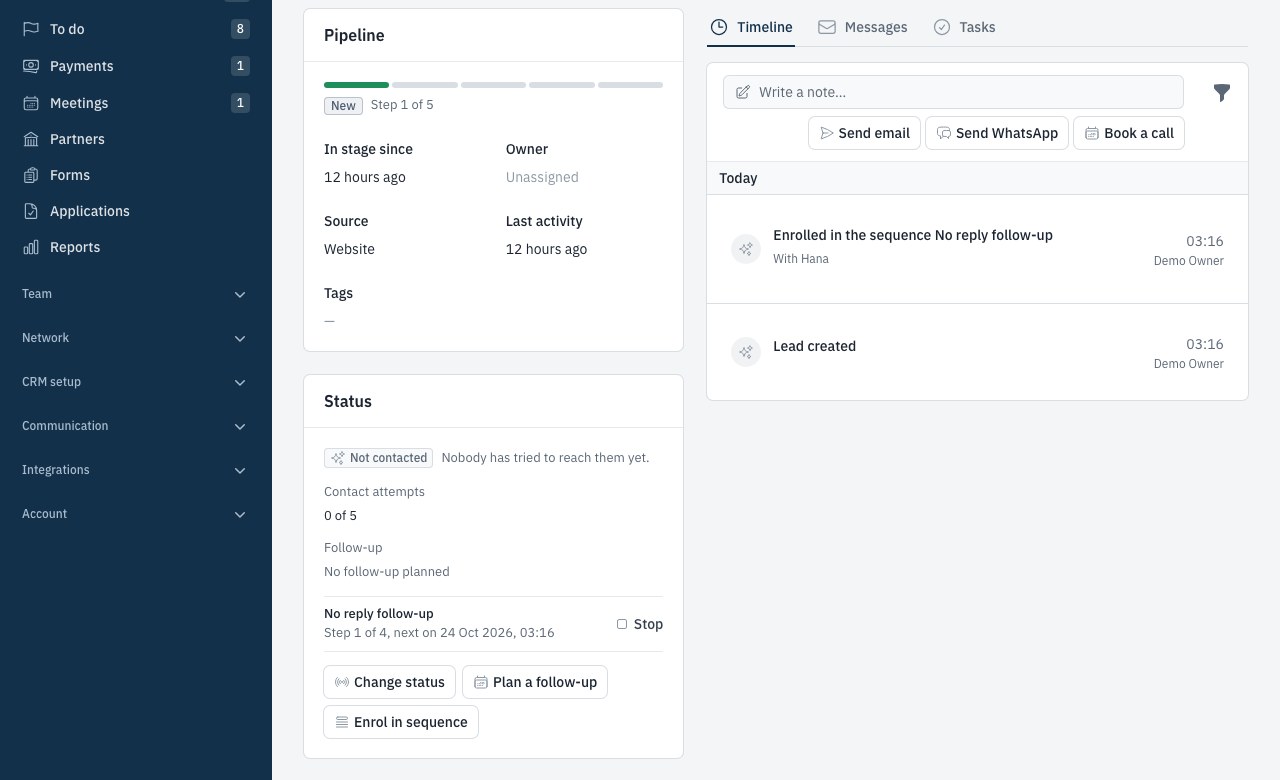
The Status card shows each sequence the lead is in, the step and the next date, with Stop. The timeline records every step, and the next step becomes the lead’s follow-up when none is planned.
Who sends and who gets the tasks
Emails go out as the member who enrolled the lead, or as the lead’s owner when that member has left. They are normal emails in the Inbox, so the reply comes back to that conversation. Tasks go to the lead’s owner, or else to the member who enrolled the lead, who is told “The sequence … assigned you a task”.
A lead enrolled by a rule has no enrolling member, so give it an owner, or its steps cannot run.
When a sequence stops
A lead leaves a sequence when the person replies, the lead is won or lost, someone clicks Stop, the sequence is turned off or a workflow stops it. It also stops when nobody can be written to: no email consent, an address with Email stopped, a person who replied STOP on WhatsApp or SMS (When a person replies STOP), or a step that could not run. The timeline says why. An automatic reply, such as an out-of-office message, does not stop it.
Consent and stopped addresses
In Communication → Sequences, the ⋯ menu → Email consent has Send sequence emails only with marketing consent, on at the start. With it on, sequence emails go only to people with marketing consent recorded, except leads who enquired through a hosted form or the API, since they asked to be contacted. An address with Email stopped is always left out (see Inbox and email).
How sequences perform
Workspace → Reports has a Sequences table: for the leads enrolled in the chosen dates, how many are still in each sequence, replied, stopped otherwise or completed. Export CSV downloads it.