

Leads
Leads and the pipeline
Last updated:
A lead is one enquiry about a student; this article covers where your leads live, the lead page, the people around each lead, and how to set up stages, sources, tags and rules.
Where your leads are
Open Workspace → Students. The Leads tab is the table of enquiries you are working on, open leads first (the Status: Open filter). The other tabs are covered in Students and profiles.
Workspace → Pipeline, or Pipeline board above the table, shows the same leads as a board with one column per stage. Drag a card to another column, or use its ⋯ menu → Move to…. Moving a lead to a lost stage asks why it was lost.
The search box in the top bar finds a lead by the name, email or phone of anyone on it.
Add and import leads
Click New lead. The Student section describes the student. Under Speaking with, The student is the contact is on; turn it off when you speak with a parent or guardian, choose their Role and enter their details, and they become the primary contact. Your agency’s own sections follow, then Pipeline: stage, owner, source, tags and notes.
If an email already belongs to someone in Leepr, the form says Already a contact; click Use this contact instead of creating the person twice.
To bring leads from a spreadsheet or another CRM, open the ⋯ menu at the top right of the page and choose Import CSV:
- Click Download example CSV file and put your data in its columns. Each row is one student; the contact_1 and contact_2 columns add up to two parents or other contacts, each with a role.
- Upload your file, check how Leepr matched your columns, and click Import.
- The notifications bell tells you when it has finished. Skipped rows, such as a student who already has an open lead, can be downloaded with the reason.
Stages, sources, owners (by email) and tags in the file must already exist. ⋯ → Export downloads the leads that match your current filters, with the columns you choose.
The lead page
Click a lead to open its page.
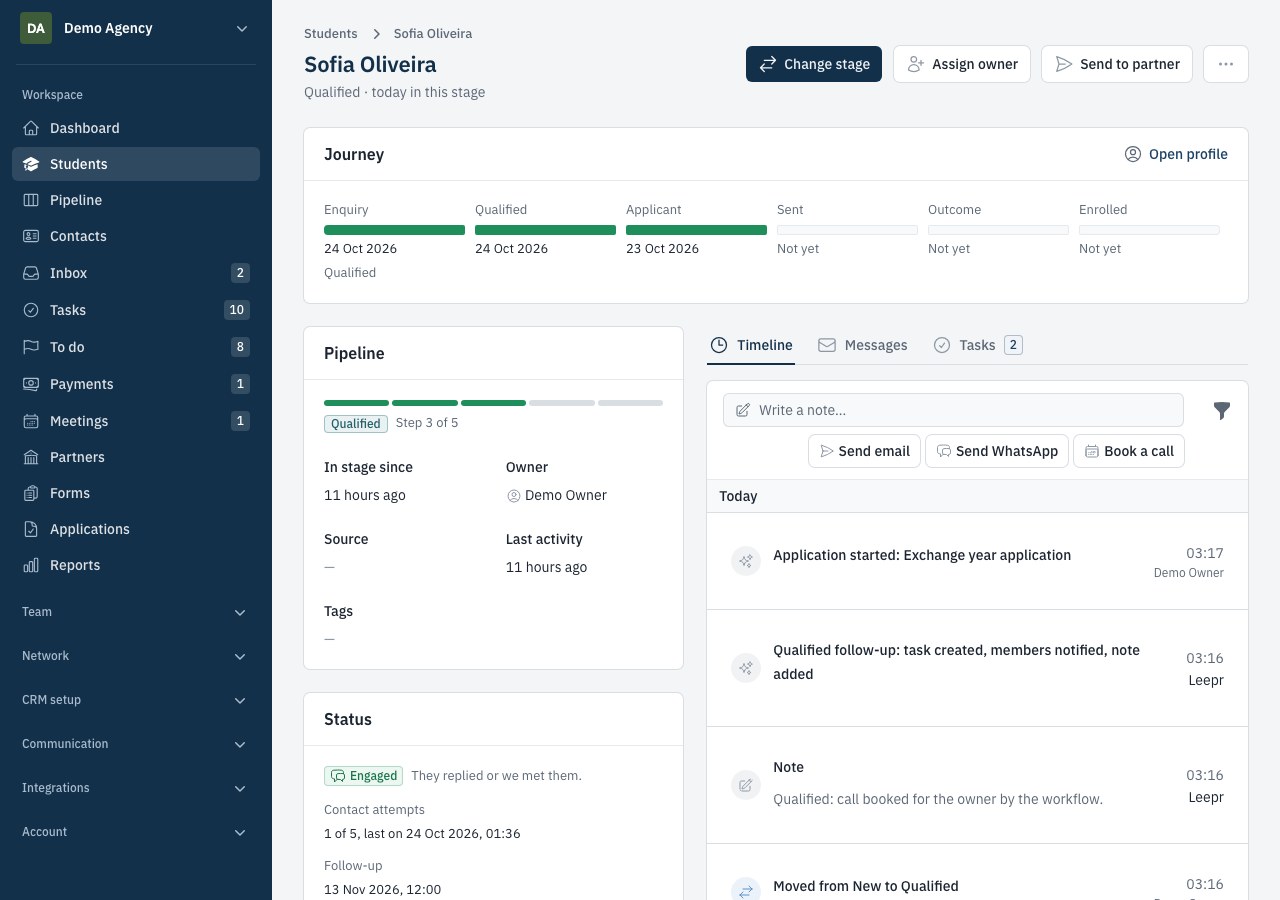
- Change stage moves the lead. Assign owner gives it to a member; if you may only take unassigned leads, you see Assign to me instead.
- The ⋯ menu at the top holds Mark won, Mark lost (with a reason), Merge leads, Edit and Delete, among others.
- The Pipeline card shows the stage, owner, source and tags. For a lead from a form or the API, a line under the source says where it came from, such as “Channel: google / cpc · Campaign: spring-fair”.
- The Timeline tab lists everything that happened, newest first. Write a note… opens the composer, where you choose what happened — a note, a call, an email, a meeting or a WhatsApp message — and the person it was with, to log something that happened outside Leepr. Send email sends an email from Leepr and Book a call offers a booking link (Inbox and email, Scheduling and booking). Entries cannot be edited or deleted.
Parents and other contacts
Everyone you speak with is a contact. A lead has one Student and any number of people under Family & contacts, each with a role such as Mother or Guardian. One of them is the Primary contact, the person you talk to, chosen first for emails, calls and bookings.
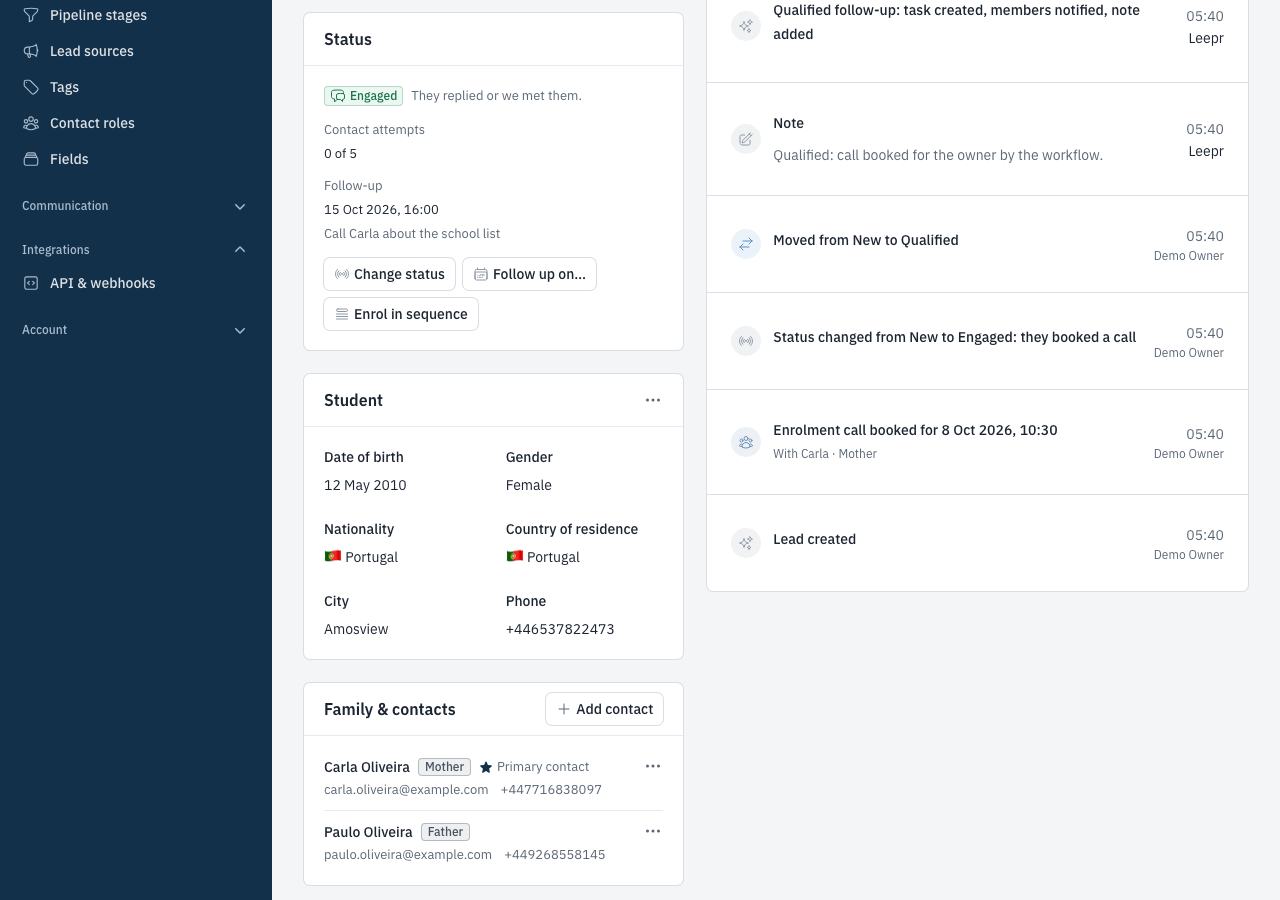
- Add contact → Existing contact or New contact adds a person with a role.
- A person’s ⋯ menu has Change role, Make primary, Edit and Remove from lead. Removing someone keeps them in your contacts.
- The Student card’s ⋯ menu has Open contact, Edit and Make primary. A lead without a student shows Set student.
Workspace → Contacts lists every person with their roles. Roles are set in CRM setup → Contact roles.
Lead status and follow-ups
The stage says where the enquiry is. The lead status says how responsive the person is: New, Attempting, Engaged, Nurturing, Unresponsive or Disqualified.
Leepr updates the status for you. While a lead is New or Attempting, each call, email or WhatsApp message you log or send, and each SMS you send, counts as a contact attempt. A reply, a meeting or a call the person books makes the lead Engaged. After the maximum number of attempts without a reply, the lead becomes Unresponsive.
In the Status card, Change status sets it by hand: Nurturing needs a follow-up date and Disqualified a reason. Follow up on… plans the next action, with a date and What to do. Overdue follow-ups turn amber. A won or lost lead keeps its status.
Filters, views and bulk actions
The filter button above the table filters by stage, owner, source, tags, lead status, Untouched, Follow-up (overdue, due today, due in the next 7 days, none planned), Possible duplicate, UTM source and campaign, and your agency’s own fields.
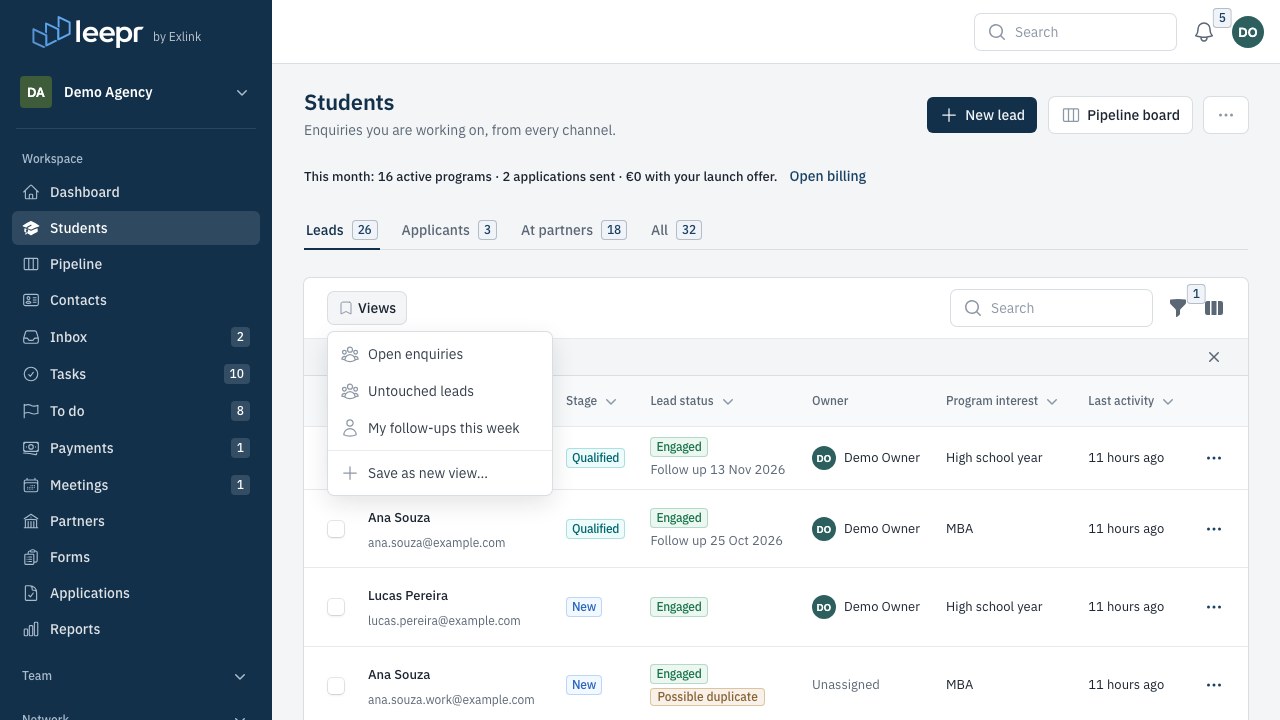
Views keeps filters and a sort under a name: set them, then choose Views → Save as new view…. A view is yours alone unless you tick Shared with the team (members who manage settings). Choose a view in the same menu to apply it, update it or delete it.
Tick leads in the table to open Bulk actions: Assign owner, Move to stage, Add tags, Change status, Follow up on…, Enrol in sequence and Delete selected.
Duplicates
When a new lead’s student has the same email or phone as another open lead’s student, or the same name and date of birth, Leepr marks it Possible duplicate, with a note in the Status card.
- Merge leads keeps the older lead. The other lead’s timeline, tasks, messages, people and tags move to it, empty values are filled in, and the other lead is closed as lost with the reason “Duplicate”. You can merge any two open leads from the ⋯ menu too.
- Not a duplicate dismisses the suggestion.
To merge two records of the same person, open Workspace → Contacts, use the person’s ⋯ menu → Merge into…, and choose the contact to keep. This needs the Delete and merge contacts permission.
Stages, sources, tags and rules
Members with the Manage settings permission (owners and admins by default) set these up under CRM setup:
- Pipeline stages: drag to reorder, New pipeline stage to add one. New leads land in the Default stage; a Won stage or Lost stage closes a lead. Deleting a stage that holds leads asks where to move them.
- Lead rules, a tab of Pipeline stages: how many hours a new lead may wait for a first contact before it counts as untouched (untouched leads show on the dashboard and in a daily email to their owner), how many contact attempts before a lead is unresponsive, whether new leads without an owner are assigned By hand or by Round robin, and the reasons offered when a lead is lost or disqualified.
- Lead sources: where leads come from. Deleting a source leaves its leads without one.
- Tags: a name and a colour.
By default, owners, admins and managers can do everything with leads. Agents can view, create and edit leads and take unassigned ones; assigning, deleting and exporting need their own permissions.