

Students
Students and profiles
Last updated:
Workspace → Students shows every student from the first enquiry to the partners they are at; this article covers its views, a student’s profile, the To do list and returning students.
The Students views
Workspace → Students has four tabs, each with its count.
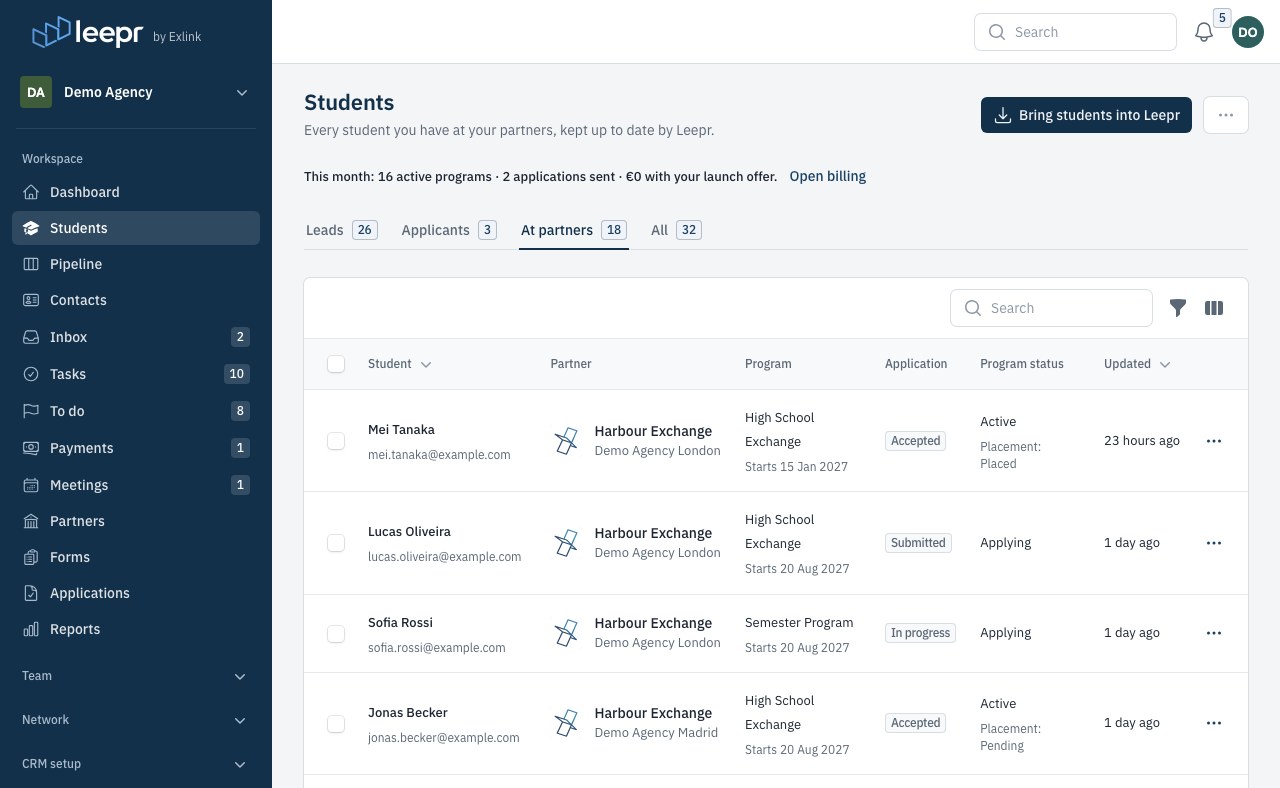
- Leads: the enquiries you are working on. Open ones show by default; won and lost leads are a filter away. New lead and Pipeline board sit at the top. See Leads and the pipeline.
- Applicants: students filling in your own application in Leepr, with how far they got. See Applications to partners.
- At partners: every student program at your connected partners: the Student, the Partner (with your agency’s office there), the Program and its start date, the Application status, the Program status with the placement under it, and when it was Updated. Statuses are in the partner’s own words, and Leepr keeps them current. Filter by partner, recruiting stage, status, program or start date. A student the partner deleted, or one your account there can no longer see, is hidden; the Removed students filter shows them with the reason.
- All: one row per student, with Speaking with (the contact you talk to, such as a parent), the current Enquiry, each partner with its outcome, and the Last activity.
A row’s ⋯ menu on At partners has View (the student’s page for that partner program, with its To do card and Details from the partner), Open profile, Bring into Leepr (for a student who is not a person in Leepr yet), Refresh from partner and Open at partner. Bringing students in is explained in Connect a partner.
A student’s profile
The profile is the student’s page in Leepr: everything about them in one place. Open it with Open profile from any view, or from Contacts.
The header shows the student’s age, nationality and Owner (the member their current enquiry belongs to), then their Family: the parents and other contacts, with their roles.
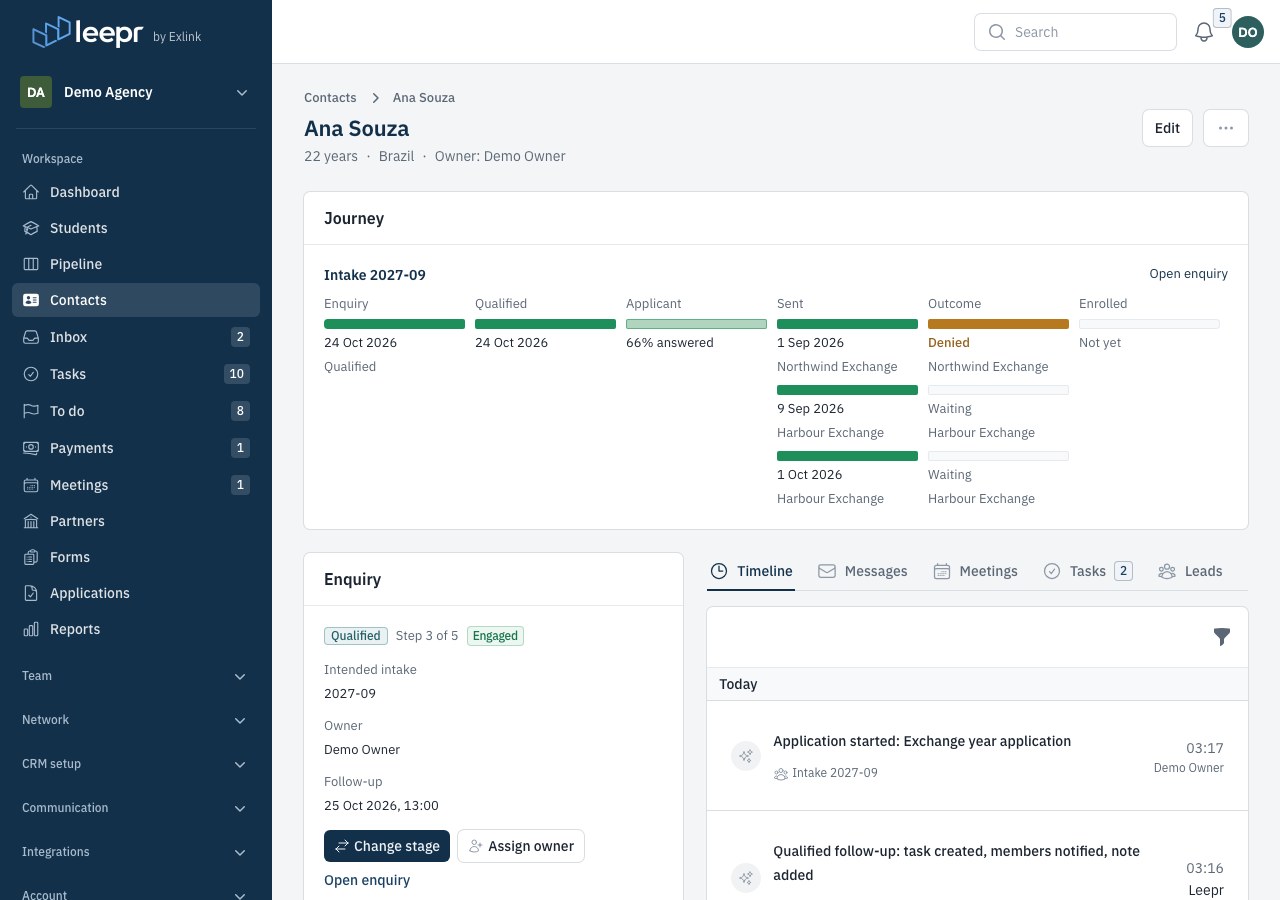
The journey strip
The Journey section has one row per program cycle, newest first, named by its program year or intended intake. Each row has six chapters:
| Chapter | What it shows |
|---|---|
| Enquiry | The date the lead was created, and its stage. |
| Qualified | Done when the lead reaches the stage marked Qualifies the lead in CRM setup → Pipeline stages, or is sent to a partner or won. |
| Applicant | Your own application: how much is answered while the student fills it in (“66% answered”, “Nothing answered yet” before the first answer, a dash when the version asks nothing), done once submitted or sent. |
| Sent | One bar per partner, dated when the application was sent or the partner first listed the student. |
| Outcome | One bar per partner: In review, Accepted, Denied (amber), Enrolled or Cancelled; Waiting until the partner decides. |
| Enrolled | Done when a partner’s outcome is enrolled, with the program’s start date. |
A chapter that does not apply says Not used: a student who exists only at a partner has no enquiry, for example. One that has not happened yet says Not yet.
The cards and tabs
- Enquiry: the stage, step, status, program year or intake, owner and follow-up, with Change stage, Assign owner and Open enquiry.
- Application: your own application’s status, progress and who fills it in, with Open application.
- At partners: a card per partner program, with the program, start date, outcome, the partner’s statuses and the application’s line: its status, whose turn it is, how complete it is and Finish at partner. The first three things to do are listed. After a denial, Send to another partner starts an application at another partner. When the partner’s details of the student differ from yours, Update from the partner lets you choose which fields to take.
- Family & contacts: the student’s family. You manage it on the enquiry.
A person who replied STOP on WhatsApp or SMS shows a gray Stopped WhatsApp messages or Stopped SMS callout on their contact page, and a WhatsApp stopped or SMS stopped chip on the lead’s Student card and Family & contacts rows (When a person replies STOP).
On the right, Timeline shows every enquiry’s history in one list, by day, each entry marked with its cycle. Messages, Meetings, Tasks and Leads follow.
To do
Workspace → To do lists what your partners are waiting for, across every student: a document, a signature, a returned section, travel details, a visa interview.
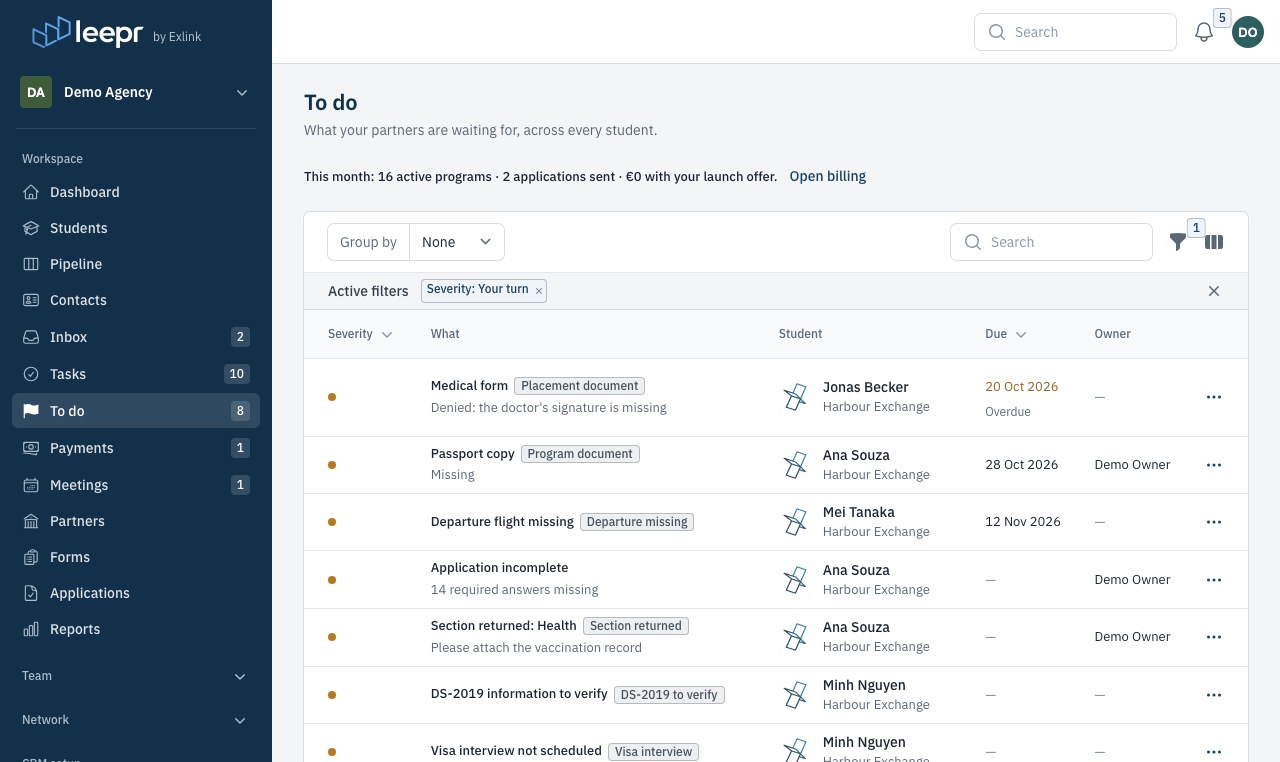
- Severity: an amber dot means Your turn, a ring means Waiting on others, and no dot means For your information. The list opens on Your turn.
- What: the partner’s words, the kind of item and any detail, such as a reviewer’s comment.
- Student, Due (amber Overdue once the date has passed) and Owner, the owner of the student’s lead.
Filter by kind, partner, owner, My leads only or Overdue only, or group the list by student. A row’s ⋯ menu has Open at partner, Open student, Open lead and Create task, which fills a task in from the item. You do the work at the partner; the item leaves the list once the partner reports it done.
The number beside To do in the sidebar counts the items where it is your turn, on students linked to your leads (or all of them, if you can assign leads). The student’s page at a partner shows the same items in its To do card, and the dashboard shows their total.
Leads and students at partners
A lead can be linked to its student at a partner. The lead page then shows a card named after the partner, such as At Harbour Exchange, with the student, their program status, placement, the application’s line and how many things are to do.
Leepr suggests links by email. When a lead’s student and a student at a partner share an email address, the lead page asks “Looks like … at … — link?”. Choose Link or Not them. You can also link from the lead’s ⋯ menu (Link to student) or the student’s page (Link to lead), and undo it with Unlink. Linking moves a New or Attempting lead to Engaged and is written on the timeline.
A student at a partner who is not matched to a person yet may show “Looks like this is …”. Choose This is them to match them, or Not them. On the student’s page, ⋯ This is … lets you choose the person yourself.
Returning students
Each program year is its own cycle, with its own enquiry. When a student comes back for another year, open their profile’s ⋯ menu (or a won lead’s) and choose Start next program. Enter the Program year, such as 2027/28, and the Intended intake. Leepr creates a new enquiry for the same student with the family and study interest copied.
You cannot create the next program at the partner from Leepr; the partner creates it. When it appears, Leepr links it to the enquiry of the same year. If exactly one returning enquiry matches, it links automatically (you can turn this off in CRM setup → Pipeline stages → Lead rules). Otherwise Leepr suggests the link on the enquiry and the profile, where you choose Link, Choose another or Not this one. The journey strip then shows the new cycle on top, marked Returning.