

Work
Payments
Last updated:
Payments lets you send a family an invoice they pay online and follow it on the lead; this article covers connecting Stripe, requesting payments and keeping track of them.
How payments work
You collect through your own Stripe account, connected to Leepr, or through the account of an organisation above you (Whose Stripe account, below). Each payment you request is a Stripe invoice: the family gets a link to Stripe’s invoice page, with a PDF, the due date and your branding, and pays there.
The money lands in the Stripe account, and Stripe pays it out to the bank. Leepr never holds it and takes no fee on it. Stripe’s own fees are charged by Stripe to that account, just as Twilio bills you directly for WhatsApp: Leepr adds nothing to either. Families pay with the methods you turn on in Stripe: cards, bank transfers and, where Stripe offers them, pay-later methods such as Klarna, Afterpay or Affirm.
Payments are requested in the currency of the Stripe account they are collected through. They are separate from what Leepr charges you, described in Billing and credits.
Who can do what
| Permission | What it allows | Roles that have it |
|---|---|---|
| View payments and payment requests | Workspace → Payments, the Payments cards, the dashboard tile, the payment reports, Copy link | Owner, Admin, Agent |
| Request payments from families | Request a payment, Send again, Send reminders | Owner, Admin, Agent |
| Connect Stripe, set up payment types, void and record payments | Integrations → Payments, Void, Mark as paid by bank transfer | Owner, Admin |
Managers and Viewers have none of them to start with; you can tick them on other roles in Team → Roles.
Connect Stripe
- Open Integrations → Payments, tab Stripe, and click Connect Stripe.
- Leepr creates a Stripe account for your agency, filled in with your organisation’s name, country, email and website, and takes you to Stripe.
- Stripe asks for the details it needs to take payments and pay out to your bank. No Stripe account yet? You create it here.
- You come back to Leepr. When Stripe has everything, the card says Ready; otherwise it says Setup not finished, and Continue in Stripe takes you back where you left off.
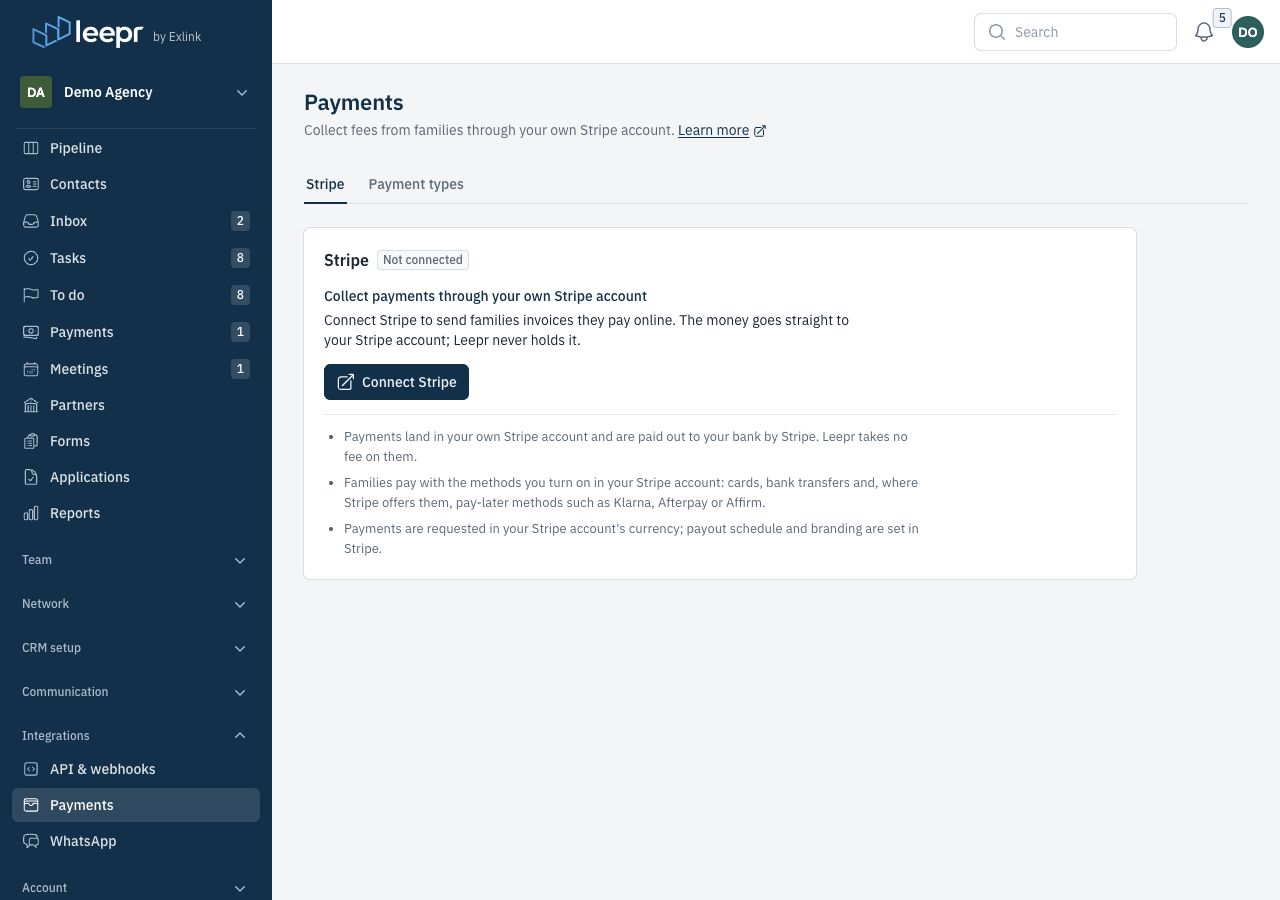
Once ready, the card shows your account, its currency and payout schedule; Open Stripe dashboard opens your invoices in Stripe, where you also set payouts and branding.
Whose Stripe account
If you connect your own Stripe account, you collect through it. If you have not, and your organisation is a branch or a sub-agent, you may collect through the account of an organisation above you:
- A branch collects through the Stripe account of the nearest organisation above it that has one, when every step up to it is a branch.
- A sub-agent, or a branch below a sub-agent, does so only while that organisation shares its account: its switch Let sub-agents without their own Stripe account collect through ours, on Integrations → Payments, is off at the start and only its members with Connect Stripe, set up payment types, void and record payments can turn it on or off.
- Leepr never looks further up than the nearest organisation with a Stripe account, and never uses the account of a suspended organisation. Otherwise, you connect your own.
While you collect through another organisation’s account, the Stripe tab says Shared, “Collecting through” its name, that the money goes to them, and the currency your requests are in. You do not see its account, payouts or dashboard, and there is nothing to disconnect. Connect your own Stripe account switches you to your own: new requests use it from then on. If the organisation is still finishing its Stripe setup, you can request payments once it is done.
What is whose:
- The money goes to the account the payment was requested on.
- The request is yours: your lead, your timeline, your Workspace → Payments and reports. The other organisation’s members do not see it in their own Payments.
- Payment types are the account holder’s. Your Payment types tab shows them read-only, headed “Managed by” the holder, and Request a payment offers the ones it offers. You set your own once you connect your own account.
- A request stays on the account it was made on. If you later connect your own account, or the holder stops sharing with sub-agents, the payments already requested stay on the holder’s account and are still followed in Leepr: a Stripe invoice cannot move. They stop being followed only if the holder disconnects that account.
If others collect through your account, the Stripe tab lists Branches and sub-agents: how each organisation below you collects (“Collecting through you”, “Own Stripe account”, “Collecting through” another, “Not collecting (sharing is off)”, “Not collecting (suspended)”). For those that requested payments on your account, it shows how many are open, outstanding and collected this month, and Show payments on your account lists their latest requests with a link to each invoice. You see these because they are invoices in your Stripe account too; you cannot change them, and nothing else of theirs shows on your side.
Payment types
A payment type is something you collect, with its usual price, on the Payment types tab.
When you first connect Stripe, Leepr suggests Application fee, Deposit and Program fee, plus Course fee if you recruit for language courses and Camp fee for summer camps. They start Off and without an amount, so you set your own prices first.
Click New payment type, or Edit in a row’s ⋯ menu:
- Name and Kind (application fee, deposit, program fee, insurance or other).
- Default amount, which you can change on each request.
- Invoice line: what the family sees on the invoice. Leave it empty to use the name.
- Offer it when requesting a payment, once it has an amount.
- Offer it as a payment plan by default, with a deposit percentage and the instalments.
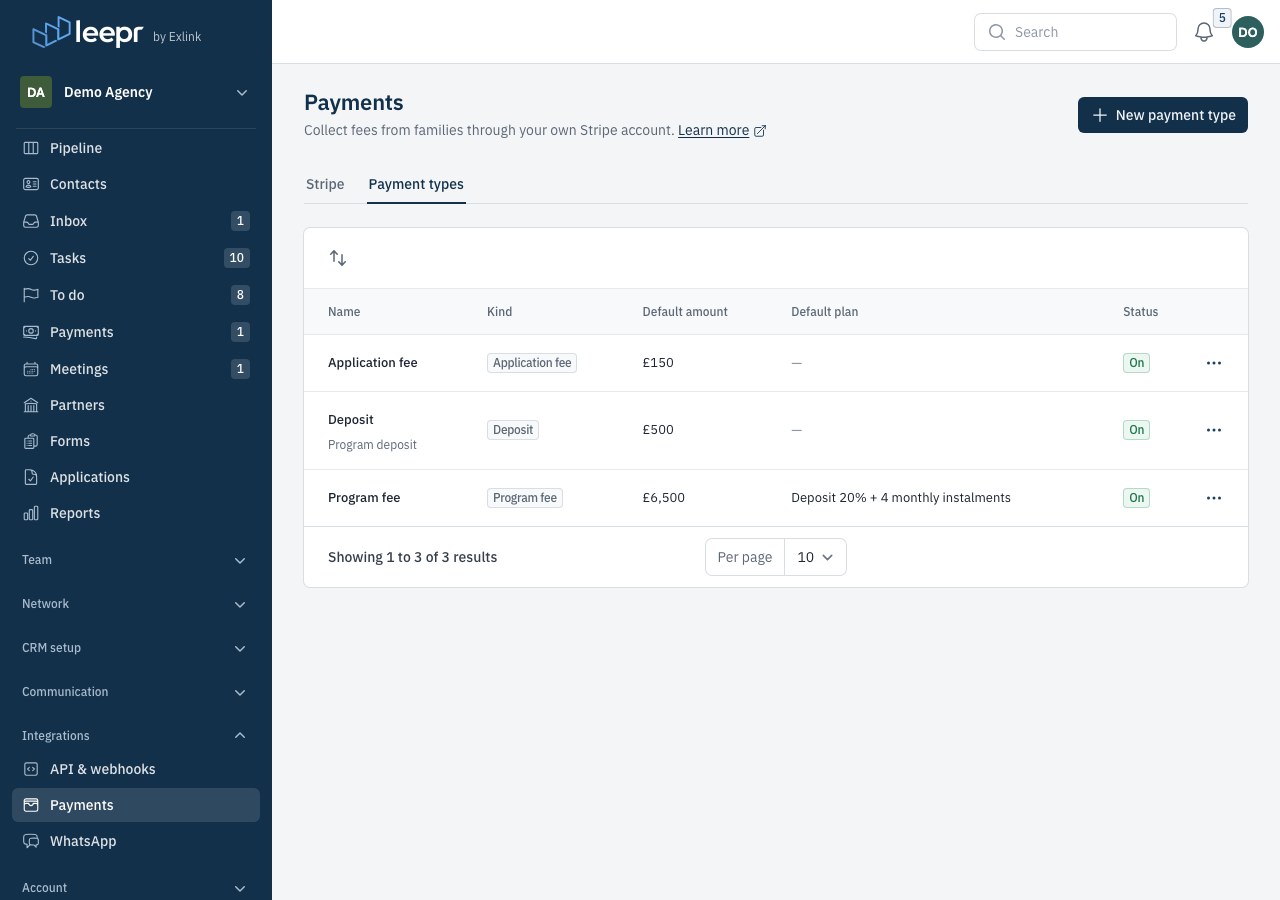
A type you have already requested cannot be deleted; turn it off instead.
Request a payment
Click Request a payment on a lead page, its Payments card, a student profile, or Workspace → Payments (where you choose the lead first).
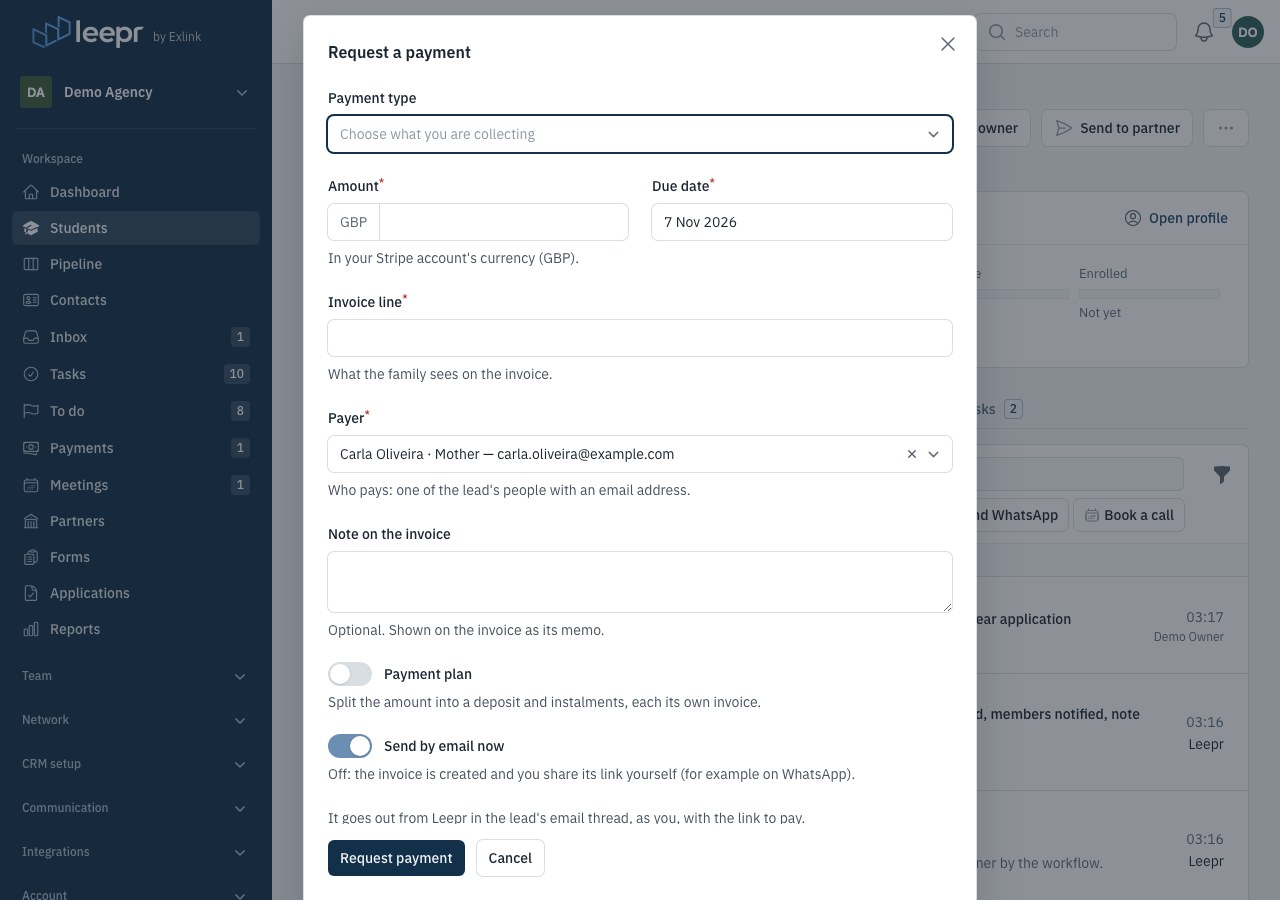
- Choose the Payment type: it fills in the amount, invoice line and any default plan.
- Check the Amount and the Due date, 14 days ahead by default.
- Choose the Payer: one of the lead’s people with an email address, such as a parent.
- Add a Note on the invoice if you like.
- Leave Send by email now on and adjust the Subject and Message, which start from the Payment request template in the payer’s language.
- Click Request payment.
The email goes out from Leepr in the lead’s email thread, as you. Its link opens the invoice on Stripe, where the family pays and can download the PDF. If you cannot send email from Leepr, or the payer’s address no longer receives Leepr’s email, Stripe emails the invoice instead; the window tells you which before you send.

With Send by email now off, the invoice is created and you share its link yourself, for example on WhatsApp: use Copy link in the payment’s ⋯ menu.
Payment plans
Turn on Payment plan to split the amount into a deposit and up to 12 instalments, each its own invoice. Choose the Deposit (none, a percentage or an amount) and when it is due, the number of Instalments, Every (month, two weeks or week) and when the First instalment due. The Schedule shows each payment before you confirm.
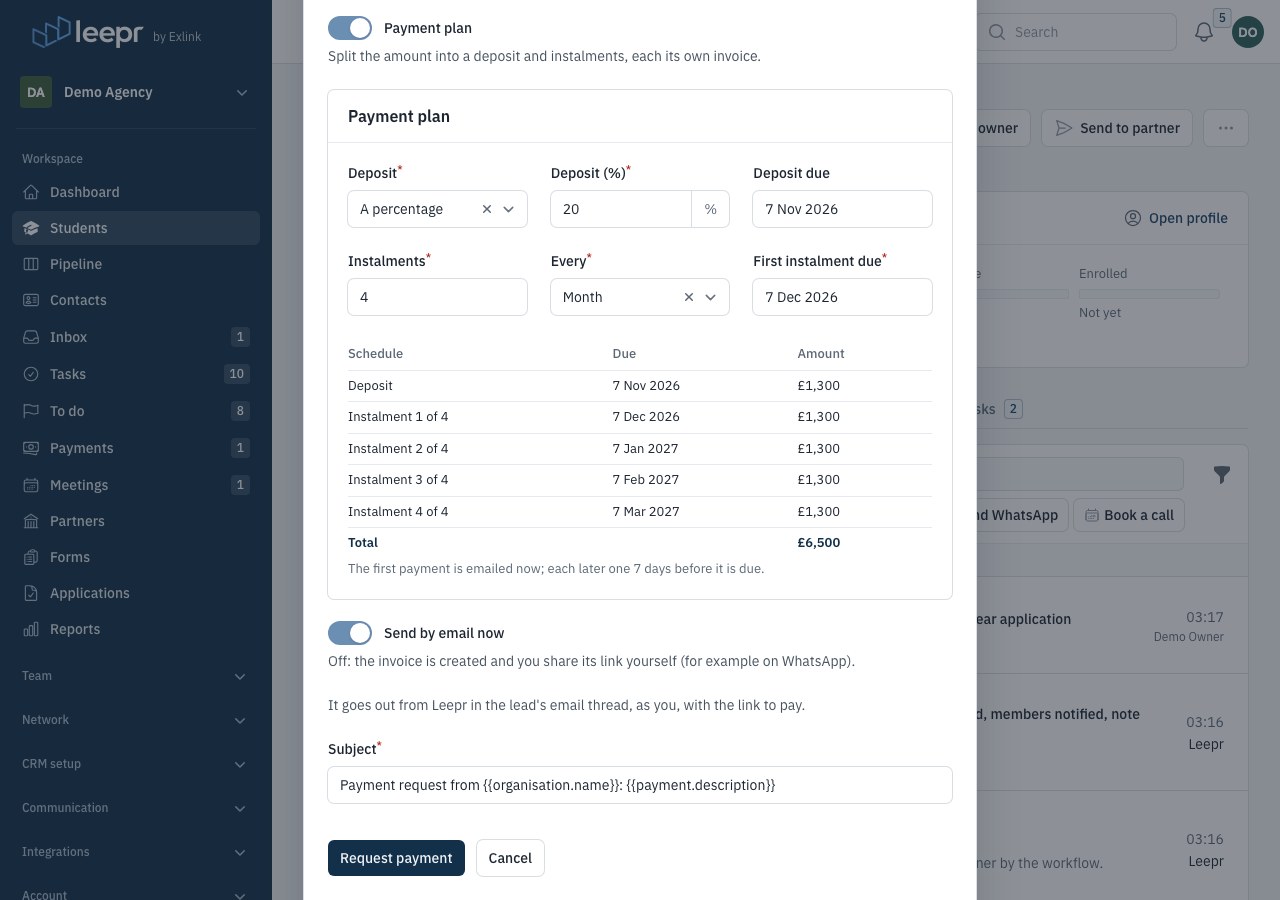
The first payment is emailed now and each later one 7 days before it is due; until then it shows Scheduled. The family can pay any of them early. On the Payments card and the Outstanding tab, a plan is one row at the payment it has reached; Show its payments lists them all, and Void plan voids the unpaid ones while paid ones stay paid.
Keep track of payments
The lead page’s Payments card shows what was requested, paid and outstanding, any overdue amount in amber, and the last three payments. A student profile has the same card for all of that student’s leads.
Workspace → Payments lists every payment across your leads, on four tabs: Outstanding, Overdue, Paid and All. The number beside Payments in the menu counts the overdue ones.
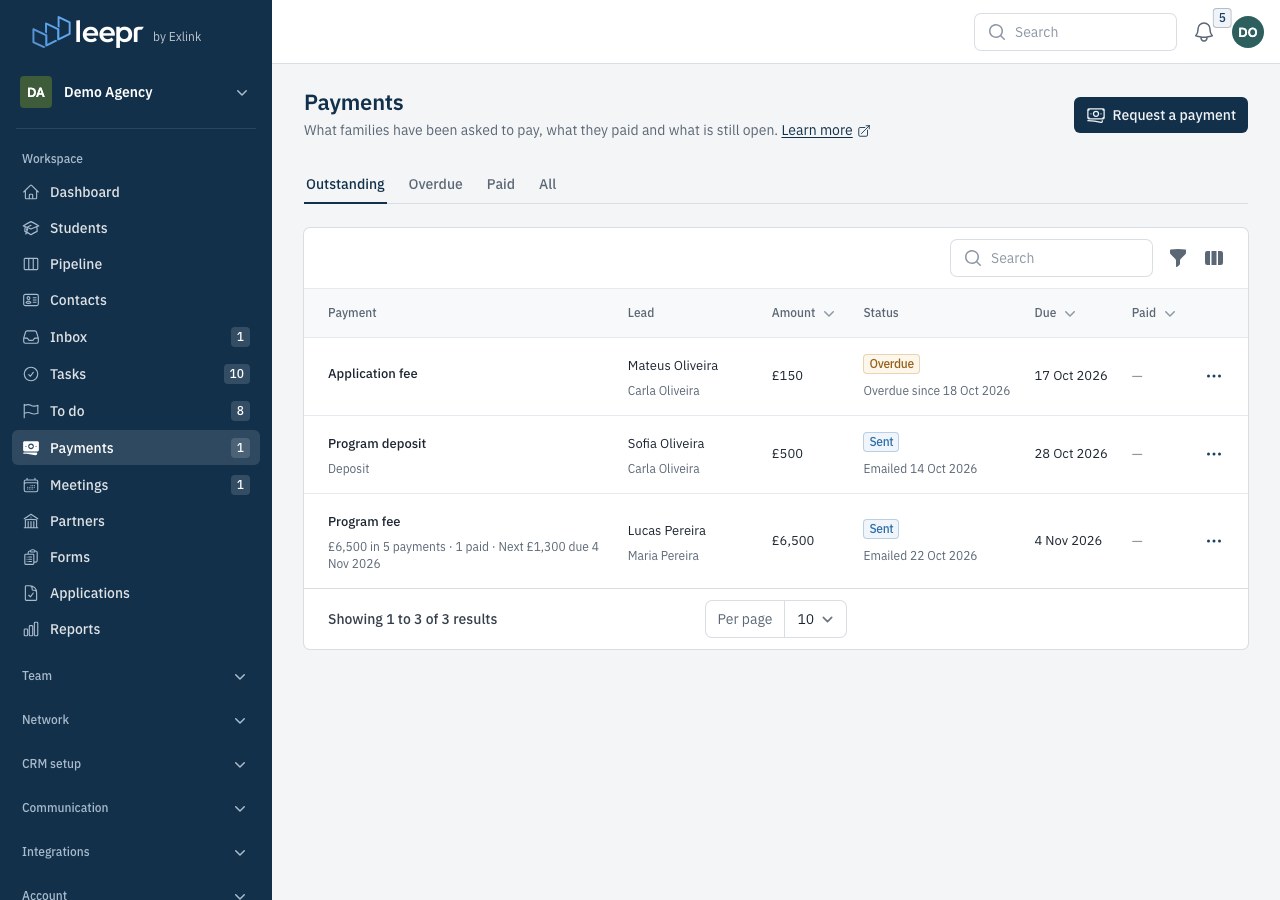
A row’s ⋯ menu has, depending on the payment and your permissions, Copy link, Send again, Download PDF, Mark as paid by bank transfer and Void.
Once you have requested a payment, the dashboard’s Payments tile shows what is Due this week and Overdue. With View reports on conversion and counsellors as well, Workspace → Reports adds Payments collected per month and Payments by type: what was asked, collected, refunded and still open, and the average days to pay.
When a payment arrives, the lead’s timeline says “Payment received” and any workflow that starts with A payment is received runs.
Record a bank transfer
When a family pays by bank transfer outside Stripe, choose Mark as paid by bank transfer in the payment’s ⋯ menu. Enter the day it was Received on and, optionally, the Bank reference. Stripe marks the invoice paid, so its page and PDF say paid, and the lead’s timeline says “Payment recorded by hand”.
Overdue payments
A payment becomes Overdue once its due date has passed in your organisation’s time zone. The Chase overdue payments workflow is on by default: it emails the payer the Payment reminder template, with the link to pay, and gives the lead’s owner a call to chase it, due two days later. Change it or turn it off in Communication → Workflows. Stripe sends no reminders of its own.
To remind a family yourself, choose Send again: the same link goes out in a new email in the payment’s thread, or from Stripe if you cannot write in that thread. On the Overdue tab, select several payments and click Send reminders.
To act on overdue payments your own way, build a workflow that starts with A payment is overdue, filtered by Payment types and an At least amount if you like (Tasks and workflows).
Void, refund or dispute
Void cancels a payment that is no longer owed: the invoice is voided at Stripe and its link stops working. This cannot be undone.
Refunds happen in your Stripe dashboard. Leepr picks them up and shows the payment as Refunded or Partly refunded; the Payments card counts what was paid net of refunds. Disputes are handled in Stripe too; Leepr does not follow them.
Disconnect Stripe
Disconnect on the Stripe tab stops Leepr following your account, which stays yours and keeps working. The branches and sub-agents that collect through it can no longer request payments; the confirmation says how many there are. Payments still open keep their links and their money still reaches you, but you void them or mark them paid in Stripe, and a plan’s later payments are not sent. Connecting again creates a new Stripe account.
What Leepr never sees
Families pay on Stripe’s page: their card details go to Stripe, never to Leepr. Leepr only hears from Stripe what happened to each invoice: sent, paid, voided or refunded, and the amounts.
Merge fields in templates
Four merge fields, under Payment, put a payment into any email template: {{payment.link}}, {{payment.amount}}, {{payment.due_date}} and {{payment.description}}. They show the payment being sent, or else the lead’s most urgent open one: overdue first, then the one due soonest. In emails you write yourself, they stay empty unless you have View payments and payment requests; a workflow’s emails always fill them in.