

Account
Branches and sub-agents
Last updated:
This article explains what branches and sub-agents are, who pays for each, who sees what, how they collect payments, and how to add one or bring in an agency that already uses Leepr.
What branches and sub-agents are
A branch is an office of your own company, for example “ACME Spain” under ACME. A sub-agent is a separate company that recruits students for you.
Both see and are seen the same way. The difference is who pays: a branch is billed through you, and a sub-agent pays for itself (Billing, below). The organisation directly above one can switch it from one to the other.
Each branch and sub-agent is a full organisation in Leepr, with its own web address, Owner, roles, members and data. A branch can have branches and sub-agents of its own, down to five levels below the top of the group.
You find them under Network → Branches & sub-agents. The tabs All, Branches and Sub-agents sort them, and the filter Direct children only hides the ones further down. The Address column shows each one’s web address, and links to it when you are also a member there.
Who sees what
What you can see only goes down the group, never up or sideways:
- Members of your organisation who hold View sub-agents see the records of every branch and sub-agent below you, at every level: leads, contacts, students at partners, applicants, tasks and partner connections. In the Inbox they also see their conversations when they can View all conversations. These lists then show an Organisation column and filter.
- Those records are read-only for you. Your dashboard and your pipeline board show your own organisation only.
- A branch or sub-agent never sees your records, those of its sibling branches and sub-agents, or anything else outside its own part of the group.
- Some things stay with each organisation, even for you: workflows, integrations, the audit log and payments from families, except the payments your branches and sub-agents request on your own Stripe account (Payments from families, below).
Roles and members do not pass down. Being an Owner or a Manager here gives you no place in a branch: each organisation has its own Owner, who invites its own members.
View sub-agents is on the Owner, Admin, Manager and Viewer roles from the start. Manage sub-agents, which creates, invites and suspends, is on the Owner and Admin roles. You can change either in Team → Roles (see Members, roles and sub-agents).
Create a branch or sub-agent
You need the permission Manage sub-agents.
- Go to Network → Branches & sub-agents and select New branch or sub-agent.
- Choose Branch or Sub-agent: a branch is billed through you, a sub-agent pays for itself, and you can change this later. If you already have branches or sub-agents, choose the Parent organisation it goes under.
- Enter the organisation name, country, time zone and the Owner email.
- Select Create and invite owner.
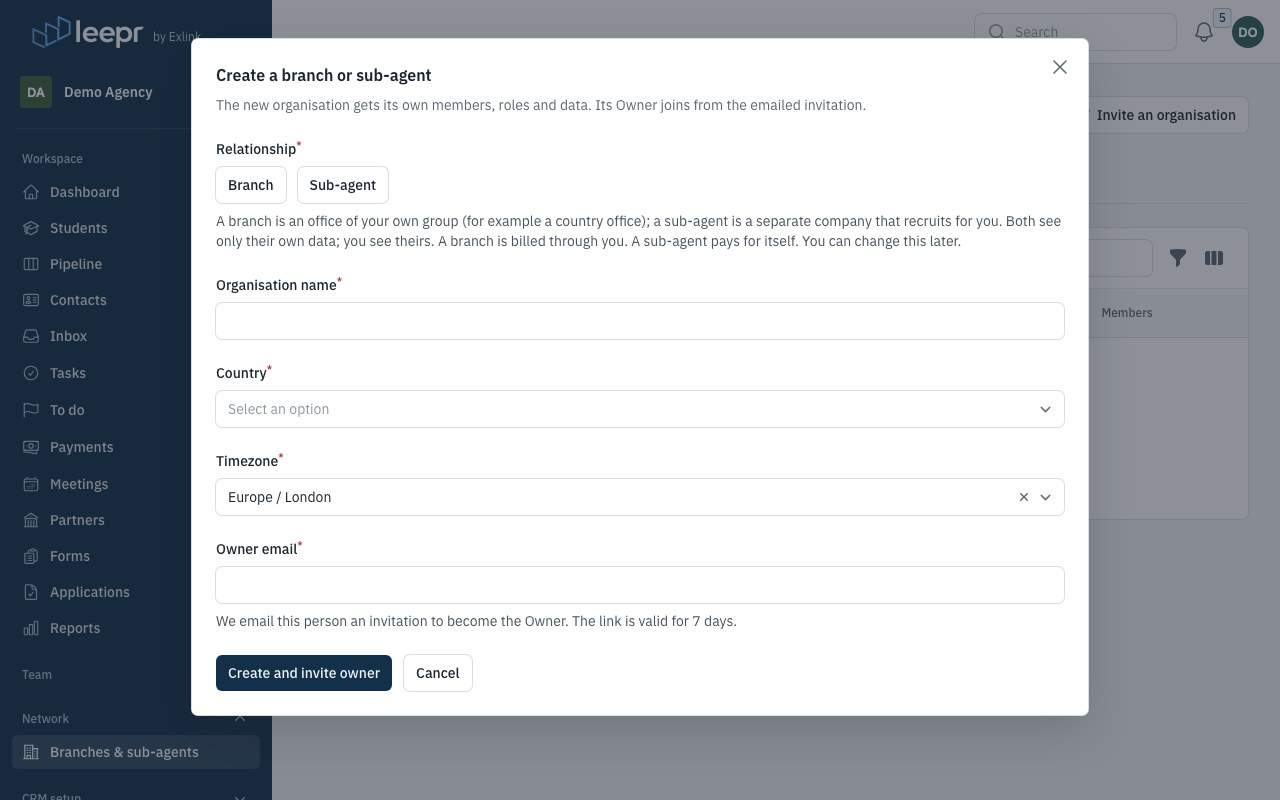
The new organisation starts with the five roles, a pipeline and lead sources, and the setup choices you made for your own. The person you named receives an invitation, valid for 7 days, to become its Owner. They sign in or create an account with that address and select Become Owner of …, which carries the organisation’s name. From then on they run it: they invite its members and finish its setup.
Pending invitations appear below the list, where you can Resend or Revoke them. If an invitation expired or went to the wrong address, Invite owner on the organisation’s page sends a new one.
Invite an agency that already uses Leepr
Two agencies that signed up separately can be joined later. Say agency A and agency B both use Leepr, and B should become A’s branch or sub-agent:
- A member of A with Manage sub-agents goes to Network → Branches & sub-agents and selects Invite an organisation.
- They enter B’s Organisation address (the first part of B’s web address, as B sees it in the browser) and the email of B’s Owner in Owner email, and choose Branch or Sub-agent.
- They select Send invitation.
- B’s Owner receives an email, opens the link while signed in to B, reads what changes, and selects Join …, which carries A’s name.
A sees nothing of B until B’s Owner accepts. Then B moves under A with all of its own branches and sub-agents. Both agencies keep their logins, members, roles, settings and data, and B’s team keeps running B. What changes: A’s members with View sub-agents read B’s records, read-only, and A can suspend B.
Joining as a branch also moves B’s billing, so B’s Owner agrees to it explicitly. The page B’s Owner sees lists what changes in money: B is billed through A (or through A’s own payer when A is a branch, see Billing), whose card pays for B’s extra seats, connected programs and applications; B’s own subscription ends with its current billing period, B’s open invoices stay B’s, and B’s unused free credits are forfeited. B’s Owner ticks “I agree that … is billed through … from now on” before they can join. Joining as a sub-agent changes nothing in B’s billing.
The rules:
- B must not already belong to a group. If the address is wrong or B cannot join, the form says No organisation that can join a group has this address.
- As a branch, B must be billed in the same currency as the organisation it will be billed through; if not, accepting is refused, and A can invite B as a sub-agent instead.
- Only B’s Owner can accept, signed in to B with the invited email address. Both sides agree: A by inviting, B by accepting.
- The whole group can be at most five levels deep, counting B’s own branches and sub-agents.
- The invitation expires after 7 days. Until then, you can Resend or Revoke it from the pending invitations below the list.
- Joining cannot be undone from Leepr.
What you cannot do yet
- A branch or sub-agent cannot leave its group, and you cannot move one under another parent.
- You cannot delete a branch or sub-agent; you can suspend it (below). Its own Owner can close it like any organisation, and closing your organisation closes your branches and sub-agents with it (see Security and privacy).
Suspend a branch or sub-agent
You need the permission Manage sub-agents. Select Suspend in the ⋯ menu of its row, or of its page. Its members lose access until it is reactivated, and you keep read-only access to its data. Suspending one does not suspend the branches and sub-agents below it.
To lift it, select Reactivate. You can lift a suspension made by your organisation or by one below it, but not one made by an organisation above you or by Leepr support.
Billing
The difference between a branch and a sub-agent is who pays.
- A branch is billed through its parent. More exactly, through its payer: the nearest organisation above it that is not a branch. A branch of a branch is billed through the same payer, and a branch under a sub-agent is billed through that sub-agent. The payer’s card pays for the branch’s extra seats, connected programs and applications, and they appear on the payer’s invoice, each line starting with the branch’s name. The branch uses the payer’s free credits and VAT number, and is billed in the payer’s currency.
- A sub-agent pays for itself, with its own card, seats, programs, applications, invoices, 3 free credits and 3 free applications. Your organisation never pays for it.
Every organisation keeps its own free first seat, branches included. A branch gets no launch offer or free applications of its own: while its payer’s launch offer runs, the branch’s charges are free too, and its applications draw on the payer’s free applications. Prices are in Billing and credits.
Who sees what in billing
- A branch never sees its payer’s card, VAT number or invoices. Its Account → Billing page says “Billed through” its payer and shows what the branch itself uses: its programs, applications, seats, the prices and the payer’s free credits left. A member who is also a member of the payer gets a link to the payer’s Billing page.
- The payer’s Account → Billing lists Branches you pay for: for each branch, this month’s members and extra seats, programs billed and applications sent, and what they add up to. These are counts, never the branch’s records.
- On Network → Branches & sub-agents, the Billing column reads “Through you” for a branch you pay for, “Through” an organisation’s name for a branch billed through one of your sub-agents, and “Through your group” when its payer is above you. For a sub-agent, it shows its billing state. You cannot change a sub-agent’s billing from your organisation.
If the payer’s card is removed or a payment fails, the partner connections of the payer and of every branch it pays for pause, until the payer’s billing manager updates the card. A branch never pauses on its own, and its members are told to ask the payer’s billing manager.
Switch a branch or a sub-agent
The organisation directly above it switches it, with the permission Manage sub-agents: choose Make a branch or Make a sub-agent in the ⋯ menu of its row, or of its page. Both organisations must be active. The confirmation spells out what happens to the money before you confirm.
Make a branch: from now on it is billed through its payer.
- Its connected programs and applications go on the payer’s invoice from now on, and its extra seats from the next billing run.
- It gets one last invoice of its own, paid with its own card, for what it had used before and not yet been invoiced for.
- Its own subscription ends with its current billing period; its open invoices stay its own.
- Its unused free credits are forfeited; the confirmation says how many.
- It is refused when the two are billed in different currencies, and when the payer has no working card yet while the new branch uses something paid (a partner connection or an extra seat).
Make a sub-agent: from now on it pays for itself.
- The payer stops paying for its seats at the next billing run, and its programs and applications leave the payer’s invoice.
- It has no card yet, so its partner connections pause until its Owner adds one in Account → Billing. Its Owners get an email and a notification saying so.
- It gets no free credits.
Payments from families
Each organisation can connect its own Stripe account to collect payments from families (Payments). One that has not connected its own collects through the Stripe account of the nearest organisation above it that has one:
- A branch does so by default: always, when every step up to that organisation is a branch.
- A sub-agent, or a branch below a sub-agent, does so only while that organisation shares its account with sub-agents: the switch Let sub-agents without their own Stripe account collect through ours on Integrations → Payments, off at the start.
- Leepr never looks further up than the nearest organisation with a Stripe account, and never uses the account of a suspended organisation. When none can be used, the branch or sub-agent connects its own.
- An organisation that connects its own Stripe account collects through it from then on.
The money of a payment collected through your account goes to your Stripe account. The request itself, its plan and its timeline entry belong to the branch or sub-agent that made it, on its own lead. It uses your payment types, read-only. A request stays on the account it was made on: if the branch later connects its own account, or you stop sharing, its earlier requests are still followed on yours, because a Stripe invoice cannot move.
On Integrations → Payments, the Branches and sub-agents section shows you how each organisation below you collects (“Collecting through you”, “Own Stripe account”, “Not collecting (sharing is off)” and so on) and, for those that request payments on your account, how many are open, outstanding and collected this month, with their latest requests under Show payments on your account. You see these because they are invoices on your Stripe account too; you cannot change them, and nothing else of their payments shows on your side.
Logo and colour
A branch or sub-agent without a brand of its own shows the brand of the organisation above it: the logo, the square mark and the accent colour, on its sidebar, its public pages and the emails it sends. When you change your brand, theirs changes with it.
Its Owner can choose Use our own in the Brand section of Account → Organisation profile and add a logo, a mark or a colour; that brand then replaces yours entirely. Use the brand of …, which carries your name, switches back. An agency that joins your group later shows your brand too, unless it has its own.
Questions
Two agencies signed up separately. Can one become the other’s sub-agent or branch? Yes: the agency that will be on top sends an invitation, and the other agency’s Owner accepts it. Both keep their accounts and data. See Invite an agency that already uses Leepr.
Should we make an office a branch or a sub-agent? Choose by who pays. If your organisation pays for the office, make it a branch. If it pays for itself, with its own card and invoices, make it a sub-agent. You can switch at any time; the confirmation tells you what happens to the money.
Can a sub-agent see our other sub-agents? No. A branch or sub-agent sees only itself and what is below it, never its siblings or you.
Can we work in a sub-agent’s leads? You can read them, but not change them. Ask the sub-agent to make the change, or ask its Owner to invite you as a member there. You can add a new lead for a branch or sub-agent: when you see theirs, New lead asks which Organisation it belongs to.
Do members of our organisation automatically have access to a branch? Only members whose role holds View sub-agents, and only to read. To work inside a branch, a person must be a member of it.