

Account
Members, roles and sub-agents
Last updated:
This article covers your team in Leepr: inviting members, giving them roles, adding branches and sub-agents, and reading the audit log.
Members, roles and invitations belong to the organisation you are working in and give nothing in another.
Members
Team → Members lists everyone in your organisation with their roles, status, the date they joined and their last sign-in. Open a member’s ⋯ menu to Edit or Remove them.
On the edit page you change two things:
- Roles: a member can hold several roles and gets every permission of every role they hold.
- Status: Active or Suspended. A suspended member cannot open the organisation until you set them back to active, and does not count as a paid seat while suspended.
Remove takes the member out of this organisation and all of its roles right away. Their account and their other organisations are not affected.
A few rules protect the organisation. You cannot remove or suspend yourself. The organisation always keeps at least one active Owner, so you cannot remove, suspend or demote the last one: make someone else an Owner first. You can only change a member if you hold every permission they have.
Invite a member
You need the permission Invite members.
- Go to Team → Members and select Invite member.
- Enter the person’s email address and choose a Role.
- Select Send invitation.
The person receives an email with a link. The link works once and expires after 7 days. They can create an account with the invited address, sign in if they already have one, or continue with Google or Microsoft. An account created from an invitation needs no separate email confirmation.
Your first seat is free. The second member is a paid seat, so the organisation needs a card on file before you can invite them (see Billing and credits). Until then, Invite member tells you what billing needs.
Team → Invitations shows pending invitations by default; use the status filter to see accepted, revoked and expired ones. From an invitation’s ⋯ menu:
- Resend emails a new link and the previous one stops working. The new link expires after 7 days.
- Revoke stops the link working right away.
If the invitee opens the link while signed in with a different email address, Leepr shows This invitation is for someone else with a Sign out and continue button.
Roles and permissions
Team → Roles lists your organisation’s roles. Every organisation starts with five:
| Role | What it covers |
|---|---|
| Owner | Full access, including billing and organisation settings. Cannot be edited or deleted. |
| Admin | Everything except billing and editing the organisation itself. |
| Manager | Runs the lead pipeline and tasks, and oversees members, sub-agents, connections and the audit log. |
| Agent | Works leads (view, create, edit), manages tasks and sees connections. |
| Viewer | Read-only access to everything they can see. |
The Owner role is locked: you can open it to read its permissions, but nobody can change or delete it.
To change another role, open it and tick or untick permissions, then select Save changes. To make your own, select New role, give it a name and a description, and tick what it may do. Permissions are grouped by area (Leads, Contacts, Messages, Billing and so on), and Select all ticks a whole group.
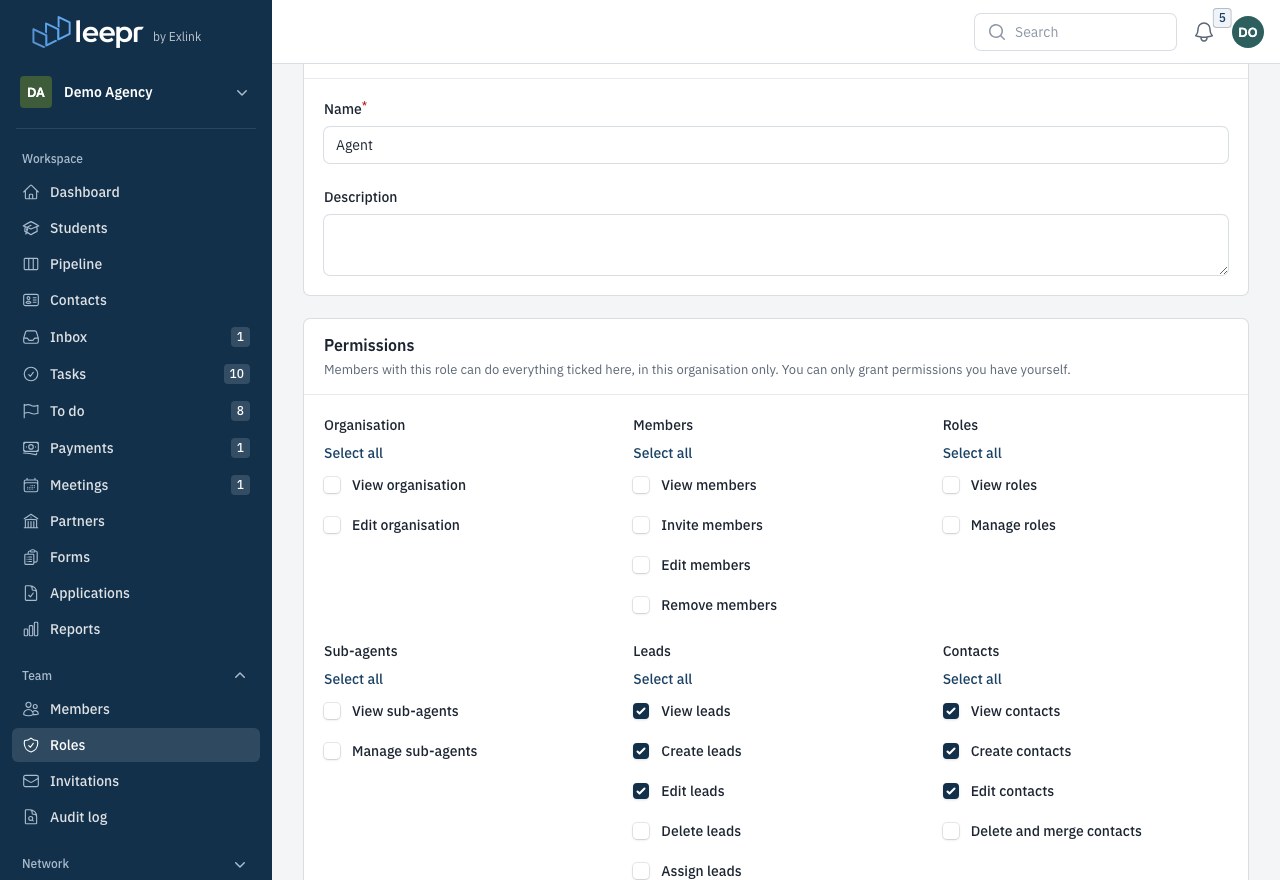
Nobody can hand out more than they have. You can only grant a permission you hold yourself, and you can only edit a role or a member if you hold every permission it has. An Admin, for example, cannot give anyone billing access or make anyone an Owner.
To let another role handle billing, tick Manage billing on it; its members can then use Account → Billing.
A role cannot be deleted while members hold it or pending invitations use it. Give those members another role, or revoke the invitations, first.
When Leepr adds a new permission, the Owner role receives it, and so does every starting role you have not changed. Roles you edited or created keep exactly what you ticked.
Branches and sub-agents
A branch is an office of your own group, for example a country office. A sub-agent is a separate company that recruits for you. Both are full organisations in Leepr, with their own web address, members, roles and data. A sub-agent pays for itself; a branch is billed through you. Members who hold View sub-agents read their records, read-only; they never see yours.
Branches and sub-agents explains how to create one, invite an agency that already uses Leepr to join you, suspend one, and what each side sees.
The audit log
Team → Audit log records who did what in your organisation, such as members invited, roles changed or leads moved. Open a row’s details to see exactly what changed. Filter by Event, Subject type, Who, and a date range with From and Until.
The log shows your organisation only, not your branches’ or sub-agents’. Changes made by our support team appear as Leepr support. You need the permission View audit log.
Two-factor authentication for members
Each member turns on two-factor authentication on their own Profile, under the avatar at the top right: an authenticator app, email verification codes or both. It is each member’s own setting; there is no organisation setting that makes it compulsory, so ask your team to turn it on. Security and privacy shows the steps.