

Start
Connect a partner
Last updated:
Partners are the organisations you send students to; this article covers connecting one, what Leepr reads from the connection and how to bring your students in.
You connect the account you already have at a partner on Exlink, such as a J-1 visa sponsor. Your students there then appear in Leepr and stay up to date on their own.
Before you start
- Your sign-in at the partner: the email and password you use there. Your role at the partner must be allowed to create API keys.
- The right to connect: Owners and Admins can connect partners (the Manage connections permission in Team → Roles).
- A card on file: connecting is billed for students in an active program (see “What connecting costs” below). Agencies in the EU and the UK also need a confirmed VAT number.
Connect a partner
- Go to Workspace → Partners and choose Connect a partner.
- System: choose Exlink. If your partner uses another system, choose Request it on Another partner system to tell us.
- Email: enter the email you sign in with at your partner and choose Find my partners. Leepr uses it only for this lookup, which can take up to 30 seconds.
- Partner: choose your partner from the list and choose Continue. If it is not there, choose My partner isn’t listed and enter the address you sign in to at the partner, such as https://yourpartner.exlink.us.
- Approve: check what connecting costs. Without a card on file, the step asks for one first: members who manage billing (Owners, by default) choose Add a card and come back to the same step; other members see whom to ask. Then choose Sign in at …, which carries your partner’s name.
- At the partner, sign in with your password there, choose a role if you have more than one, and approve Leepr. The partner sends you back to Leepr.
- Your students: Leepr starts reading your students and offers to bring them in, as described below.
If the connection does not go through, a notification says why, for example that the sign-in expired (start again from Partners) or that the partner did not accept it (check that your role there may create API keys).
What you approve at the partner
You approve Leepr on the partner’s own page, signed in with your own password. Leepr never sees that password: the partner gives Leepr a key for the role you approved.
The role decides what Leepr can see. Leepr sees the students that role sees at the partner, no more. If you have roles for several of your agency’s offices, connect each role you need; each one is a separate connection.
To stop the connection, use Disconnect on the Partners page: Leepr forgets the key. To revoke the key at the partner as well, remove it from your API keys there.
What Leepr reads
Reading never changes anything at the partner.
| What | Kept in Leepr | Updated |
|---|---|---|
| Each student program: name, email, program, application status, program status, placement status and dates | Yes | About every 30 minutes, and shortly after the partner reports a change |
| The student’s phone, date of birth, citizenship, source and the partner’s reference numbers | Yes | Read once for each new student; Refresh from partner reads them again |
| What the partner waits for from you (documents, signatures, returned sections, travel, visa) and how far the application is | Yes | When the partner reports a change, and at least once a day |
| Details from the partner: program dates, travel, where the student lives, placement, school, host family and local coordinator | No | Read when you open the student’s page |
Your password at the partner, the student’s application answers and their documents are never copied into Leepr.
The Partners page
Workspace → Partners lists your connections.
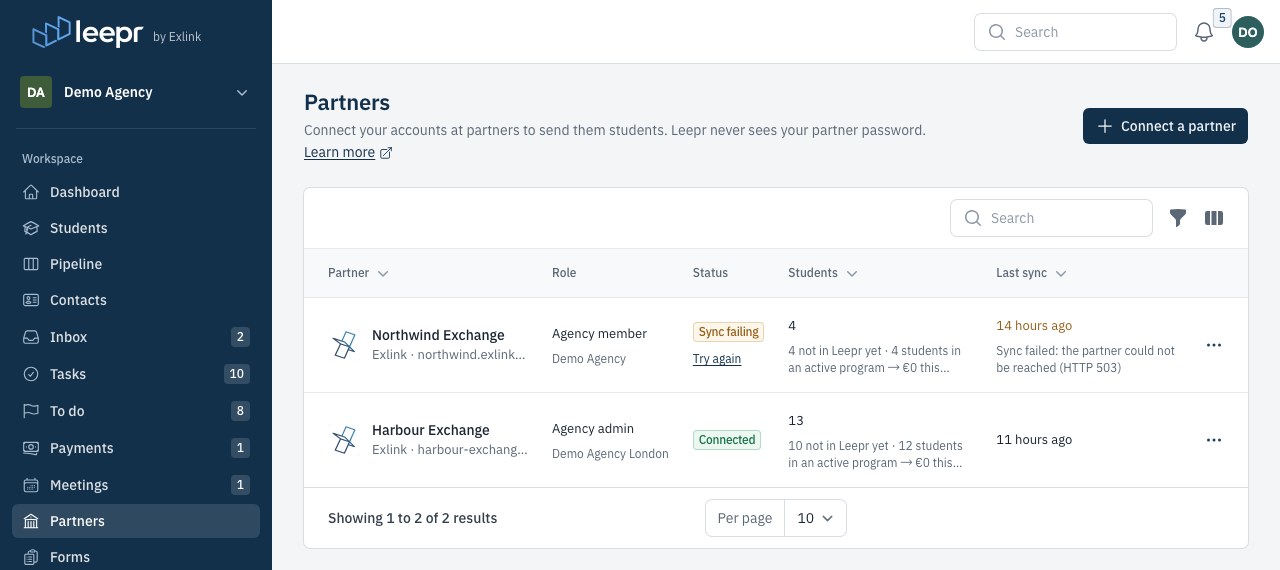
- Role: the role you approved at the partner, with your agency’s office there.
- Status: Connected, Needs reconnecting, Problem, Disconnected or Paused.
- Students: how many students Leepr has from that partner, how many are not in Leepr yet as people, and what the students in an active program cost this month.
- Last sync: when Leepr last read the partner. If the last read failed, it is amber and says why.
A connection’s ⋯ menu has Bring N students into Leepr, Sync now, Map fields (for applications, see Applications to partners), Re-check, Reconnect and Disconnect.
Map fields keeps choice answers by the partner’s option names, and tells you when the partner changes its form: a banner lists the questions that changed since you confirmed them, each with what changed, for you to Accept or map again. Refresh questions reads the partner’s form again. Both are explained in When a partner changes its form.
When you disconnect a partner and no other connection of yours reaches it, its students leave Students → At partners; reconnecting brings them back. People you already brought into Leepr stay.
Bring your students in
The connection’s last step, Your students, turns the students the partner lists into people in Leepr, with no typing and nothing to migrate. While Leepr reads them, it shows how many it has found so far; you can leave the page, and they keep arriving under Students → At partners.
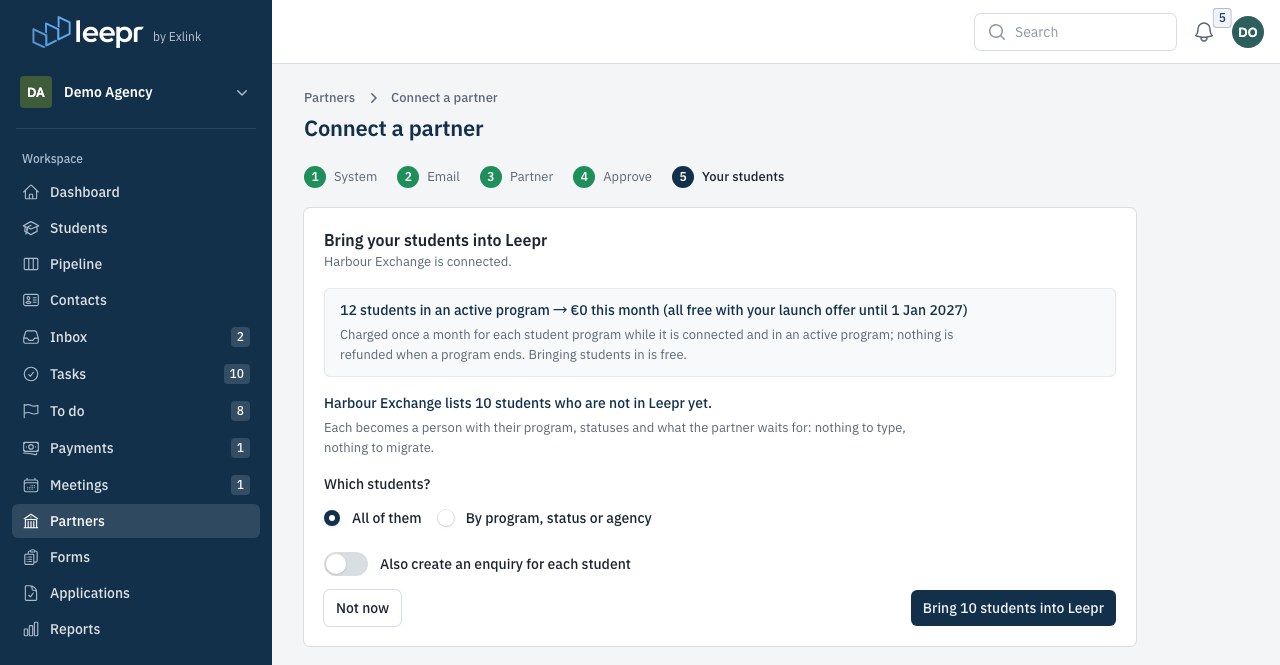
- Under Which students?, choose All of them, or By program, status or agency to pick some.
- Turn on Also create an enquiry for each student if you want a lead for each one, and choose its Stage.
- Choose Bring N students into Leepr, or Not now to do it later.
What bringing students in does:
- Each student becomes a person, with their partner, program, statuses and what the partner waits for on their profile. Someone already in Leepr with the same email is used instead, so a student at two partners is one person.
- A person with the same name and date of birth but another email is never merged. Leepr suggests the match and you confirm it on the profile.
- With the enquiry option, each student also gets an open lead in the stage you chose, linked to the student, with a lead source such as “Imported from Harbour Exchange” and no owner yet.
Bringing students in is free and changes nothing at the partner. A large group continues in the background, and the notification bell tells you when they are in, with View students.
You can bring students in later from Students → At partners (Bring students into Leepr, or select rows and choose Bring into Leepr), from a connection’s ⋯ menu on the Partners page, or from the dashboard’s checklist. Anyone who can see students at partners and create contacts can do it.
What connecting costs
Each student in an active program at a connected partner (applying, enrolled or attending, for example) costs €2 / $2 a month; students who are not in an active program are free. Every organisation that pays for itself starts with 3 free credits, used once: each one covers one student for one month (a branch uses its payer’s). Each student program is charged once a month, and nothing is refunded when a program ends. The Approve step shows the price before you sign in at the partner; the last step and the Partners page show the month’s numbers.
A card on file is required before you connect (in a branch, its payer’s). If the card is removed or a payment fails, every partner connection pauses, the branches’ too: nothing is read or sent and nothing is charged, while what was already synced stays visible. Updating the card resumes them. Details are in Billing and credits.