

Account
Security and privacy
Last updated:
This article covers how you sign in and protect your account, where your agency’s data is kept, and how to export it or close your organisation.
Sign in
Sign in at my.leepr.app with your email address and password, or select Continue with Google or Continue with Microsoft. One sign-in opens every organisation you belong to, each on its own web address.
Passwords need at least 12 characters, with upper- and lower-case letters and a number. Passwords found in known data breaches are refused. A new account confirms its email address through a link before it opens an organisation; an account created from an invitation is already confirmed.
On your Profile (the avatar at the top right), you can:
- change your password in New password;
- under Connected accounts, Connect Google or Microsoft to sign in without a password, or Disconnect one. Leepr does not let you disconnect your only way to sign in: set a password first with Forgot password? on the sign-in page.
A password reset signs your account out of every other browser.
Two-factor authentication
Two-factor authentication asks for a code after your password, so a stolen password alone cannot open your account. Leepr offers two kinds, and you can turn on either or both:
- Authenticator app: a 6-digit code from an app on your phone.
- Email verification codes: a 6-digit code sent to your email address.
Signing in with Google or Microsoft still asks for your second factor.
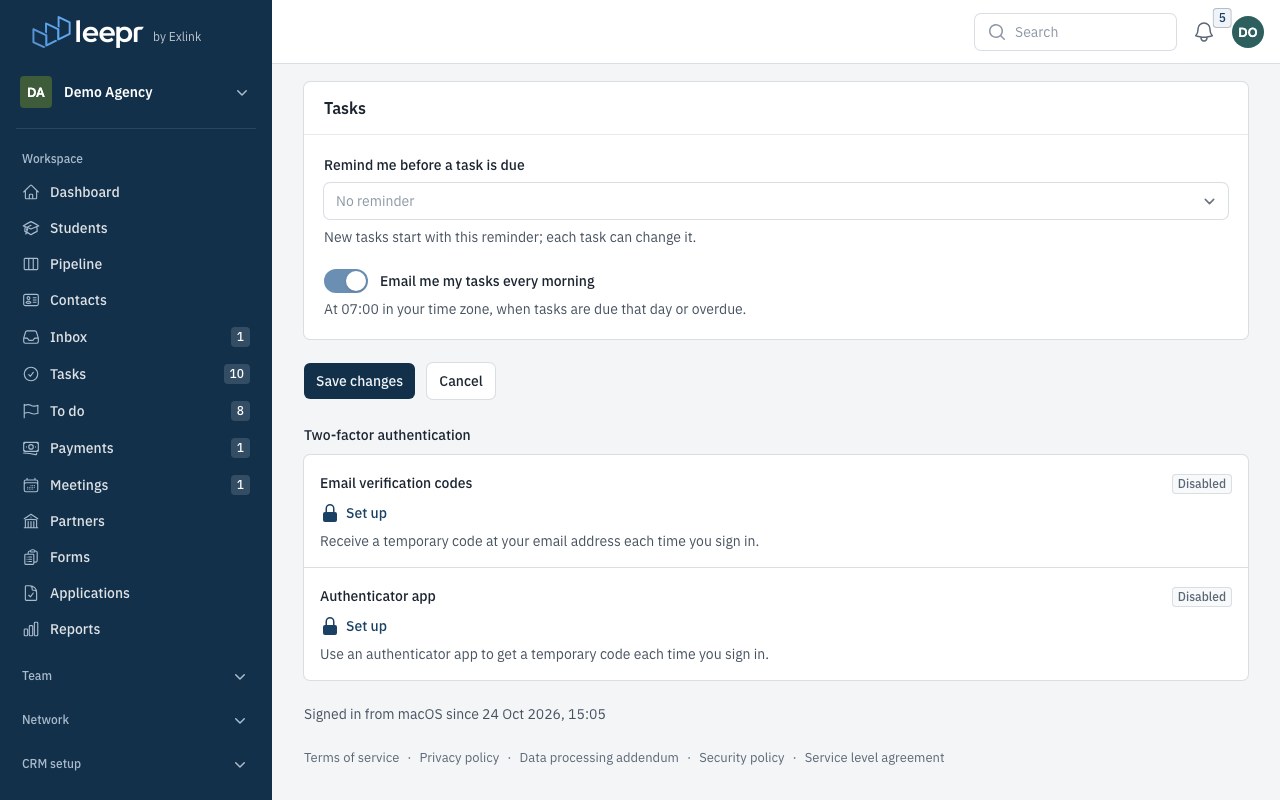
To set up an authenticator app:
- Open your Profile and find Two-factor authentication (2FA).
- Under Authenticator app, select Set up.
- Scan the QR code with your authenticator app, or type the code shown below it.
- Enter the 6-digit code from the app and your Current password, then select Next.
- Save the recovery codes: copy or download them and keep them somewhere safe. They are shown only once.
- Select Enable authenticator app.
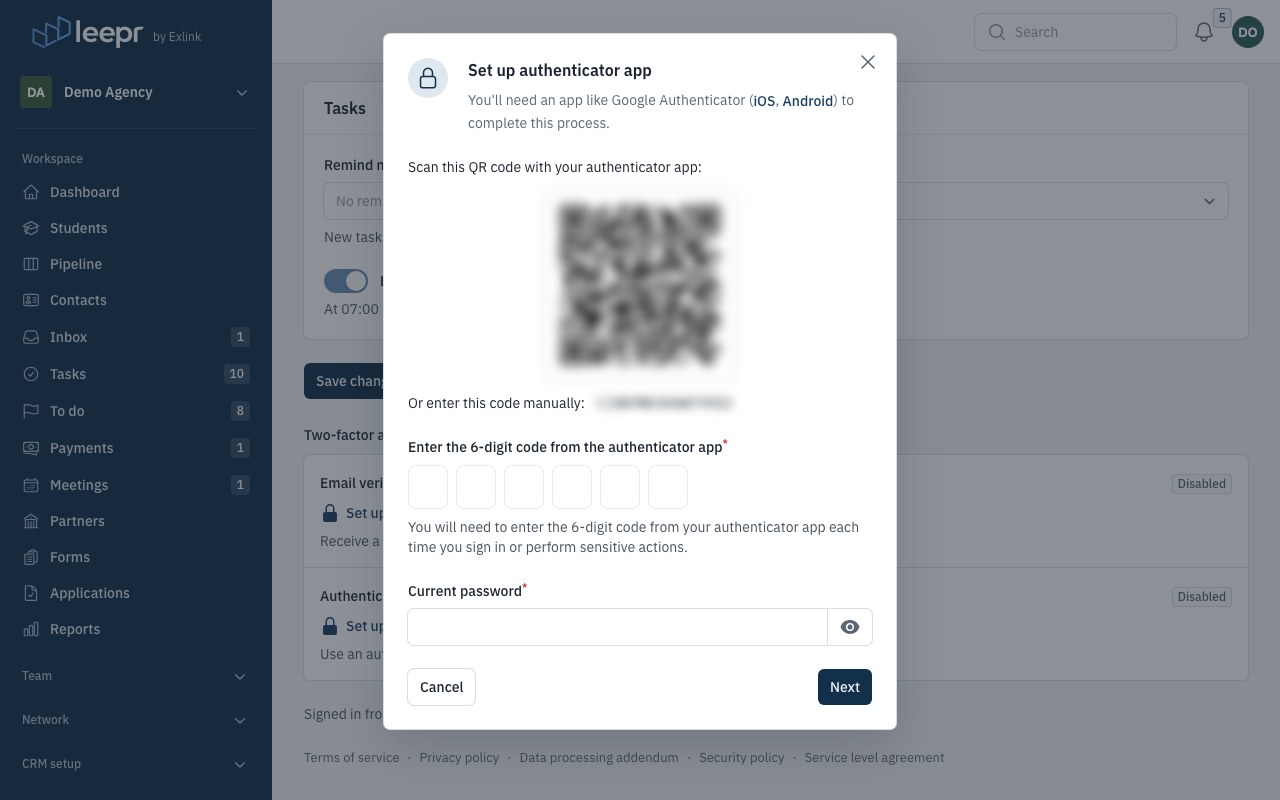
If you lose your phone, select Use a recovery code instead when Leepr asks for the code. Each code works once; Regenerate recovery codes on your Profile gives you a new set and cancels the old one.
For email codes, select Set up under Email verification codes and enter the code Leepr emails you.
Two-factor authentication is each member’s own setting. An organisation cannot make it compulsory, so ask your team to turn it on.
One session per member
Each member has one active session at a time. A seat is one person, so a login cannot be shared.
When you sign in on another device or browser, the browser you used before is signed out the next time you click or open a page in it. It then shows: “You were signed out because your account signed in on another device. If this was not you, change your password.”
This applies to every way of signing in: a password (after its second factor), Google, Microsoft, a browser that remembers your sign-in, and accepting an invitation. The latest sign-in always wins. Tabs in the same browser share one session and do not sign each other out.
Your Profile shows the browser you are signed in from and since when, for example “Signed in from Chrome on macOS since 14 Oct 2026, 09:12”. API keys for your integrations are not affected.
Where your data is kept
Leepr’s servers, database, stored files and email are in the European Union, behind Cloudflare. Some of the services Leepr uses, such as Stripe for payments and Google or Microsoft when you connect them, may process data outside the European Economic Area; the Privacy policy explains the safeguards.
- Data travels encrypted (HTTPS). Identification numbers, calendar connections and partner connection keys are also encrypted in storage. Backups are encrypted, taken daily and kept for 30 days.
- Uploaded documents, such as passports and transcripts, are never public. Leepr opens them through short-lived links, only for members allowed to see them.
- Only members whose role has Reveal sensitive values (passport numbers, ids) and export them can see values such as passport numbers.
- When you connect a partner, you sign in at the partner’s own system. Leepr never receives your password there.
- Your agency controls its students’ and families’ information. Requests from them about their data go to your agency.
Legal documents
The same five links are at the foot of your Profile. When you created your organisation, you agreed to the Terms of service and the Privacy policy, and Leepr recorded the version you agreed to. To report a security problem, write to [email protected]; for privacy requests, [email protected].
Export your data
You can download everything your organisation keeps in Leepr in one ZIP file. The organisation’s Owners can export, and so can members whose role lets them edit the organisation.
- Go to Account → Organisation profile and select Export your data.
- Leepr prepares the file; you can keep working meanwhile. One export runs at a time.
- When it is ready, Leepr emails you a download link. The link works for 72 hours and only for you. The page also shows your latest export with its size, expiry and a download button.
The file holds one CSV spreadsheet for each kind of record (leads, contacts, students, tasks, conversations, the audit log, billing and more), the files you uploaded under their original names, and a short README that explains the contents. An export of your organisation includes its branches and sub-agents; a branch’s or sub-agent’s export covers only itself. Each export and download is recorded in the audit log.
Close your organisation
Only an Owner can close the organisation. Export your data first: once it is closed, nobody can sign in to it.
- Go to Account → Organisation profile and find Close this organisation.
- Type the organisation’s name and your password.
- Read what will happen, then confirm.
When you confirm:
- members can no longer sign in, and anyone signed in is signed out;
- API keys, public forms and booking pages stop working, and sequences, workflows, syncing and reminders stop;
- every partner connection is disconnected;
- the subscription ends at once, and a final invoice bills what is still due; your past invoices are kept;
- its branches and sub-agents close with it (closing a branch closes only that branch).
Every member receives an email saying who closed the organisation and the date its data will be deleted. The Owner also receives a link to reopen it.
Leepr keeps a closed organisation for 30 days. Within that time, the reopen link makes it active again: add a card on Account → Billing and reconnect your partners. After 30 days, everything is deleted: records, files, and the accounts of members who belong to no other organisation. Backups that still hold the data expire within a further 30 days.