

Leads
Zapier
Last updated:
The Leepr Zapier app connects Leepr to lead ads, form tools, calendars, spreadsheets and the other apps Zapier works with; this article covers getting the app, connecting it, and what it can do.
Get the app
Until Leepr is listed publicly in Zapier, you add it to your Zapier account through an invitation link. Open Integrations → API & webhooks in Leepr and click Get Leepr on Zapier (or use the link directly: zapier.com/developer/public-invite/248011/…), sign in to Zapier if asked and accept. From then on Leepr appears in Zapier like any other app for everyone in your Zapier account.
Create the API key
Zapier signs in to Leepr with an API key. Owners and admins can create one (the Manage API keys and webhooks permission).
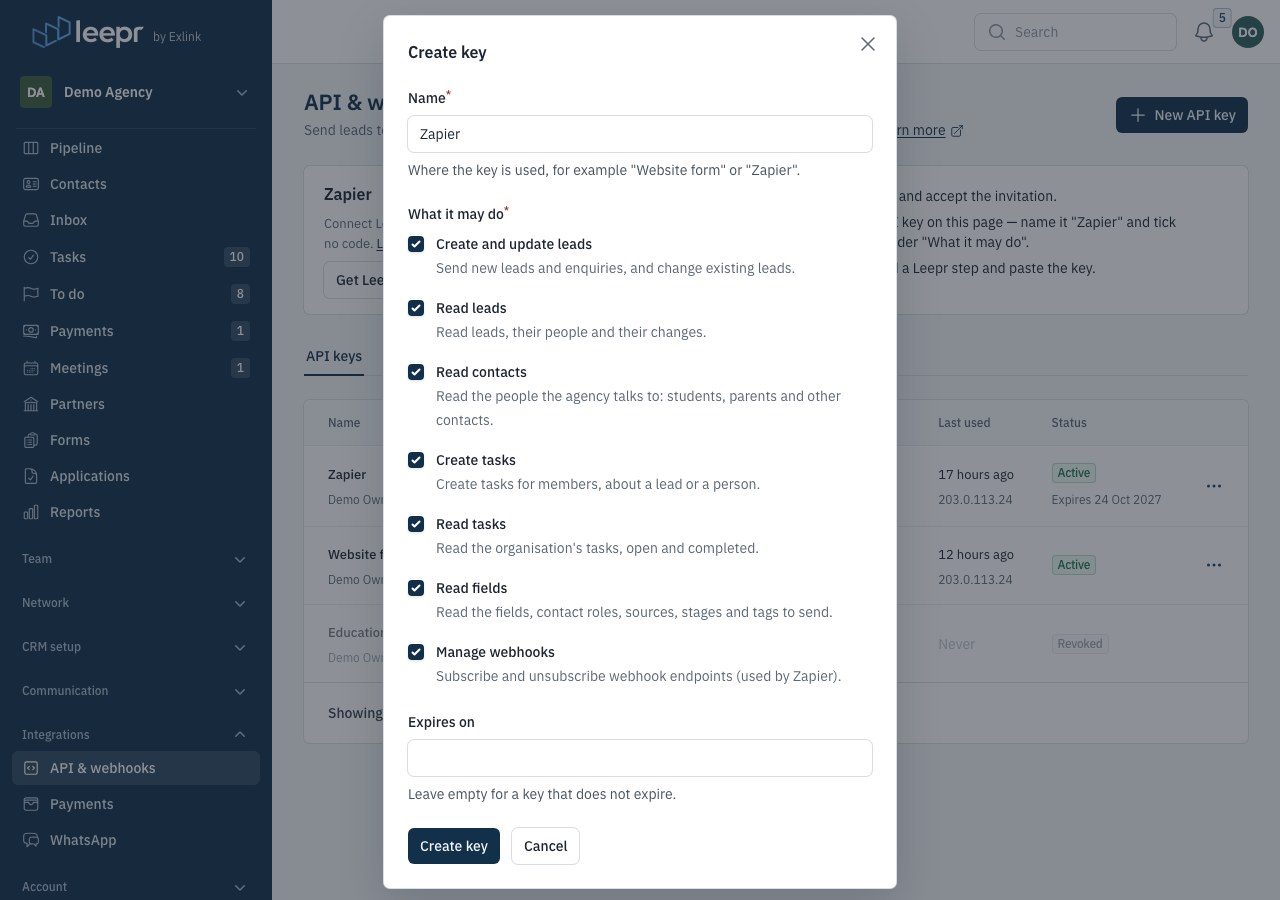
- Open Integrations → API & webhooks and click New API key.
- Enter a Name, such as “Zapier”.
- Under What it may do, tick all seven: Create and update leads, Read leads, Read contacts, Create tasks, Read tasks, Read fields and Manage webhooks.
- Leave Expires on empty for a key that does not expire, or choose a date.
- Click Create key.
Leepr shows the key once. Click Copy and paste it into Zapier straight away: after you close the dialog, nobody can see it again. If you lose it, revoke the key in its ⋯ menu and create a new one.
Connect Zapier to Leepr
In a Zap, add a Leepr step and connect a new account. Paste the key into API key and leave Leepr environment as Leepr. The connection is named after your organisation.
If the key is missing one of the seven abilities, Zapier refuses it and lists what it lacks; create a new key with all seven. If the key is revoked or expires, Zapier asks you to reconnect.
Triggers
A trigger starts a Zap when something happens in Leepr:
| Trigger | Runs when |
|---|---|
| New Lead | a lead is created: by hand, by an import, a form or the API |
| Lead Updated | a lead’s values, people or campaign details change |
| Lead Stage Changed | a lead moves to another stage |
| Lead Won / Lead Lost | a lead enters a won or lost stage |
| Lead Assigned | a lead gets another owner, or none |
| New Contact | a person is added: a student, a parent or any other contact |
| Task Completed | a task is completed |
Turning a Zap on adds an endpoint named “Zap: …” on the Webhooks tab of Integrations → API & webhooks; turning it off removes it. If you delete that endpoint in Leepr, the Zap stops until you turn it off and on again.
Actions and searches
- Create Lead sends a new lead: the student, the stage, source, owner, tags and notes, campaign details, consent, and your agency’s own fields. People are matched by email, so a student who already has an open lead gets a new enquiry on it instead of a duplicate. A stage, source, owner or tag that does not exist never stops the lead: it lands in your default stage, or without that value. Set Create missing source to Yes to add a new source.
- Update Lead changes only the fields you fill in. A stage, source, owner or tag that does not exist is refused, so a typo never moves or unassigns a lead.
- Create Task gives a member a to-do, call or email about a lead or a person, with a due date and priority.
- Find Lead looks for a lead by the email of the student or anyone on it, or else by phone. With Update the lead when found, it also changes the lead it finds. Find or Create Lead creates the lead when none is found.
Zapier retrying a step never creates a lead twice. Each key may send 120 requests a minute.
Example Zaps
- Lead ads into Leepr. Trigger: Facebook Lead Ads, New Lead. Action: Leepr, Create Lead. Map the name, email and phone, choose a source such as “Meta ads”, and map the form’s consent checkbox to Marketing consent and its wording to Consent text.
- A booked call becomes a task. Trigger: Calendly, Invitee Created. Actions: Leepr, Find Lead by the invitee’s email; Update Lead to move it to your call stage; Create Task “Prepare the call”, type Call, for the lead’s owner, due at the meeting’s start.
- Won leads into a spreadsheet. Trigger: Leepr, Lead Won. Action: Google Sheets, Create Spreadsheet Row, with the student’s name and email, the program and the owner.
Without the app
The Docs tab of Integrations → API & webhooks shows how to send leads with Zapier’s own “Webhooks by Zapier” and a key that may Create and update leads. It works without the invitation, but you map every field by hand.